Welcome!
                                  OSAC program
                              Date:- 1st June 2012

What we are doing today ?

- Brief introduction to UNIX system.
- Categorized list of commands.
- Examples of different commands.

                   -prepared by : Kedar Bhandari
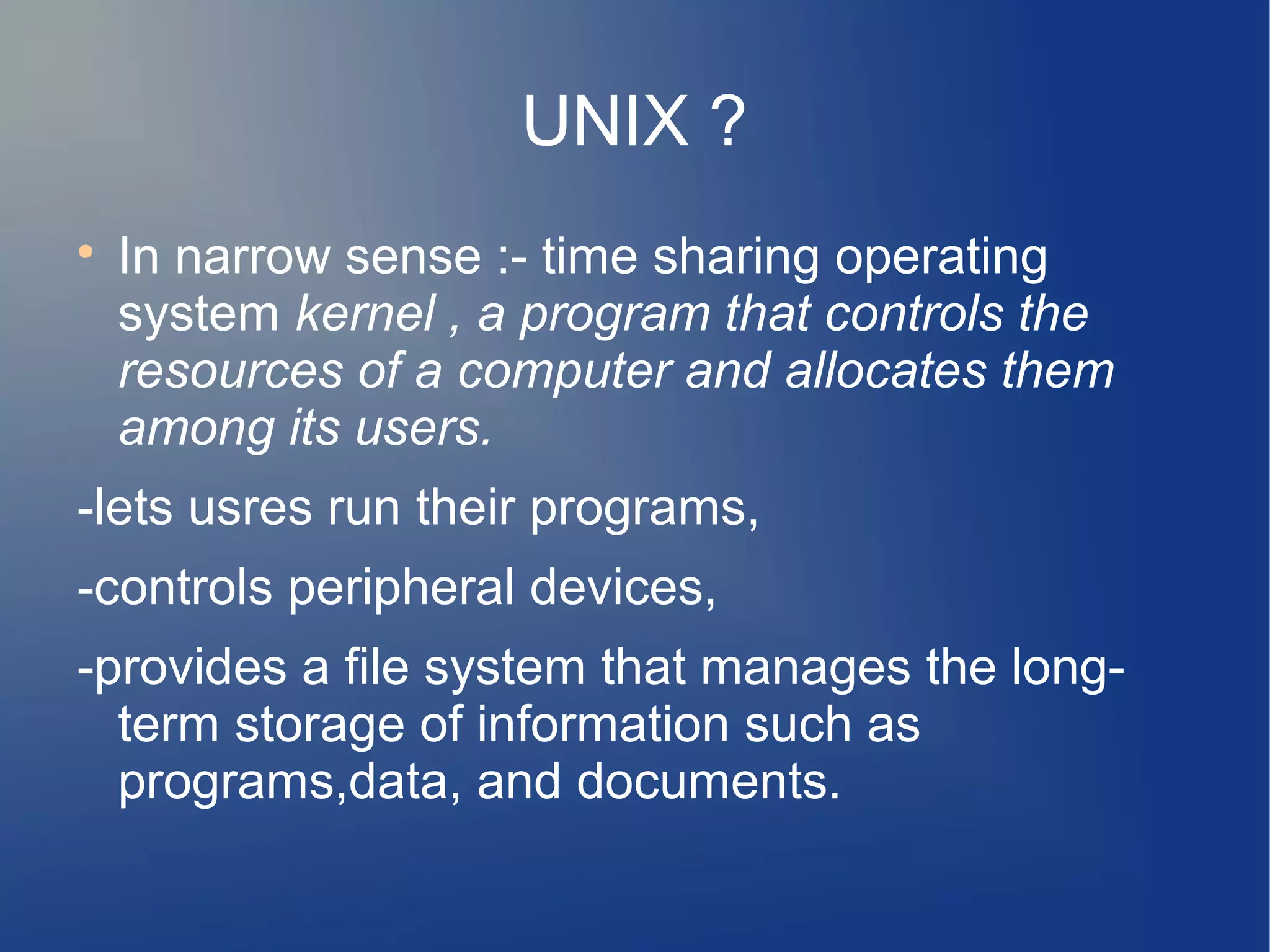
UNIX ?

    In narrow sense :- time sharing operating
    system kernel , a program that controls the
    resources of a computer and allocates them
    among its users.
-lets usres run their programs,
-controls peripheral devices,
-provides a file system that manages the long-
  term storage of information such as
  programs,data, and documents.
UNIX ? (contd.)

    In broad sense :- not only the kernel but also
    essential programs like compilers, editors,
    command languages, programs for copying
    and printing files, and so on.

    Still more broadly :- Unix may even include
    programs developed by you or other users to
    be runon your system, such as tools for
    document preparation, rutines for statistical
    analysis, and graphics packages.
A word of advice :
”Don't be afraid to experiment ”
-If you are a beginner, there are very few
   accidental things you can do to hurt yourself or
   other users. So learn how things work by trying
   them.
Terminal and typing


    UNIX system is ful duplex
- the characters you type on the keyboard are
   sent to the system, which sends them back to
   the terminal to be printed on the screen.(echo
   process).
- ordinary printing characters.
- some interpreet your typing, for eg. : the
  RETURN key.
Terminal and typing (contd.)
- control characters.
      : ctrl + m – RETURN key
      : ctrl + d – tell a program that there is no more
           input
      : ctrl + g – rings the bell on the terminal
      : ctrl + h – backspace
      : ctrl + i – the TAB
      : ctrl + c – Break
What is Shell?

    The shell provides you with an interface to the
    UNIX system. It gathers input from you and
    executes programs based on that input. When
    a program finishes executing, it displays that
    program's output.

    A shell is an environment in which we can run
    our commands, programs, and shell scripts.
    There are different flavors of shells, just as
    there are different flavors of operating systems.
    Each flavor of shell has its own set of
    recognized commands and functions.
Different types of shell

    * Bourne shell (sh)

    * C shell (csh)

    * TC shell (tcsh)

    * Korn shell (ksh)

    * Bourne Again SHell (bash)
System information commands

    df         -display filesystem

    free

    top

    uname -a       -system information

    lsb_release -a         -version information

    ifconfig

    iwconfig       -wireless specific information

    ps             -processes running
System information commands

    lspci    -all PCI buses

    lsusb    -USB buses

    lshal    -devices of Hardware Abstraction
    Layer

    lshw -lists hardware in the system
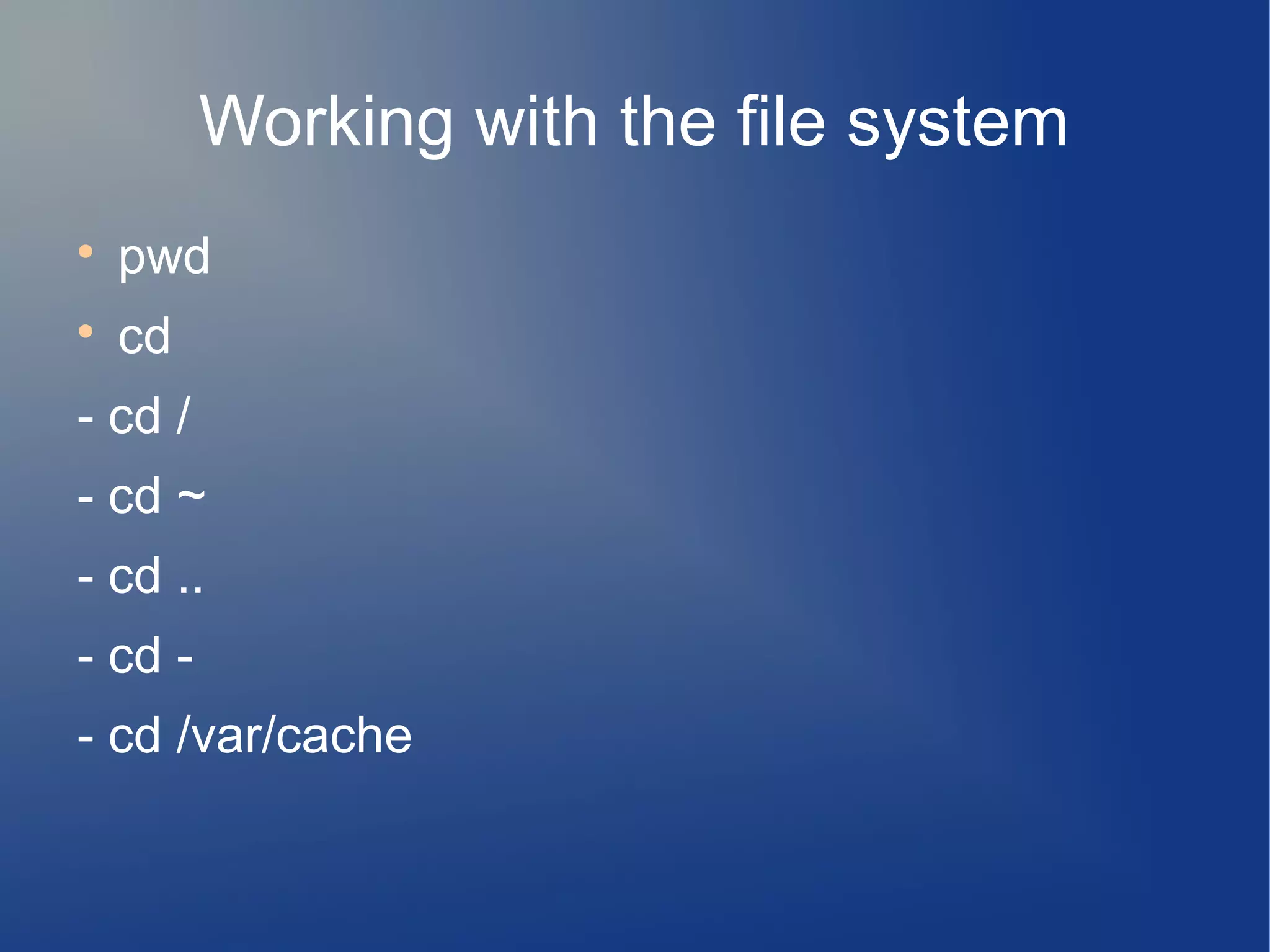
Working with the file system

    pwd

    cd
- cd /
- cd ~
- cd ..
- cd -
- cd /var/cache
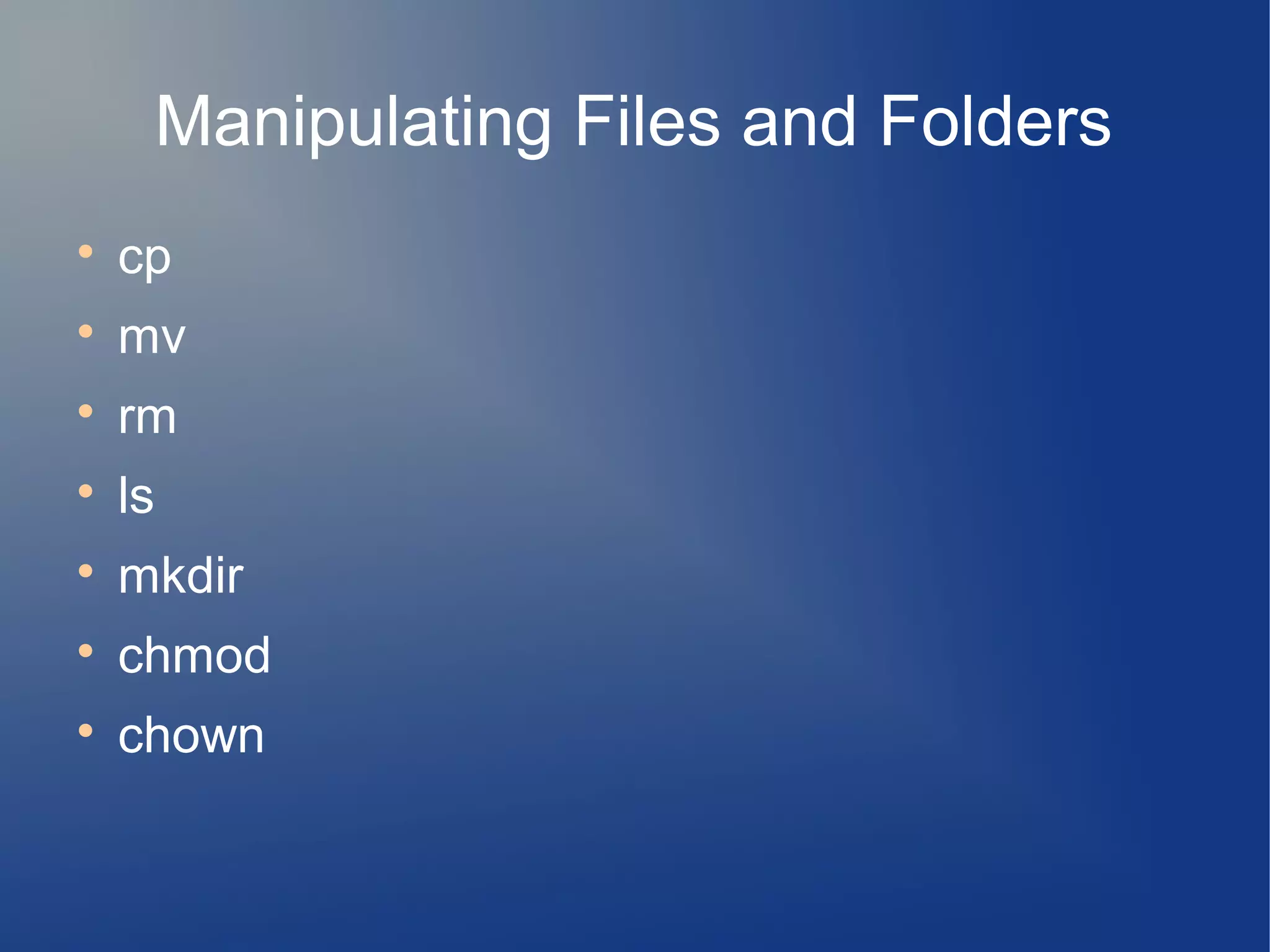
Manipulating Files and Folders

    cp

    mv

    rm

    ls

    mkdir

    chmod

    chown
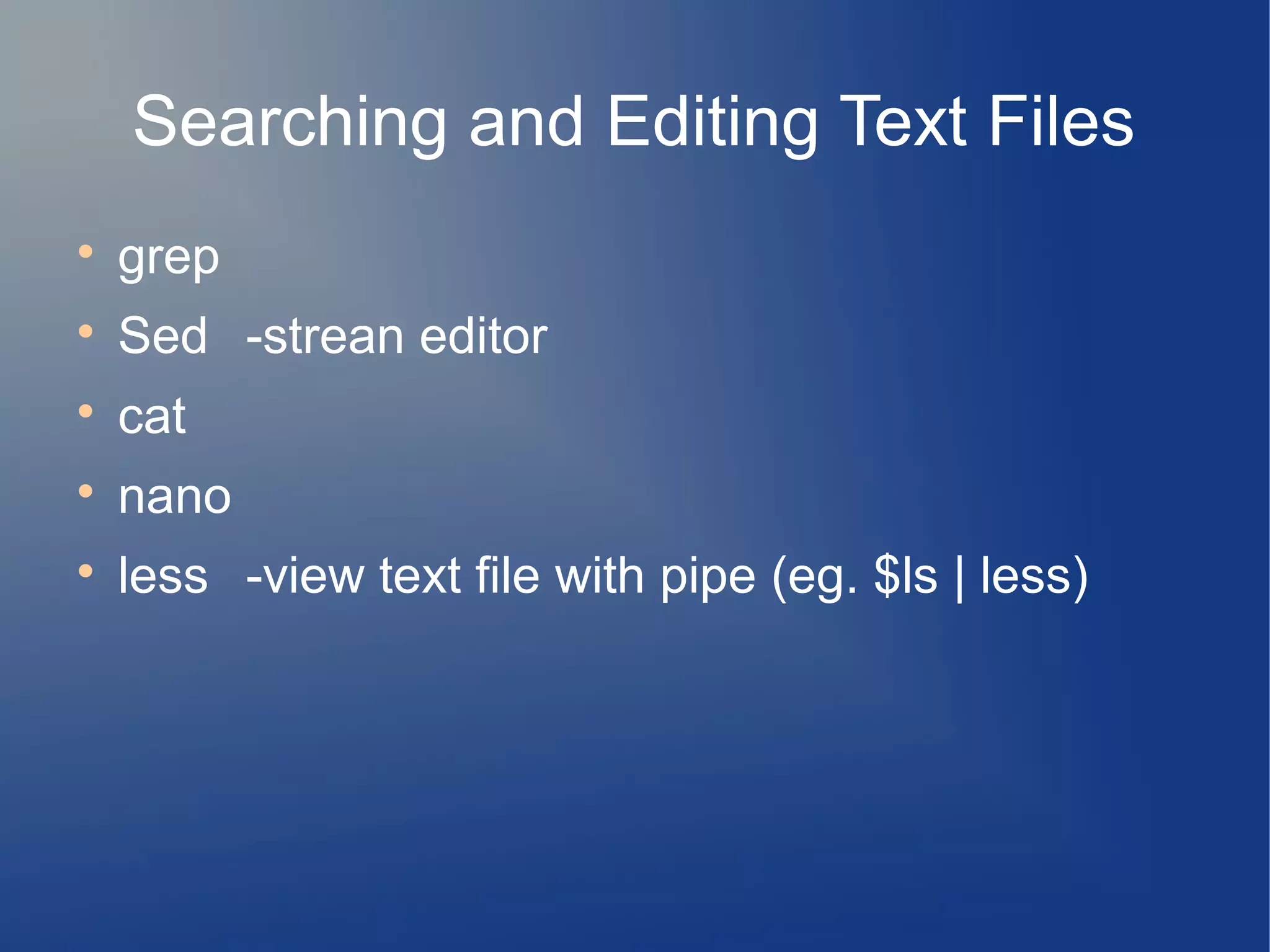
Searching and Editing Text Files

    grep

    Sed -strean editor

    cat

    nano

    less -view text file with pipe (eg. $ls | less)
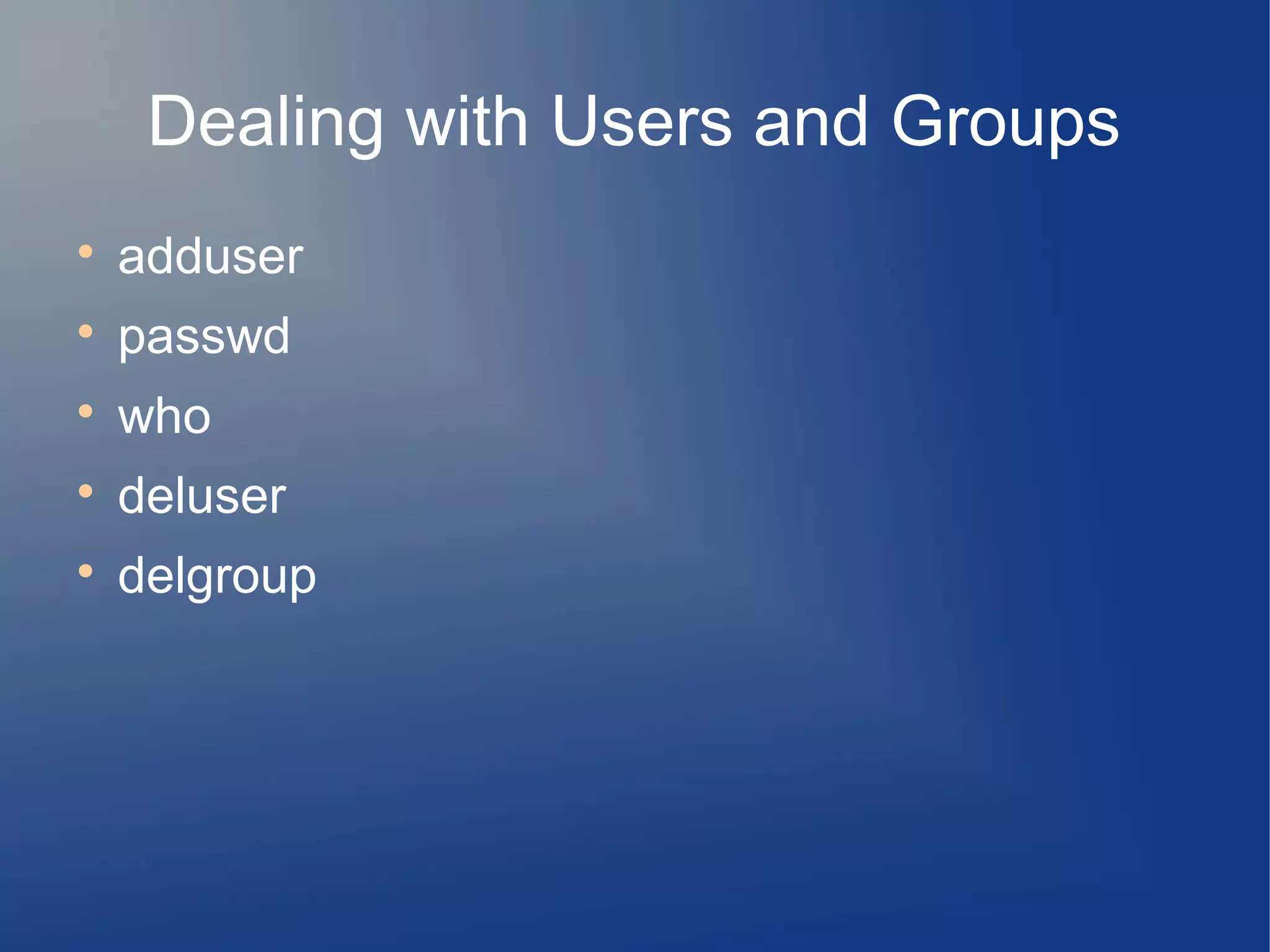
Dealing with Users and Groups

    adduser

    passwd

    who

    deluser

    delgroup
Getting Help on the Command Line

    man man

    man intro
Searching for Man Files

    man -k foo
- apropos
- whatis
Using Wildcards

    * - match any number of characters.

    ? - match any single character.

    [characters] - match any of the character with in
    the brackets.

    [! characters] – match any characters that are
    not listed.
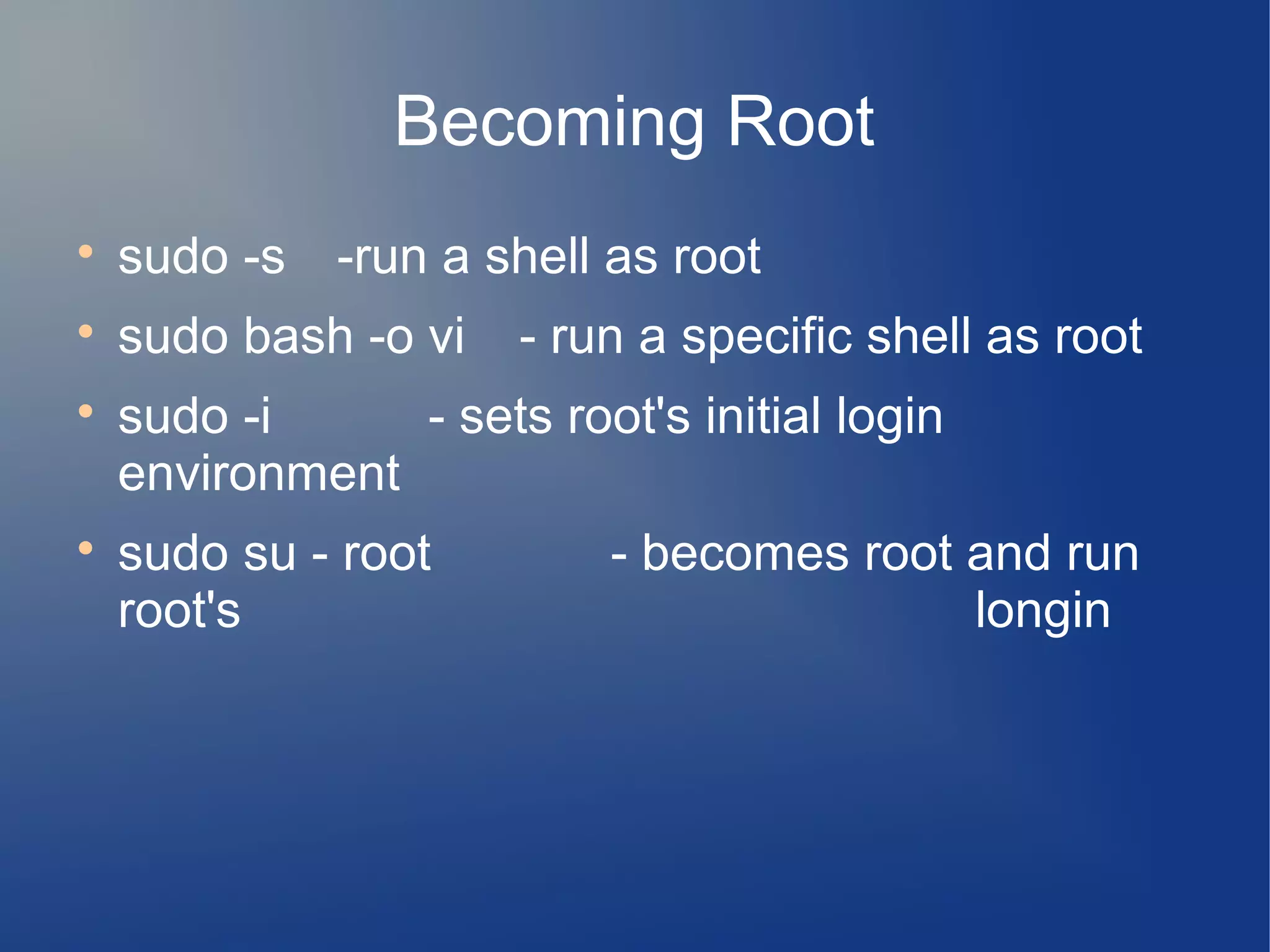
Becoming Root

    sudo -s -run a shell as root

    sudo bash -o vi   - run a specific shell as root

    sudo -i     - sets root's initial login
    environment

    sudo su - root         - becomes root and run
    root's                                longin
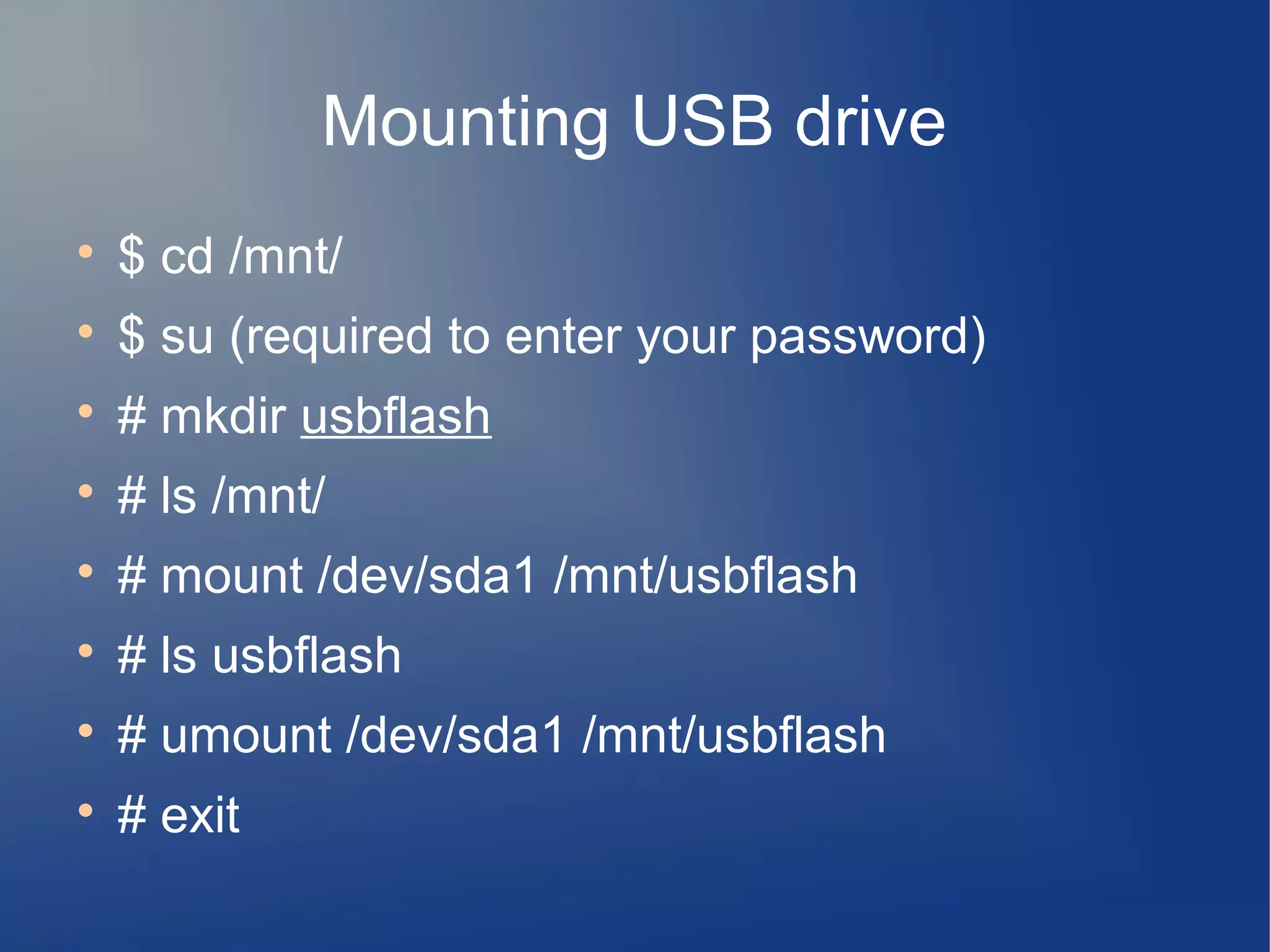
Mounting USB drive

    $ cd /mnt/

    $ su (required to enter your password)

    # mkdir usbflash

    # ls /mnt/

    # mount /dev/sda1 /mnt/usbflash

    # ls usbflash

    # umount /dev/sda1 /mnt/usbflash

    # exit

Terminal basic-commands(Unix) -partI

  • 1.
    Welcome! OSAC program Date:- 1st June 2012 What we are doing today ? - Brief introduction to UNIX system. - Categorized list of commands. - Examples of different commands. -prepared by : Kedar Bhandari
  • 2.
    UNIX ?  In narrow sense :- time sharing operating system kernel , a program that controls the resources of a computer and allocates them among its users. -lets usres run their programs, -controls peripheral devices, -provides a file system that manages the long- term storage of information such as programs,data, and documents.
  • 3.
    UNIX ? (contd.)  In broad sense :- not only the kernel but also essential programs like compilers, editors, command languages, programs for copying and printing files, and so on.  Still more broadly :- Unix may even include programs developed by you or other users to be runon your system, such as tools for document preparation, rutines for statistical analysis, and graphics packages.
  • 4.
    A word ofadvice : ”Don't be afraid to experiment ” -If you are a beginner, there are very few accidental things you can do to hurt yourself or other users. So learn how things work by trying them.
  • 5.
    Terminal and typing  UNIX system is ful duplex - the characters you type on the keyboard are sent to the system, which sends them back to the terminal to be printed on the screen.(echo process). - ordinary printing characters. - some interpreet your typing, for eg. : the RETURN key.
  • 6.
    Terminal and typing(contd.) - control characters. : ctrl + m – RETURN key : ctrl + d – tell a program that there is no more input : ctrl + g – rings the bell on the terminal : ctrl + h – backspace : ctrl + i – the TAB : ctrl + c – Break
  • 7.
    What is Shell?  The shell provides you with an interface to the UNIX system. It gathers input from you and executes programs based on that input. When a program finishes executing, it displays that program's output.  A shell is an environment in which we can run our commands, programs, and shell scripts. There are different flavors of shells, just as there are different flavors of operating systems. Each flavor of shell has its own set of recognized commands and functions.
  • 8.
    Different types ofshell  * Bourne shell (sh)  * C shell (csh)  * TC shell (tcsh)  * Korn shell (ksh)  * Bourne Again SHell (bash)
  • 9.
    System information commands  df -display filesystem  free  top  uname -a -system information  lsb_release -a -version information  ifconfig  iwconfig -wireless specific information  ps -processes running
  • 10.
    System information commands  lspci -all PCI buses  lsusb -USB buses  lshal -devices of Hardware Abstraction Layer  lshw -lists hardware in the system
  • 11.
    Working with thefile system  pwd  cd - cd / - cd ~ - cd .. - cd - - cd /var/cache
  • 12.
    Manipulating Files andFolders  cp  mv  rm  ls  mkdir  chmod  chown
  • 13.
    Searching and EditingText Files  grep  Sed -strean editor  cat  nano  less -view text file with pipe (eg. $ls | less)
  • 14.
    Dealing with Usersand Groups  adduser  passwd  who  deluser  delgroup
  • 15.
    Getting Help onthe Command Line  man man  man intro
  • 16.
    Searching for ManFiles  man -k foo - apropos - whatis
  • 17.
    Using Wildcards  * - match any number of characters.  ? - match any single character.  [characters] - match any of the character with in the brackets.  [! characters] – match any characters that are not listed.
  • 18.
    Becoming Root  sudo -s -run a shell as root  sudo bash -o vi - run a specific shell as root  sudo -i - sets root's initial login environment  sudo su - root - becomes root and run root's longin
  • 19.
    Mounting USB drive  $ cd /mnt/  $ su (required to enter your password)  # mkdir usbflash  # ls /mnt/  # mount /dev/sda1 /mnt/usbflash  # ls usbflash  # umount /dev/sda1 /mnt/usbflash  # exit