


 United States (English)
 Japan (日本語)
 Russia (русский)
 Germany (Deutsch)
 France (Français)
 Spain (Español)
 Italy (Italia)
 Portugal (Portugues)
 China (繁体中文)
 Turkish (Türk dili)
 Dutch (Nederlands)
 Korean(한국인)
 Saudi Arabia(عربي)
 Download from Netflix, Disney+, Prime Video, YouTube, and more.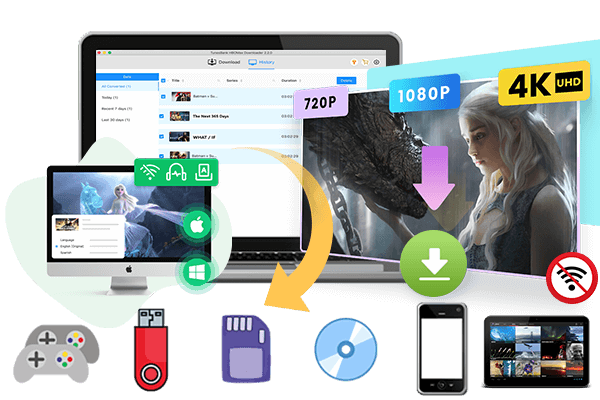

Do you want to download YouTube moives to watch offline? This tutorial will show you 3 ways to download YouTube movies on iPhone/iPad/Android/PC/Mac for offline viewing. With iMovieTool YouTube Movies Downloader, you even can download YouTube purchased & rented Movies to MP4 in 1080p to watch offline.
YouTube Movies & TV channel (YouTube.com/movies) is a movies streaming platform, which offers the latest and greatest movies and shows to stream online, you can buy or renend movies to watching from YouTube Movies, and even download YouTube movies to watch offline, but it requires a YouTube Premium subscription. Premium members can download YouTube movies on iOS/Android devices directly within the YouTube app for offline viewing, but the downloaded movies only allowed to playback within the YouTube app. For Windows & Mac users, if you have bought a movie from YouTube Movies, you can use the “Download” button on the video page to save movies for watching within the browser, however, the downloaded movie can only be played through a browser. If you want to keep YouTube movies downloads forever and even play them on computer offline via other media player, you need to use a third-party tool to download YouTube movies to MP4 format.
In this tutorial, we’ll teach you three ways to download YouTube movies on Windows, Mac, iOS and Android, so that you can play YouTube purchased and rented movies offline on any devices, and even transfer them to USB drives and MP4 player for vewing anywhere and anytime.
Way 1. Download YouTube Movies to iPhone/iPad/Android
YouTube officially provides a download feature to Premium subscribers, who need to pay for $13.99 a month. But when it comes to download YouTube movies and shows, you should know:
- You should subscribe to YouTube Premium to obtain the download feature.
- You can only download YouTube videos and music in the mobile app on iPhone/Android.
- During subscription, you can watch YouTube movies offline on your mobile devices without network.
- Besides, the downloaded YouTube videos can only be accessible within the app. You are unable to copy/transfer them to any other devices.
How to Download YouTube Movies and Shows on iPhone/Android?
Step 1. Open the YouTube app on your phone, log in to your Premium account.
Step 2. Search for the YouTube movie or show you want to download.
Step 3. Open its info page, and click the “Download” icon.
Step 3. Pick the download quality: Low, Medium, HD.
Step 4. View your downloads in the Library.

Is there any way to download YouTube movies for free? Is it possible download YouTube video content without the YouTube App? Can you download YouTube movies to PC to watch offline? YES! Next, we will guide you how to download YouTube movies and shows to computer without Premium account!
Way 2. Download YouTube Movies to Computer(Windows/Mac)
iMovieTool YouTube Movie Downloader is an efficient streaming video downloader for YouTube, Max, Netflix, Amazon Prime, Disney Plus, and Apple TV Plus. Actually, iMovieTool consolidates multiple popular on-demand streaming video platforms into a single software. Using it, you can download unlimited movies and TV shows to MP4/MKV in HD quality with original surround sound. The built-in web browser enables you to direct search for any movie and show on the program, making it much easier to get your desired content.
What’s more, this tools can preserves all original audio and subtitles in different languages you want. After downloading, the YouTube movies and shows will be stored on your local drive permanently, and you can enjoy them offline on your computer or any other device!
Main Features:
- Download movies and TV shows from YouTube, Netflix, Hulu, HBO, Disney Plus, Amazon Prime, etc.
- Download streaming movies and shows to MP4, MKV for flexible playback.
- Support full HD 1080P resolution and 5.1 surround sound.
- Batch download and fast download speed, up to 50X.
- Preserve multilingual subtitles and audio tracks.
- Enjoy YouTube movies and shows offline without the YouTube app/website.
- Offline watch streaming videos on all kinds of devices and players.
- Access streaming movies and shows even after canceling the subscription.
How to Download YouTube Movies on PC/Mac?
Step 1. Run iMovieTool Video Downloader on Computer
Download, install, and launch TunesBank iMovieTool Video Downloader on your Windows PC, Mac, MacBook or laptop. To download movies from YouTube, please choose “YouTube downloading” function.
Then, log in with your YouTube account (Free or Premium) to access the YT video library.
Step 2. Set the Output Parameters
Next, open the settings by clicking the “Gear” icon in the upper-right corner of the screen. You can choose your desired video format(MP4 or MKV), video quality(upto 1080p), audio language, subtitle language and more.
Step 3. Search Movies and TV Shows from YouTube
iMovieTool offers three ways for you easy to search your desired movies, TV shows and other video contents:
Way 1. Directly Search Video Contents: Enter the name/keyword of the movie or show in the search bar. The software will catch it and display all related videos on the screen.
Way 2. Copy & Paste YouTube Video URL: Go to YouTube website/app, then copy the link of any movie/show, then paste the link into iMovieTool’s search bar.
Way 3. Browse and Search Movies from Built-in YT Browse: Clicking the top “Browse” menu, you are able to access and browse all video contents, and even play them online. As below screenshot, the iMovieTool can links to YouTube Movies & TV streaming channel, letting you easily to download purchased & rented movies from YouTube Movies.
Browse more movies in the software, including purchased movie and rented movies:
Then, please open the video’s playback page and clicking “Add” icon. The software will pop up a new windows, please click “Download” button start to download YouTube movies to computer.
Step 4. Start to Download YouTube Movies to Computer
Click the “Download” button start to download YouTube movies on your computer.
Step 5. Get MP4 Movies
After that, you can click “History” to view all downloaded history.
As below screenshot, you can see that all downloaded movies and TV shows are downloaded and saved as MP4 format.
Step 5. Play MP4 Movies Offline
These local MP4 videos files can be played with any media player on your computer.
Way 3. Download YouTube Movies via Online Tool
Some people don’t want to install any extra app. Well, it’s a good idea to download YouTube movies and shows using online downloader tool. There are quite a few online services that can help you download YouTube videos for free. Just copy & paste the video link to the online page, and click “Download” button. That’s it!

However, you should know that these online services can only download short video clips from YouTube and export it in SD quality. Worse, you can’t skip the pop up annoying ads or hidden plug-ins. To download full movies and shows from YouTube, the best solution is to use a professional YouTube downloader.
The Bottom Line
You can download movies and shows from YouTube using the official app, a YouTube downloader or online tool. iMovieTool YouTube Movie Downloader is useful for users who need to download movies and TV shows from streaming platforms. With it, you can easily download desired videos to MP4/MKV in HD quality and enjoy them offline without limits!
The Latest Articles
– Top 8 Solutions to Download Streaming Video
– Top 10 Free Movie Download Sites Recommended
– 3 Ways to Download Movies to Watch Offline
– 2 Verified Methods to Download X/Twitter Videos to MP4
– Download Twitter(X) Videos on PC, Mac and Mobile Phone
– Download Facebook Videos on PC, Mac and Mobile Phone
– 3 Ways to Download Facebook Video to MP4

iMovieTool Movie Downloader
Download movies to MP4/MKV in 1080P, download movies from Netflix, Amazon Prime Video, Disney+, HBO Max, Hulu, Apple TV+, YouTube, and Paramount+. Download videos from Twitter, Instagram, Facebook, and TikTok for free.






