

Connect to a design library
Generate and refine using your actual components, tokens, and variables—not placeholder UI you'll have to swap out later.
Skip to main content
Figma's agent is an AI design agent built into Figma Design. It reasons, takes action, and runs multi-step design tasks on your canvas—using your real components, tokens, and variables, not placeholders.











An AI design agent should do more than answer questions. Figma's agent works on your canvas to explore options, cut the busywork, and keep your team aligned the whole way through.

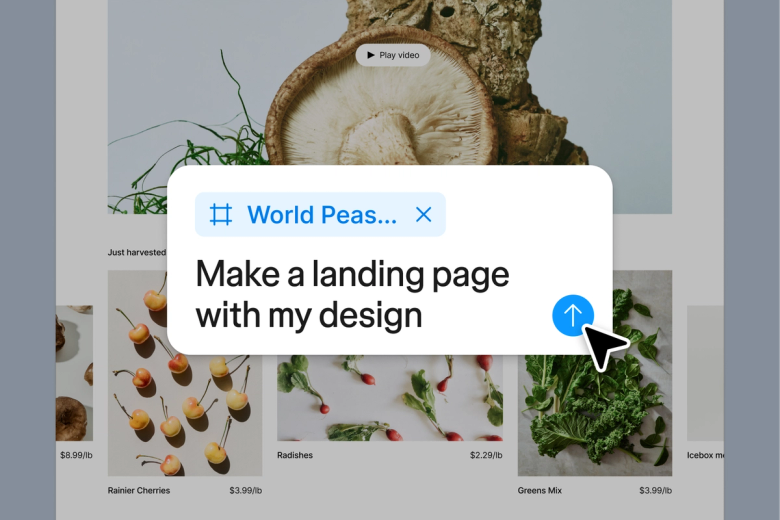
Let an AI design agent generate real options in a shared space using your design system, so you can compare and converge instead of starting from scratch.

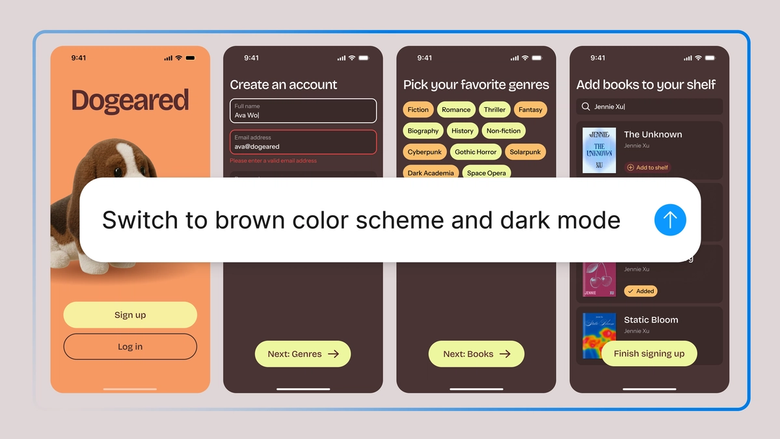
Hand off bulk edits, layout scaffolding, and design system audits while keeping the precision of direct visual editing. You stay in control of the canvas.

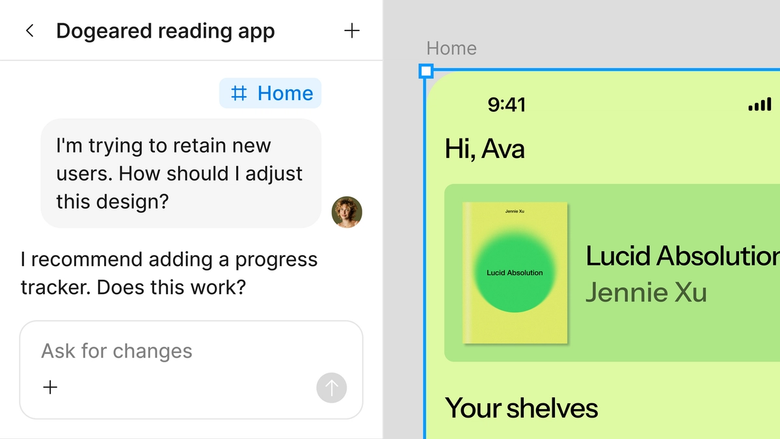
Synthesize scattered feedback, pressure-test ideas from any stakeholder's view, and apply changes right in your file. Nothing gets lost in translation.
A closer look at what sets Figma's agent apart, built for the way design teams actually work.
Generate and refine using your actual components, tokens, and variables—not placeholder UI you'll have to swap out later.


Run multiple prompts at once so you're evaluating directions in parallel, not burning time on each one in sequence.


Share a thread and your team sees the full prompt, context, and iteration history behind any design. No separate handoff needed.


Package your team's workflows and conventions into reusable /commands anyone can run on demand.
Figma feels like a natural extension of my hand. I do my design ideation on the canvas, and now the agent takes it the last mile. With my design libraries connected, I can move from design to code faster than ever before.
Andy Madrick
Product Designer, Notion

Open Figma Design and add a frame to work in. Open the agent from the left navigation bar to get started.
Tell the agent what you want to build and point it to your design library so it uses your real components and styles.
Check the result on your canvas. Not quite right? Refine in the same thread, or open a parallel one to explore a different direction.
Happy with the result? Turn the workflow into a reusable skill so the agent can run it the same way next time—no re-prompting from scratch.
Watch Figma's AI Agent in action and see how to put it to work in your own workflows.


Hands-on playground to explore Figma agent's capabilities — from bulk edits to feedback implementation — with step-by-step guidance built right in.
Learn how to use Figma agent in your design workflows with a step-by-step tutorial from the Figma team.
Figma's agent is an AI design agent built right into Figma Design. Unlike a simple chatbot, it doesn't just answer questions—it works on your canvas to create and edit layers, explore new directions, and give you real-time feedback. Because it's native to Figma Design, you don't need any third-party tools to start.
Yes. Select the libraries you want the agent to reference and it generates output using your styles, components, and variables. It won't publish new assets to your shared library on its own—you'll do that step—but everything it builds can draw from the design system you've already set up.
It’s all yours. The agent doesn’t replace you. It works with you to explore ideas, handle repetitive tasks, and offer feedback, but you review every output and override anything that is off the mark. The goal is to free you up for the craft, never to hand it over entirely.
Figma's use of your data is governed by our customer agreements, which cover maintaining, securing, debugging, and improving our services. If the AI Content training toggle is on, we may use content and usage data to improve Figma-specific models. We take steps to redact sensitive data, and you're always in control of that setting.
Figma's agent is available on all paid Figma plans. You'll find it in the left navigation bar in Figma Design. During the current open beta, the agent doesn't consume AI credits—so it's a good time to explore, experiment, and share your feedback with us.
Build faster with Figma's agent


Now you can author skills for our agent, directly in Figma, to put your point of view to work. Here are 10 of our favorites to get you started.
The handoff from design to code doesn't have to be a one-way street. This workflow shows how a designer can connect a codebase to Figma Make, make the changes directly, and bring the whole team into review—right up to the PR.

From sharing your best thinking to learning from your team’s go-to prompts, here’s what skills unlock in the Figma agent.

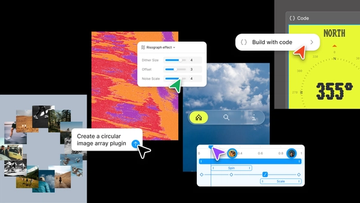
Push past what you thought was possible with code layers, Figma Motion, shaders, generative plugins and Weave tools, all on the canvas.

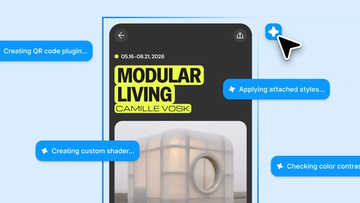
Prompting gets you started. Custom tools, real context, and skills take the design agent further—so what ends up on the canvas actually looks like you.
Starting today, work with an agent that is built for Figma—directly on the canvas.


