The Company Portal suddenly started failing during Autopilot pre provisioning with error 0x87D1041C, even though the app was already present on the device. We traced the issue back to a Windows change introduced with the May update and confirmed the fix after Microsoft reverted the rollout.
The post Company Portal Not Installing During Autopilot Enrollment 0x87D1041C appeared first on Patch My PC.
]]>The Company Portal suddenly stopped installing during Autopilot pre-provisioning after the May Windows update, leaving devices stuck with error 0x87D1041C. In this blog, we uncover what changed, why system context deployments failed, and how a Microsoft flight rollback restored the Company Portal installation.
Autopilot and the 0x87D1041C error
It started with Sandy asking why Company Portal had suddenly failed to be installed during Autopilot pre-provisioning (0x87D1041C)
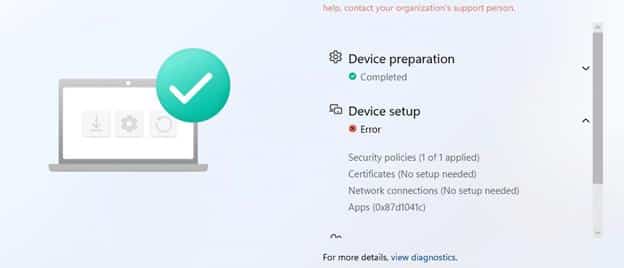
It was pretty clear that nothing had changed in Intune. The Company Portal was still deployed via the Microsoft Store in system context, and the same Autopilot configuration had worked without issues before. The only real difference was that the device had been installed with the May Windows update. With the May update installed, the Company Portal now failed with 0x87D1041C…
which just means that the application was not detected after installation completed successfully. The 0x87D1041C error indicated that the installation had finished, but Intune could not detect the app afterward. That appeared to be exactly what was happening. The Company Portal package was present under C:\Program Files\WindowsApps.

But the Enrollment Status Page still reported that the installation had failed with 0x87D1041C. The Company Portal was assigned in system context, so it would be installed during Autopilot pre-provisioning.
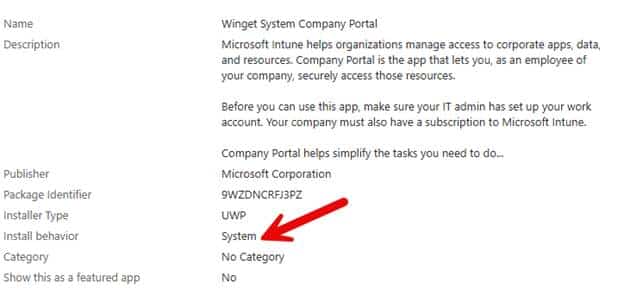
Changing the assignment to user context delayed the installation until after the user signed in. That prevented the ESP from failing on the required app, but it also meant Company Portal was no longer installed during pre-provisioning. Noticing that changing the install behavior fixed the issue confirmed that the Store package itself was fine, but it was not a good solution. During Autopilot pre-provisioning, Company Portal needs to be installed before the device is handed over to the user. Waiting for the user to sign in defeats the purpose of assigning it in the system context.
Sandy was not the only one seeing this. Similar reports appeared on Reddit and Microsoft forums after the May update. Company Portal had worked before the update, failed afterward, and returned the same detection error. Something inside the Windows Store installation flow had changed.
Following the error 0x87D1041C in the Store Installation
Installing the Microsoft Store app involves more than placing package files in the WindowsApps folder.

Windows first obtains the Store package, stages its content on the device, and then registers or provisions it in the correct scope. The presence of the package under WindowsApps indicates that the content reached the device, but it does not confirm that the final registration completed successfully. To find where that process had changed, we focused on three Windows components:
- InstallService.dll
- AppXDeploymentClient.dll
- AppXDeploymentServer.dll
InstallService.dll controls the Store installation workflow. It searches for the correct package, prepares the installation session, downloads the content, and determines which installation path to use.
AppXDeploymentClient.dll exposes the package management operations for staging, registering, and provisioning AppX and MSIX packages.
AppXDeploymentServer.dll performs the underlying deployment work. It processes the package manifest, updates the package repository, and records the package state for the device and its users.
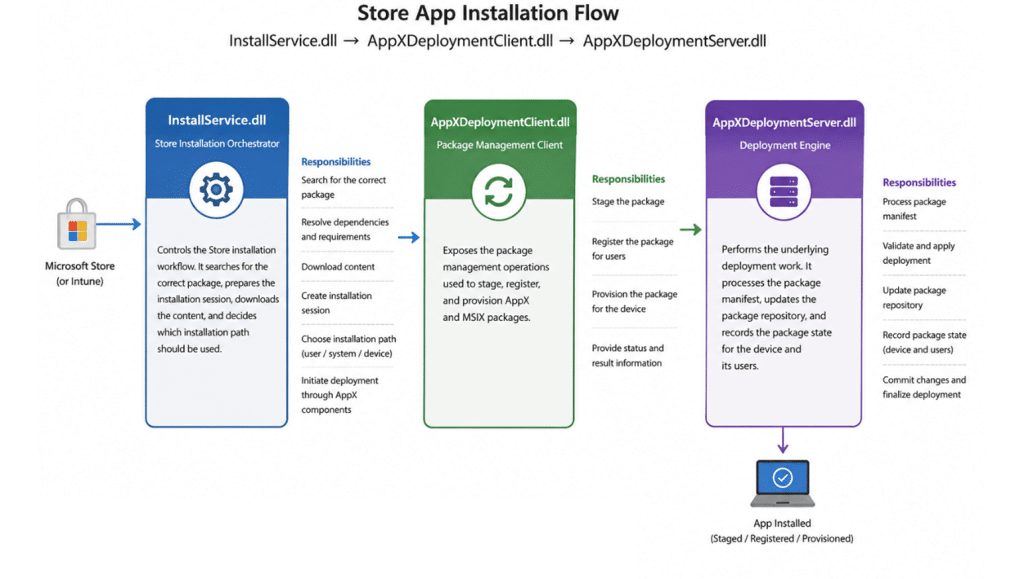
Because the Company Portal was already present under WindowsApps, the package download and staging process had clearly completed. The failure appeared to be happening later, when Windows decided how the package should be registered. That brought us back to InstallService.dll.
Comparing April and May to Fix 0x87D1041C
We compared the May version of InstallService.dll with the version from the April update. The most interesting change appeared inside: UWAInstallWork::_DoNormalInstall

This function controls the normal Store installation flow. It prepares the update session, downloads the required files, and eventually chooses how the application should be installed. Inside the May version, we found a new feature: FixInstallUnderSystemContext with the corresponding feature ID: 61372494


The Fix Installed Under System Context name immediately stood out. The Company Portal was failing only when deployed in the system context during autopilot pre-provisioning, and there was a newly introduced feature specifically intended to change exactly that installation path… that couldn’t be a coincidence, right? The next step was to find out what the feature actually did.
Fix Install Under System Context
When FixInstallUnderSystemContext is active, InstallService.dll loads an additional configuration value:FIXINSTALLUNDERSYSTEMCONTEXT When both the feature and its configuration value are enabled, InstallService logs: Enumerating all users if run in system context.

With it, the installation will then be redirected into: UWAInstallWork::_DoInstallForAllLoggedOnUsers

Instead of continuing only through the normal system installation path, InstallService begins looking for logged-on users and tries to register the Store package for them.
That may work during a normal user session, but Autopilot pre-provisioning is different. The device is being prepared before the actual user receives it, so there may not be a normal user session available yet. To understand the impact, we opened _DoInstallForAllLoggedOnUsers.
Looking for Logged-On Users
The function starts with: TokenHelpers::GetAllLoggedInUserTokens(…) The InstallService collects the available logged-on user tokens and then processes each user individually.

For every token, it retrieves the user SID and searches for packages that should be registered for that user. The logging inside the function shows this clearly: Attempting to register update for User. When no applicable package is found, InstallService logs: Nothing to register for User. Skipping Install.
The important detail is what happens when there is no normal logged-on user. During Autopilot pre-provisioning, the real user has not yet signed in. If the function does not find a usable user token, there is no user for whom Company Portal can be registered.
The package may already have been downloaded and staged, but the registration step expected by Intune is never completed. InstallService can still finish the operation without returning a package installation failure. Intune then checks whether Company Portal is installed, cannot find it in the expected state, and reports 0x87D1041C.
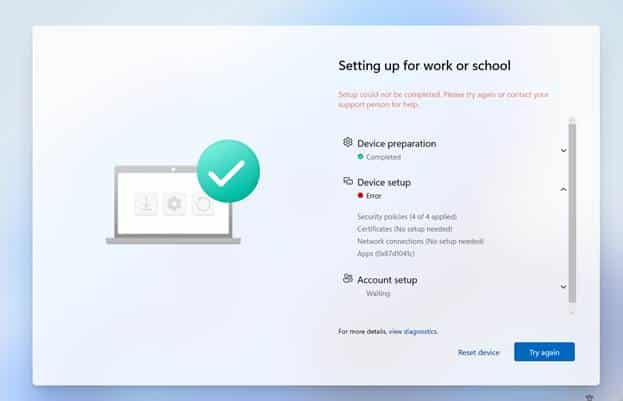
That also explains why the user context assignment continued to work. Once the user signs in, InstallService has a real user token and can register Company Portal for that user. The problem only occurs when the installation is expected to complete before the user session ends.
Was the Feature Actually Enabled?
Finding the feature inside the DLL did not prove that it was also enabled by default. Microsoft regularly ships feature code before enabling it (it should be turned off by default!!)

The feature can remain dormant until it is activated through Windows feature management or a service-side configuration. Let’s check if that was the same with this FixInstallUnderSystemContext function. When inspecting the InstallService OneSettings configuration. Inside the JSON payload, we found: “FIXINSTALLUNDERSYSTEMCONTEXT”: “1”
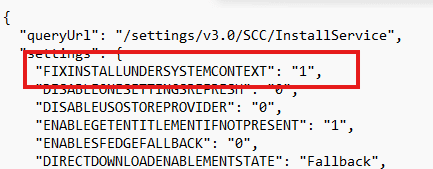
The new code was not only simply present inside the May binary… The Controlled feature rollout service also had enabled it on all devices. That explained why the issue appeared without any change to the Intune assignment. The May update introduced the new InstallService behavior, while OneSettings activated the code path on Windows.
From that moment, a Store installation started by LocalSystem could be redirected into a flow that depended on logged-on user tokens. During Autopilot pre-provisioning, that was exactly the wrong moment to depend on a user session.
Reaching Out to Microsoft
On Friday, we shared the findings with Microsoft. We explained that Company Portal only failed in system context, while the user context assignment still worked. We also shared the difference between the April and May versions of InstallService.dll, the new FixInstallUnderSystemContext feature, and the OneSettings value that enabled it.
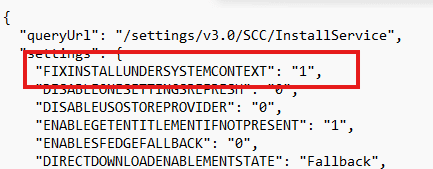
The following Monday…. the Sccinstallservice.json was updated (yes… I build a tracked.. more in this in an upcoming blog). The updated JSON was now showing that the flight was reverted.

We repeated the Autopilot pre-provisioning test with Company Portal still assigned in the system context. This time, Company Portal installed successfully again. Nothing had changed in Intune. The application assignment was the same, the Enrollment Status Page configuration was the same, and the Company Portal was still expected to install before the user received the device…and others were reporting the same

The only change was that the InstallService flight had been turned off. We cannot claim that our message was the only reason Microsoft reverted the flight. Other customers were reporting the same issue, and Microsoft may already have been investigating it.
The timing was still hard to ignore. We shared the InstallService findings on Friday, the flight was reverted on Monday, and Company Portal immediately started installing again.
When the Fix Becomes the Actual Problem
FixInstallUnderSystemContext was probably intended to improve Store installations started by LocalSystem. The problem was how that new behavior interacted with Autopilot pre-provisioning. A system context installation that runs before the user receives the device cannot depend on a normal user session being available.
By redirecting the installation into the logged-on user’s path, InstallService changed the final package state. Company Portal reached the device, but it was not registered in the context Intune expected to detect.
That is why the Store installation appeared successful while the Enrollment Status Page still failed with 0x87D1041C.
The most interesting part was not that Company Portal disappeared. It never did. It was already sitting inside WindowsApps.
Windows had simply stopped finishing the part that made it usable and detectable during Autopilot pre-provisioning.
The post Company Portal Not Installing During Autopilot Enrollment 0x87D1041C appeared first on Patch My PC.
]]>This release contains a variety of fixes as noted below. Fixes
The post Patch My PC Publisher Preview Version 2.2.2.98 Released appeared first on Patch My PC.
]]>This release contains a variety of fixes as noted below.
Fixes
- Ensure Auto-Publishing rules are saved as expected for Intune and ConfigMgr scan wizards.
- Refresh button in the Intune Filter Editor view now properly clears the cache and pulls the up-to-date list of filters from Intune.
- Fixed a bug causing the selected products to not show as selected within the Intune Scan Wizard. This could cause a product to be unselected unexpectedly.
- Ensure Azure chunk uploading respects the configured upload timeout.
- Fix a bug causing Selective Sync, and Republish to not process as expected in some cases.
The post Patch My PC Publisher Preview Version 2.2.2.98 Released appeared first on Patch My PC.
]]>The IME does a lot more than most people think. This post is about automating Intune Management Extension Release Notes, so every new version shows what changed instead of leaving us guessing.
The post Intune Management Extension: Release Notes appeared first on Patch My PC.
]]>The Intune Management Extension is doing a lot more than most people give it credit for. That is why Intune Management Extension Release Notes make sense: when the local SideCar/IME agent changes, I want to know what changed before troubleshooting turns into guessing.
Introduction
The Intune Management Extension is one of those components that quietly became one of the most important components on our devices over time. Most admins first meet it when a Win32 app fails. The app is assigned, the device checks in, nothing happens, and sooner or later someone opens IntuneManagementExtension.log to find out why the install did not start or why the detection rule decided to ruin the day.
The thing that magically installs Win32 apps... That is usually how the IME is explained to people.
But that description is way too small for what the IME is actually doing today. The moment you start looking at the device side of Intune, you see the IME showing up in more and more places. Win32 apps are the obvious part, but the same agent is also involved in scripts, remediation, detection logic, reporting, device queries, Remote Help, APv2-related components, and many other functions.
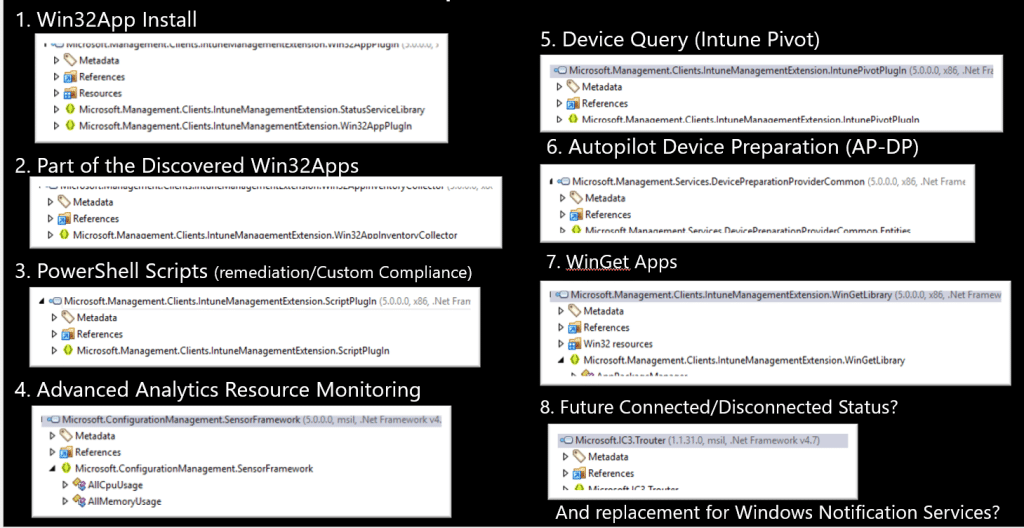
That makes the IME one of the most important moving parts on an Intune-managed Windows device. It is not just sitting there waiting for an app install command. It is the agent that decides what the device needs to do, what has already happened, what still needs to be reported, and which part of the IME should carry out the task.
And when a component with that much responsibility changes, it would be nice to know what changed.
Intune Management Extension needs Release Notes
Microsoft already provides the “What’s new in Intune” page, which is useful. It gives us the product view. New settings, new features (if we don’t spoil it for them), new portal experiences, new service side behavior, and all the things Microsoft wants us to know about from an Intune product perspective.
The device side is a totally different story. The IME itself also changes. New versions appear without announcement. The MSI changes, and with it, some new features or bug fixes can be introduced. Sometimes the change is small, sometimes it is only a rebuild, and in the best case, a changed DLL hints at something that is not yet visible in the portal. Sometimes a local behavior changes, and you only notice it when something suddenly behaves differently on a device.
That missing layer is what makes troubleshooting harder than it needs to be.
The part that normally stays invisible
Official release notes usually explain changes from the product side, which makes sense. Most admins want to know which setting was added, which workload got a new option, or which feature is rolling out. That is the information you need when you manage the service.
But again… the IME is in its own separate world. The service can announce a new, wonderful feature even though the local agent already includes part of the plumbing. The IME agent can also change without a big announcement because the change is internal, preparatory, or related to reliability. Sometimes that is fine. Sometimes it becomes important when you are troubleshooting a device and trying to understand why the same flow suddenly behaves a little differently than before.
That is also why the earlier config file issue was interesting. From a distance, a config file sounds like a small detail. Once you follow it down to the device, it becomes clear how much it depends on the local agent to read the right information and process it correctly. A small change on the device side can become a real troubleshooting rabbit hole when there is no easy way to see what changed between agent versions.
That is where the standard Intune release notes are no longer enough. Not because they are bad, but because they are written for a different layer. They explain Intune as a product. They do not explain every meaningful change within the local agent responsible for carrying out much of that work. In my opinion, the IME needs its own technical change view.
Why I started looking at IME versions differently
Whenever a new IME version appears, the version number itself is not enough. It tells me something changed, but it does not tell me what changed.

The first thing I normally look for is the IntuneWindowsAgent.msi that was downloaded to the device. The EnterpriseDesktopAppManagement registry key usually provides enough information to locate the MSI, the product version, and the download URL. From there, the actual investigation starts.
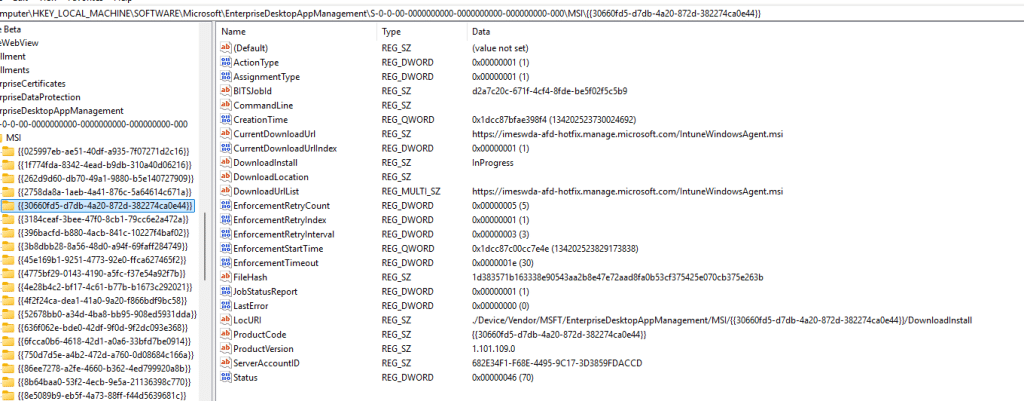
I want to know whether the MSI changed in a meaningful way. Did the MSI tables change? Did the install sequence change? Were custom actions added, removed, or adjusted? Was something added to the payload? Did the main agent executable change? Did one of the plugins change?
That already gives a better picture, but the DLLs are where things usually become more interesting. A changed DLL does not automatically mean the runtime behavior has changed. A file can be rebuilt, signed again, or version bumped without any meaningful logic change. That is why the next step is looking deeper at the managed methods inside the DLLs.
That is where you sometimes find the useful stuff, and those are the details that help explain what might have changed in the actual behavior.
Intune Management Extension release notes automation
Doing this investigation manually once is fine. Doing it for every Intune Management Extension release is not. It is repetitive, and repetitive work is where you start missing things. One time, you focus on the MSI tables.

Another time, you look at the DLL versions but skip the method-level comparison. Another time, you notice that a DLL has changed, but do not follow the changed function far enough to understand the flow.
So I started automating the investigation. Not because the automation is the story, but because the missing visibility is the story.
I wanted a repeatable way to ask the same questions every time a new IME version appears. What changed in the MSI? Did the install flow change? Did custom actions change? Which payload files changed? Which managed DLLs changed? Were there method level changes? If a function changed, what does that function actually do? Is the change proven by the evidence, or is it still an interpretation that needs runtime validation?
That last question is important.
It is very easy to overstate findings when looking at internal changes. A function name can suggest intent, but that does not mean the flow is active. A new branch can exist before it is used. A changed DLL can look exciting and still be nothing more than cleanup. That is why these Intune Management Extension release notes need to be honest about what is proven and what is not.
The goal is not to turn every internal change into a dramatic story. The goal is to explain what changed, why it may matter, and what still needs to be tested. That is the kind of Intune Management Extension release note I would actually want to read.
The function flow is the real story
One thing I wanted from these Intune Management Extension release notes is a Mermaid flow, not a generic diagram that only shows one version compared to another. That looks nice, but it does not help much when you are trying to understand a changed DLL.
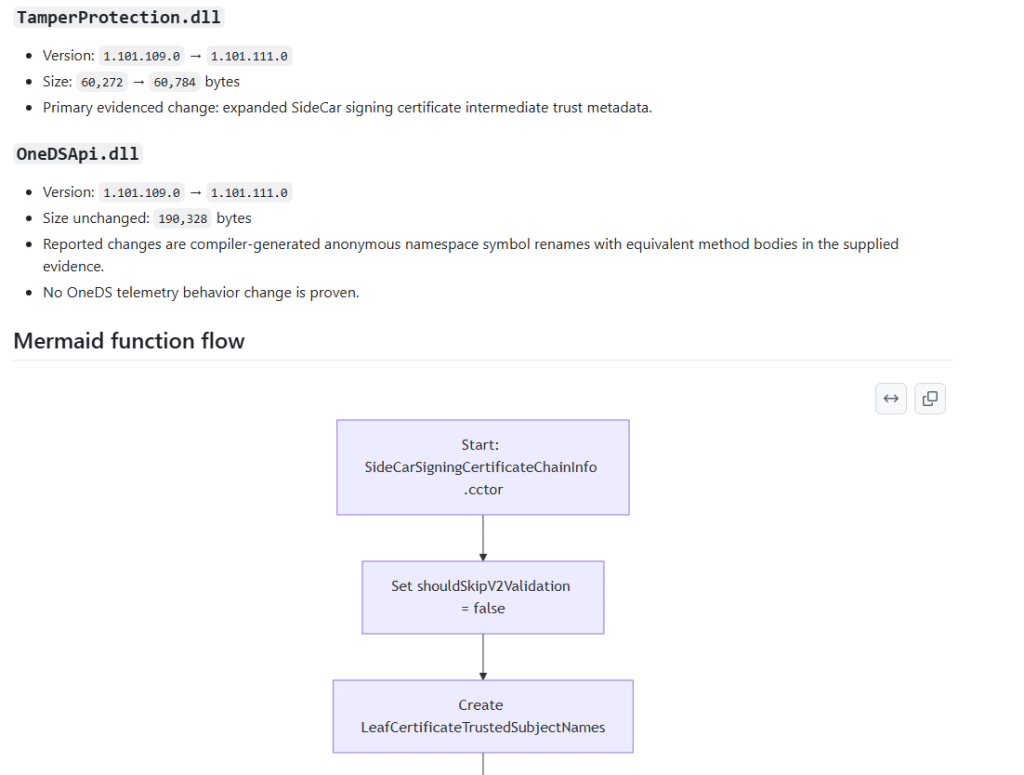
If an existing IME function changed, the diagram should explain how that function works. What comes in, what gets checked, which branch is taken, what action happens, which state is updated, what gets logged, and what comes out at the end.
That kind of flow makes a technical release note easier to understand. You do not need to start by staring at IL or decompiled C#. You can first look at the function flow to understand the rough behavior, then look at the evidence behind it.
That is much more useful than a generic “old version versus new version” diagram. If the changed function flow can be proven from the evidence, the release note should show it. If the evidence is not strong enough, the release note should say that too.
Publishing the Intune Management Extension Release Notes on GitHub
The next step is making the results public. The IME change notes will be published on GitHub in the IME Change Tracker repository. The idea is simple. Every time a new IME version is found, there should be a place to capture, review, and search for package differences later.

Some releases will probably be boring, and that is perfectly fine. A boring release note that says the MSI changed, but that no meaningful method-level changes were found, still has value. It saves time. It suggests there is probably no reason to spend the evening digging through DLLs.
Other releases will be more interesting, because maybe a function showed up those hints at something Microsoft is preparing. Those are the changes I want to capture.
Not as official Microsoft documentation, and not as a replacement for the Intune “What’s new” page. This is more of a technical companion for people who spend time troubleshooting the device side of Intune.
Why this helps
Most Intune troubleshooting starts after something has already gone wrong. An app does not install. A remediation does not run. A script behaves differently. A device reports something unexpected. A feature starts behaving slightly differently than it did last week.
When that happens, having a history of IME changes gives you a better starting point. You can check whether there was a new IME version, whether the app plugin changed, whether the scripts plugin changed, whether AgentCommon.dll changed, whether the MSI custom actions changed, or whether a function related to that flow was touched.
Those answers do not solve everything, but they help you stop guessing. And that is the whole point. The IME is no longer just the Win32 app agent. It is one of the most important moving parts on an Intune-managed Windows device. If that moving part changes, I want to know what changed, what probably matters, and what still needs to be validated.
Moving parts deserve release notes.
https://github.com/call4cloud-code/IME-Change-Tracker
The post Intune Management Extension: Release Notes appeared first on Patch My PC.
]]>The Intune portal can show a fresh Last check in even when the MDM certificate on the device has already expired. That timestamp only proves the device was able to touch the service. It does not prove that policy sync, app delivery, or real management is still working.
The post The Illusion of Intune “Last Check-in”: When Devices Appear Active but Cannot Sync appeared first on Patch My PC.
]]>This blog exposes the gap between what Intune shows as Last check-in (last sync) and what the device is actually capable of once the MDM certificate has expired.
Please note: This blog is based on my own testing and analysis, including decompiling publicly available Windows binaries. No NDA covered information, internal documentation, or private sources were used.
Introduction
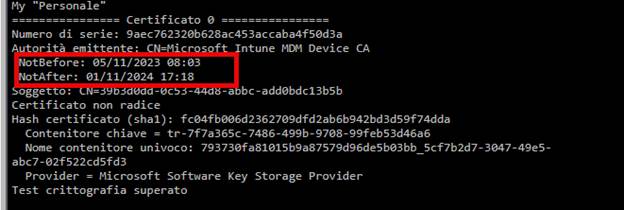
I ran into this while digging into a set of devices where the Intune MDM certificate simply refused to renew. The certificate had expired, long past its expiration date, yet the device still showed a perfectly fresh Last check-in (Last Sync Time) timestamp in the Intune portal.

At first glance, that made no sense. An expired certificate should block authentication. (as shown below, the certificate was expired on 11-1-2024)
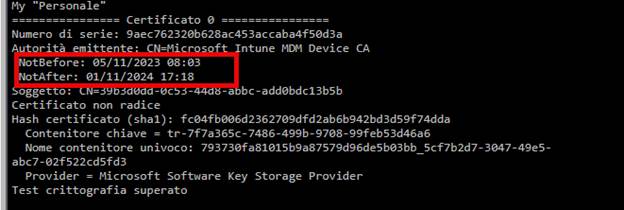
No authentication means no check-in. At least, that is what most IT admins assume. But the Last Check-In (Last Sync Time) timestamps kept updating.

Not just in the Intune portal. The registry under the OMADM account key showed the same thing.
ServerLastAccessTime and ServerLastSuccessTime moved forward every time the device reached out.
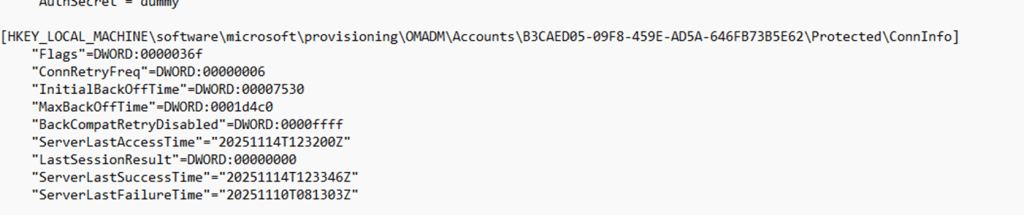
The device looked healthy, while the certificate was clearly invalid.
So I started digging into the OMADM flow.
The OMADM account structure behind the scenes
Every Intune-enrolled device keeps a local record of its MDM account underHKLM\software\microsoft\provisioning\OMADM\Accounts\<AccountGUID>
Inside that key sits a packed structure the client calls AcctInfo (AccountInfo). That block contains the server URL, retry timers, flags, and, more interesting for this story, the timestamps Intune uses for the last check in:
- ServerLastAccessTime
- ServerLastSuccessTime
- LastSessionResult
When the device talks to Intune, the OMADM client does not just fire off a web request. It first loads this AcctInfo structure, runs a session setup, and only then starts sending SyncML. You can picture the simple version of the flow like this:
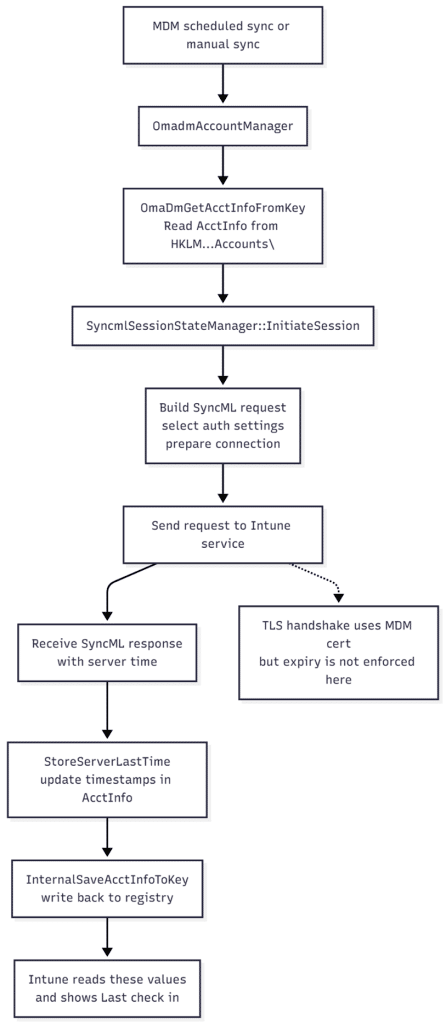
- A[MDM scheduled sync or manual sync] –> B[OmadmAccountManager]
- B –> C[OmaDmGetAcctInfoFromKey<br>Read AcctInfo from HKLM\…Accounts\<GUID>]
- C –> D[SyncmlSessionStateManager::InitiateSession]
- D –> E[Build SyncML request<br>select auth settings<br>prepare connection]
- E –> F[Send request to Intune service]
- F –> G[Receive SyncML response<br>with server time]
- G –> H[StoreServerLastTime<br>update timestamps in AcctInfo]
- H –> I[InternalSaveAcctInfoToKey<br>write back to registry]
- I –> J[Intune reads these values<br>and shows Last check in]
- F -.-> K[TLS handshake uses MDM cert<br>but expiry is not enforced here]
The Corrosponding Explanation
Step A is whatever kicked off the sync. That might be the regular DMClient schedule, a manual sync request from the portal, or the user pressing the sync button. Step B is where OmadmAccountManager wakes up and starts working with the local account. It calls OmaDmGetAcctInfoFromKey, which reads the AcctInfo block from the registry and unpacks it into memory.
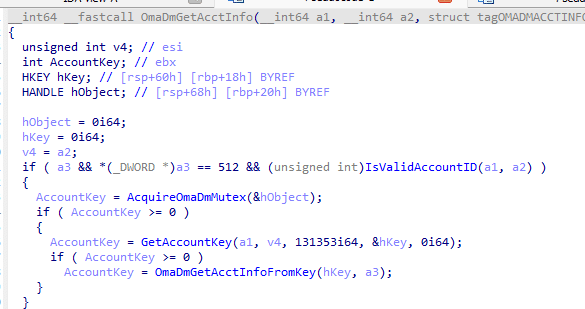
With that state in hand, SyncmlSessionStateManager::InitiateSession sets up the session.

It populates the authentication fields, selects the app auth index, checks the account flags, and prepares the first SyncML envelope. None of that cares about certificate validity yet. Only after that setup does the client send the actual request to Intune. The TLS handshake uses the MDM certificate and its private key, but the code path here does not block on an expired NotAfter date. As long as the private key is available, the connection can be established, and the server can respond.
When the first response arrives, StoreServerLastTime extracts the server time from that response, converts it to ISO format, and updates the timestamps in the in-memory AcctInfo. InternalSaveAcctInfoToKey then writes that updated structure back into the OMADM account key in the registry.
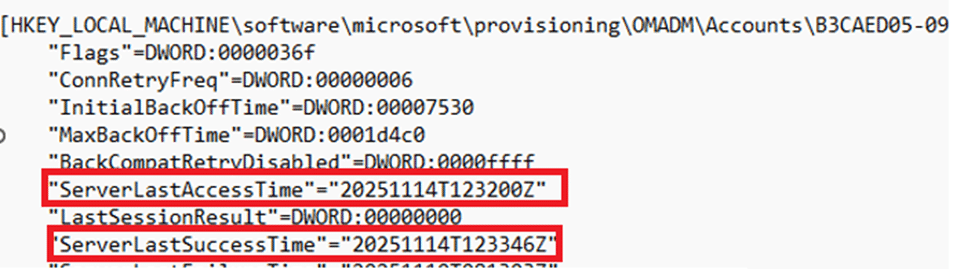
Intune reads those values and displays them as a fresh last check-in, even though the certificate used for the handshake has already expired. The certificate will become relevant later in the session, when policy and management operations are attempted, but the timestamps are already updated at this early stage.
And that is exactly what was happening.
The Surprising Part: Certificate Expiry Is Not Checked on The Device
While going through the decompiled code for the SyncML session startup, one thing became immediately obvious. The OMADM client on the device itself does not check whether the MDM certificate has expired. The entire setup phase in SyncmlSessionStateManager::InitiateSession reads the account information, prepares the SyncML envelope, selects the authentication method, and establishes the connection. Not once does it validate the certificate’s NotAfter date.
Even the function that writes the timestamps,StoreServerLastTime, simply accepts the timestamp from the server and writes it directly into the AcctInfo structure without verifying whether the session certificate is valid or has expired.
So from the device’s perspective, a session with Intune can begin even if the certificate is completely out of date. This raised a new question: how does the device even reach Intune without a valid certificate?
Why the TLS Handshake Still Works
TLS should block expired certificates, right? But in this case, it does not. And there is a simple reason why. If Microsoft enforced strict certificate validity for client authentication, a device with a broken or expired management certificate would never be able to recover. The renewal flow would be impossible because the device would not even be allowed to start the session needed to request a new certificate.
Instead, the TLS handshake accepts expired certificates as long as the private key still exists. That allows the device to authenticate just enough for Intune to identify which device is attempting the connection. Intune then sends its initial SyncML response header, which includes a server timestamp.
The OMADM client receives that timestamp, stores it in the AcctInfo structure, and updates the registry. Once that happens, the Last check-in value in the portal moves forward, even though the certificate has expired.
Only after this early handshake does the server begin enforcing the certificate validity for real management operations. And that is where everything fails.
The Device Looks Healthy, but Management Is Gone?
After the timestamp update, the device tries to request new policies or fetch the latest configuration. This is where the expired certificate finally causes trouble. All meaningful operations fail silently. Policies are not updating, and because the IME also uses the Intune Certificate, none of the Win32 apps will be installed.

The only thing that continues to work is the initial contact with the service.
This creates a situation that feels a bit misleading in the Intune portal.
The device appears online. The last check-in value is up to date. Nothing looks broken at first glance. But behind the scenes, the device is no longer managed at all. It can “touch” the service, but cannot communicate in a meaningful way.”
Why This Last Check-In Behaviour Exists
This is not a bug. It is necessary. Without this behaviour, certificate recovery and renewal (expired certs) could never work.
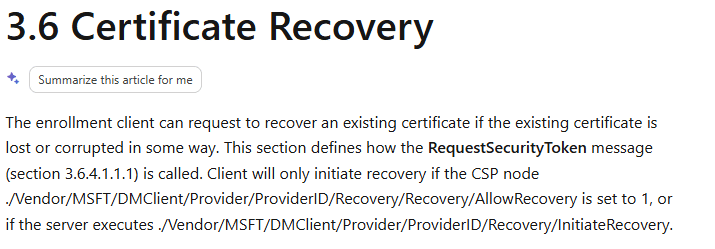
A system (Enrollment Services) that refused expired certificates at the first connection would trap devices permanently. They would be stuck in an expired state with no way out except for a wipe or a hardware reset.
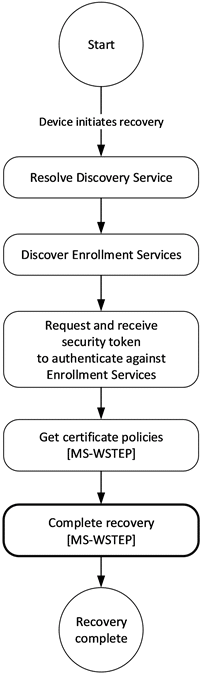
So Microsoft allows just enough of the session to proceed to support renewal. The timestamps are updated during that early stage, which can give the impression that the device is still healthy even when it is not.
The Real Problem: You Cannot Trust Last Check In
This leads to one unavoidable conclusion.
The Last check in value cannot be used as a device health indicator.
It only indicates that the device was able to contact Intune.
- It does not tell you that the device could retrieve the latest policies.
- It does not tell you that the certificate is valid.
- It does not tell you that management is still working.
An expired certificate can still move the Last-check in date forward while management is completely dead. If you truly want to know if a device is still under management, you have to look beyond that single value. Start with the Management certificate expiration date itself, and from there on sort by last check-in. That is where the truth sits.
The post The Illusion of Intune “Last Check-in”: When Devices Appear Active but Cannot Sync appeared first on Patch My PC.
]]>Download IntuneWin files from Microsoft Intune with the rebuilt IntuneWin Downloader. This version makes it easier to find assigned Win32 apps and recover the original app content when the source files are no longer available.
The post Download IntuneWin Files from Microsoft Intune V2 appeared first on Patch My PC.
]]>In the first version of the IntuneWin Downloader, the goal was simple: Download IntuneWin content from Intune and recover the original Win32 app source files when they were no longer available locally. That blog walked through the IME style flow: find the Intune MDM device certificate, discover the SideCar Gateway, request ContentInfo, download the encrypted content, decrypt it, and extract the package. It also made one thing very clear: this only works when the app is still assigned to the device or user. It was never about bypassing Intune assignments.
That first version worked, but it still felt a bit rough around the edges. You needed the AppId, you needed the right token to be present in the local TokenBroker cache, and when the cache contained multiple tokens, picking the right one could become a bit of a gamble.
So I went back into the IME flow. Not to change what the tool was doing, but to make the IntuneWin Downloader behave more like the IME and Company Portal. With it… The tool looks like this.
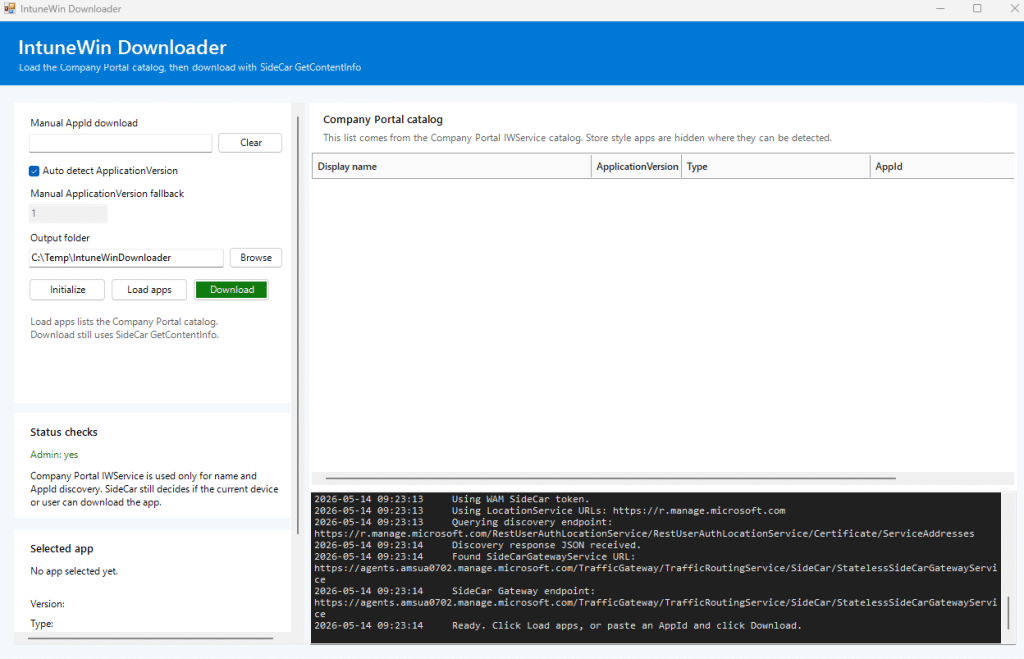
The first version: chasing the .tbres token
The first version of the tool relied on the local TokenBroker cache.
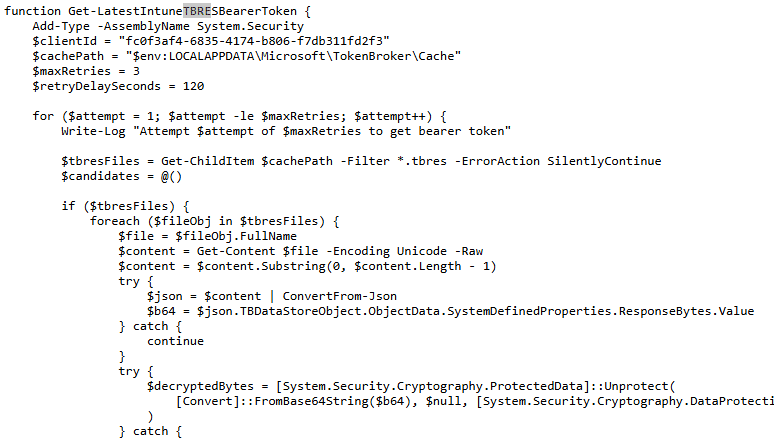
The idea was straightforward. The Intune Management Extension already requires a bearer token when communicating with the SideCar Gateway. That token could often be found in the user’s local TokenBroker cache as a .tbres file.

So the script would look through the cache, decrypt ResponseBytes using DPAPI in the current user context, search for a JWT, and then use that token for the SideCar calls. That worked, but it had some weak spots.
The token had to exist in the tbres cache. The Intunewin Download script had to run as the same user who owned that cache. The cache had to contain a still-valid token. And when the decrypted response contained multiple JWTs, the script had to ensure it did not grab the wrong one. That last part is where things became interesting. A token can be valid and not expired, yet still be completely useless for the endpoint you are calling. If the audience does not match what SideCar expects, the request will fail anyway. So, yes, the .tbres approach was useful. But it was not the cleanest way forward.
The moment WAM changed the IntuneWin Download
The newer version no longer depends on scraping .tbres files. Instead of hunting for a cached token, the tool now asks WAM directly.
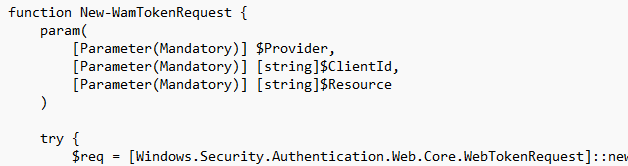
WAM, or Web Account Manager, is the Windows broker layer that apps use to request tokens for signed-in accounts. The important part is that the tool no longer needs to rely on the assumption that the right token already exists in the cache. It can request the token itself, using the correct client and resource pair.
That changed the tool from this:
- Find TokenBroker cache
- Decrypt .tbres
- Extract token
- Hope it is the right one
- Call SideCar
into this:
- Ask WAM for the right token
- Use the MDM device certificate
- Call the right Intune client-side endpoint
- Download the content
- Process the package
That sounds small, but it makes the flow much more reliable.
Two different lanes, two different tokens to download the IntuneWin
The next lesson was that “Intune token” is too vague. The Company Portal and IME do not use one magic token for everything. The Company Portal catalog and the IME SideCar flow are different lanes, and each lane expects a token with the correct audience.
For the Company Portal catalog lane, the tool uses the Company Portal client and the IWService resource.
Company Portal
ClientId = 9ba1a5c7-f17a-4de9-a1f1-6178c8d51223
Resource = b8066b99-6e67-41be-abfa-75db1a2c8809

That token is used to talk to the IWService catalog endpoint. This is the lane that helps us list apps with a friendly name and an AppId, without having to manually copy the AppId from the Intune portal. For the IME SideCar lane, the tool uses the IME SideCar client and resource pair.
IME SideCar
ClientId = fc0f3af4-6835-4174-b806-f7db311fd2f3
Resource = 26a4ae64-5862-427f-a9b0-044e62572a4f

That token is used for the SideCar GetContentInfo flow. This split is important. The Company Portal token can help you discover apps, but it is not the token that SideCar wants when you request content. The SideCar token can help you resolve content, but it is not the cleanest way to list the Company Portal catalog. So the new tool uses both lanes for what they do best.
Discovering the apps with the Company Portal catalog
The first version required you to know the AppId. That was annoying. Yes, you could get it from the Intune portal. Yes, you could use Graph. But the Company Portal already has a catalog view of apps relevant to the user and device. So the better approach was to use the Company Portal catalog lane for discovery… which just worked perfectly.
The tool now requests a WAM token for the Company Portal IWService resource and calls the IWService catalog endpoint. From there, it builds the app list in the UI. That gives us the display name and AppId without having to manually search for them. The important thing is that this is only used for discovery. It does not download anything yet. It only answers the question: Which apps does the Company Portal know about?

The download still happens through the IME SideCar flow.
Downloading the IntuneWin still belongs to SideCar
Once you select an app, the tool switches lanes. It takes the selected AppId and calls SideCar GetContentInfo using the SideCar WAM token and the local Intune MDM device certificate. That part still follows the same idea as the original blog. The device identity matters. The MDM certificate matters. The SideCar Gateway matters. The app assignment still matters.
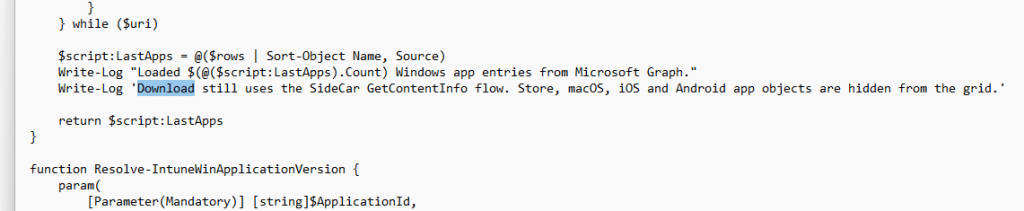
The tool first discovers the correct SideCar Gateway URI for the tenant and scale unit. Then it sends the GetContentInfo request for the selected AppId and ApplicationVersion.
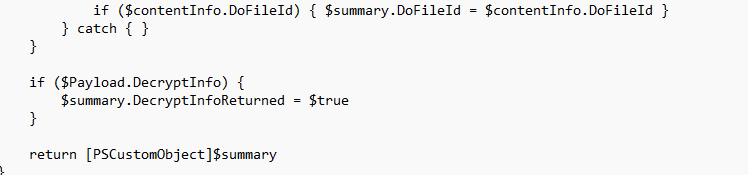
If SideCar allows the current device or user to resolve the content, it returns the metadata needed to download and process the package. If SideCar rejects it, the tool does not magically work around that.
And that is exactly how it should be.
Regular Win32 apps versus catalog apps
The original IntuneWin flow is built around encrypted content. A regular Win32 app returns encrypted content metadata. The tool downloads the .intunewin content, uses the returned encryption information, decrypts the payload with AES, and extracts the resulting zip.
That is the classic path. But Enterprise App Management catalog apps can behave differently. For some of those apps, the metadata returns: ProfileIdentifier = NoEncryption
That changes the processing flow. When NoEncryption is enabled, there is no AES key or IV to use in the classic way. The tool should not keep trying to decrypt something that was not returned as an encrypted IntuneWin payload. Instead, it treats the downloaded content as the decoded zip and extracts it directly.
That was one of those small details that only becomes obvious once the tool starts working against more than just manually uploaded Win32 apps.
What the Intunwin Download tool does now
The current flow looks like this. The tool starts by initializing the local Intune identity context. It locates the MDM device certificate and extracts the device identity. It then discovers the SideCar Gateway URI for the device’s Intune environment.
For app discovery, it requests a Company Portal IWService token through WAM and loads the Company Portal catalog. That gives the UI a clean list of apps with display names and AppIDs.
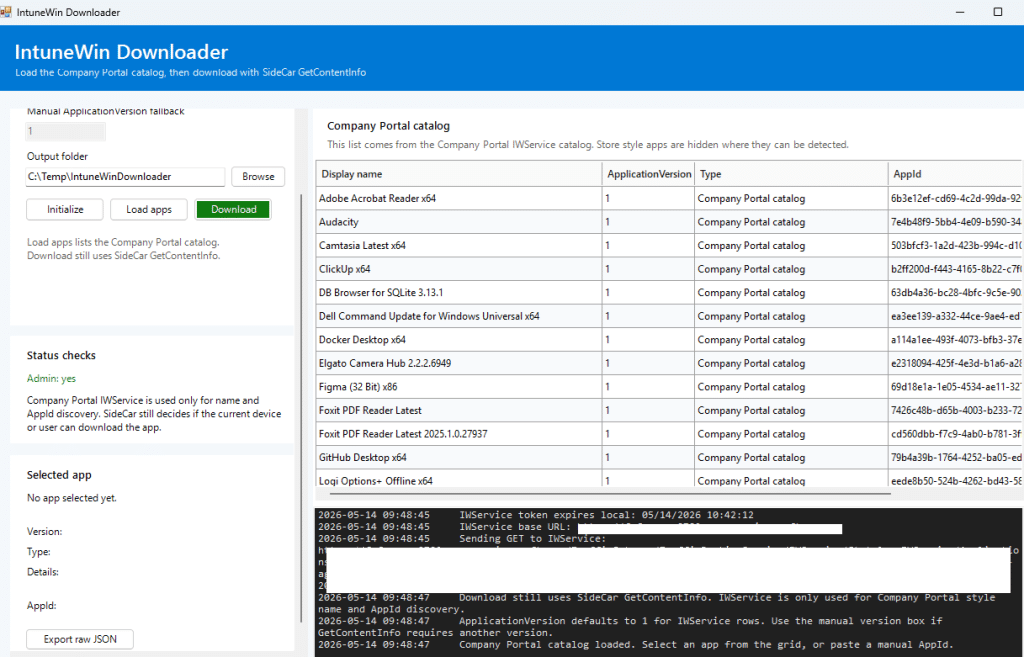
For downloading, it requests an IME SideCar token through WAM, calls GetContentInfo with the MDM device certificate, downloads the content, and then processes it based on the returned metadata. If the metadata contains regular encryption information, the tool decrypts and extracts the IntuneWin content.If the metadata says NoEncryption, it skips AES decryption and extracts the downloaded zip directly.
And because large app packages can take some time, the tool now shows a separate download progress dialog instead of making the UI look frozen while the content is being downloaded.
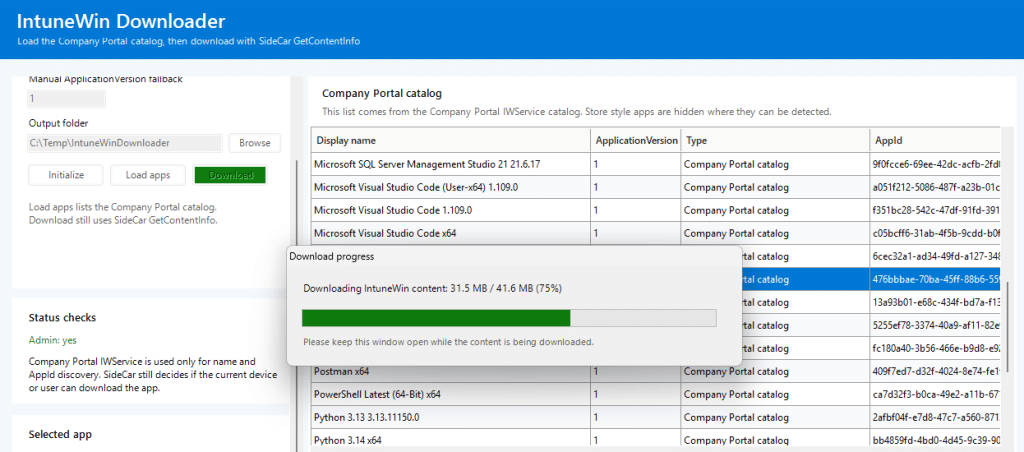
Please Note: You can download the Intunewin Downloader here.
Conclusion
Recovering IntuneWin content from Intune was already possible, as long as the app was still assigned and the device could resolve the content. The first version showed that by following the IME flow and manually pulling the pieces together. This newer version takes the next step.
It uses WAM instead of hunting through .tbres files, uses the Company Portal catalog for AppId discovery, uses the IME SideCar lane for content resolution, and handles both encrypted Win32 packages and catalog apps that return NoEncryption.
The post Download IntuneWin Files from Microsoft Intune V2 appeared first on Patch My PC.
]]>This release contains a fix as noted below. This will be made available via the self-update channel over the coming days. You can upgrade in place now by downloading the latest MSI installer. Fixes
The post Patch My PC Publisher Production Version 2.2.2.0 Released appeared first on Patch My PC.
]]>This release contains a fix as noted below.
This will be made available via the self-update channel over the coming days. You can upgrade in place now by downloading the latest MSI installer.
Fixes
- Revert a change causing a notification with message ‘Update complete’, ‘<app name> update complete’, or similar to appear.
The post Patch My PC Publisher Production Version 2.2.2.0 Released appeared first on Patch My PC.
]]>Maintenance Window Settings Catalog briefly showed up in the Intune In development documentation and was later pulled back. The Settings Catalog experience is no longer listed, but the Windows Update CSP still exposes the maintenance window policy settings.
The post Maintenance Window Settings Catalog… And it’s Gone appeared first on Patch My PC.
]]>A while ago, I wrote about something interesting that showed up in the Intune “In development” documentation. Microsoft mentioned new Maintenance Window settings for OS updates, drivers, and updates in the Windows Settings Catalog.
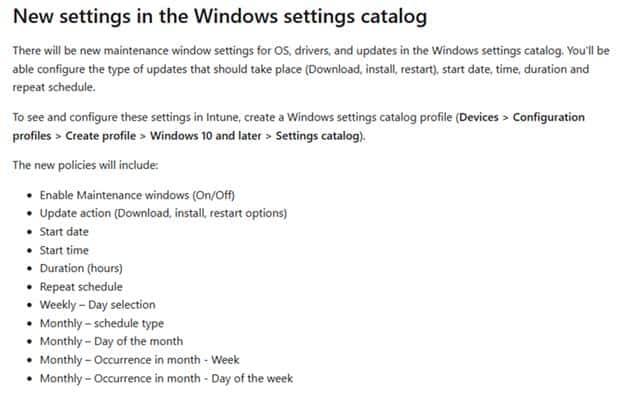
That immediately caught my attention. Not because we needed another setting in Intune, but because this one touched a very familiar problem: timing. At what point is Windows allowed to do update work? Should drivers install during the day, or only inside a controlled window? What about firmware updates? And how do we prevent all of this from kicking in at exactly the wrong moment?
We already have active hours, deadlines, and restart controls. Useful settings, but not the same thing as a real Maintenance Window. Active hours tell Windows when it should try to stay out of the user’s way. A maintenance window does the opposite. It tells Windows when it is allowed to do the work. That difference is exactly why this caught my attention.
Maintenance Window Settings Catalog Disappeared
Sometime later (1 April), the maintenance window entry disappeared from the public Intune “In development” page.
The GitHub history shows the change clearly. The maintenance window section was removed from the documentation. The removed text specifically talked about new Windows Settings Catalog settings for maintenance windows, including configuration steps and policy options.
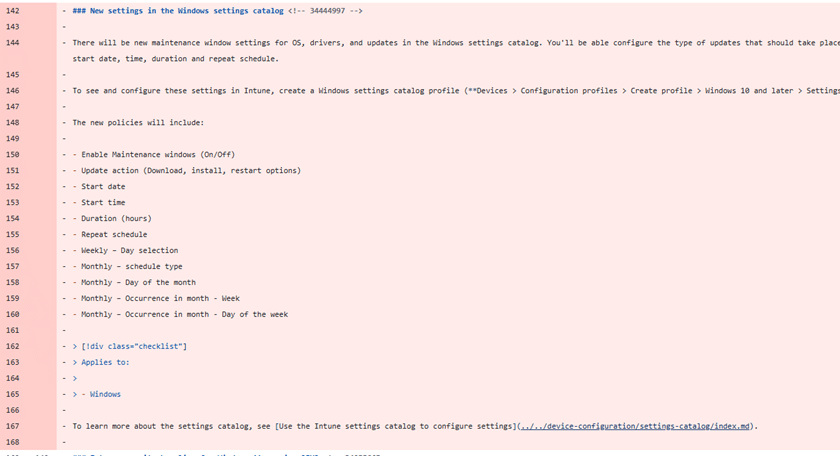
That is the interesting part. It was not a small wording change. It was not moved to a different sentence. The Settings Catalog announcement for this feature was pulled back before it landed. That does NOT mean the whole Maintenance Window idea is gone forever. It does mean the original public wording is no longer something we should treat as the current Intune roadmap.
Maintenance Window CSPs Still Work
The best part is that the Windows Update CSP still documents the maintenance window policy family.
The CSP still contains settings such as MaintenanceWindowEnabled, MaintenanceWindowDurationHours, MaintenanceWindowStartDate, MaintenanceWindowStartTime, MaintenanceWindowRepeatScheduleOption, and MaintenanceWindowUpdateActions.
That last one is important because it describes what Windows should only do during the configured maintenance window. The documented actions are around download, install, restart, or install and restart. The Maintenance Window CSPs are still there. The policy surface is still there. With it we can still configure the Maintenance Windows CSP manually (when needed)
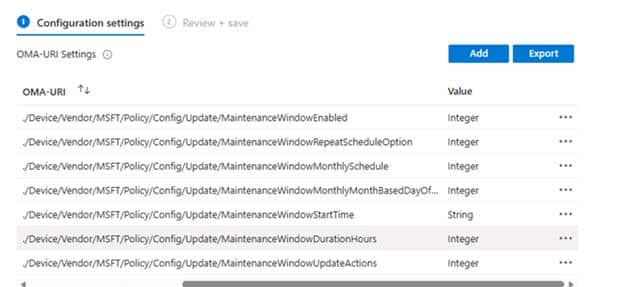
The Intune “In development” entry that promised a Settings Catalog experience is the only part that was pulled back.
For now, the Custom OMA URI route is still the way to test it. I covered the configuration steps earlier, and those CSP settings are still documented.
Maybe Maintenance Window Settings Catalog Just Needed More Time
A maintenance window sounds simple, but there is more to it than just enabling a setting.
You need a start time, a duration, a repeat schedule, and the actions Windows is allowed to perform inside that window. In the end, it directly decides how Windows Update behaves on the device. That kind of feature needs a clear story before it shows up in Intune, because admins will not read “maintenance window” as a tiny Windows Update detail. They will read it as something bigger. And honestly, that is not weird… because this is a feature everyone is waiting for.
When admins see a maintenance window, they want to know what respects that window. They want to know what ignores it. They want to know what happens when the device is offline, what happens when a deadline is reached, and what happens when a restart is needed outside the configured time. Those are the details that make this kind of feature useful or confusing.
Maybe it simply needed more time. The experience could have changed, the wording may have gone public a bit too early, or Microsoft pulled it back before everyone started searching the Settings Catalog for something that was not ready yet. Whatever the reason was, the breadcrumb is still there. The Settings Catalog announcement appeared, and then it disappeared.
Maybe They Are Saving It For Ignite
Of course, there is always another option. Maybe Microsoft looked at the documentation and thought: not yet, let’s save this one for a bigger moment. (just guessing… nothing more)
Maybe Ignite needed another slide. Maybe someone saw the words “maintenance window” in the public docs and decided this feature deserved a bit more spotlight before every admin started clicking through the Settings Catalog. Which makes sense, as this maintenance window feature deserves a lot of attention (people are waiting for it)
For now, the Intune Settings Catalog experience is not there in the public roadmap anymore. That means we are back to the part Windows already gives us: the Update CSP.
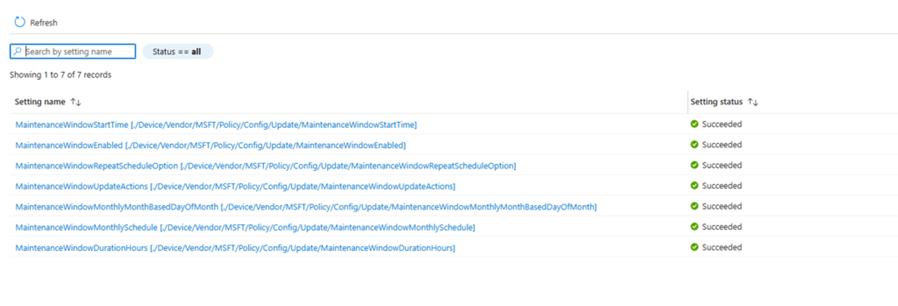
So if you want to investigate this today, the CSP is where the story currently lives. Not because that is the perfect admin experience, but because that is the public policy surface that still documents the maintenance window settings.
Where This Leaves Us
The current Intune “In development” page no longer mentions Maintenance Window Settings Catalog. That does not make the feature useless. The Windows Update CSP still documents the maintenance window policies, still uses preview wording, and still gives us a way to enable it manually when we want to test it.
So for now, the CSP is the place to look. The Maintenance Window Settings Catalog disappeared from the public Intune docs, but the maintenance window update policy surface is still there. Enough to test, enough to understand, and definitely enough to keep an eye on.
The post Maintenance Window Settings Catalog… And it’s Gone appeared first on Patch My PC.
]]>This release contains a variety of improvements and fixes, as noted below. This will be made available via the self-update channel over the coming days. You can upgrade in place now by downloading the latest MSI installer. Improvements Fixes
The post Patch My PC Publisher Production Version 2.2.1.0 Released appeared first on Patch My PC.
]]>This release contains a variety of improvements and fixes, as noted below.
This will be made available via the self-update channel over the coming days. You can upgrade in place now by downloading the latest MSI installer.
Improvements
- Increase Intune upload timeout to 1 hour for large files and other enhancements to azure upload process.
- Intune reports now run periodically in the background and cache for 8 hours to improve query speed.
- When selecting the Use Existing App Registration option, you are now given a choice of Intune tenants to choose from.
- Display Entra groups that have been deleted with a prefix of [Deleted Group: ] when editing DO Priority
- Ensure the Publisher gracefully handles the case where the Publisher connection is deleted from the cloud.
Fixes
- Fix a bug causing the user to be unable to add a new language to Manage Conflicting Processes.
- Error message was displayed in the wrong place when editing a webhook.
- Resolve an issue that causes the Publisher to improperly parse the installation command line for WSUS in some cases. This could result in an update being published with an incorrectly formatted installation command.
- Grace period for required assignments can be disabled.
- Republishing an Intune Update retains the icon.
- Fxied a bug where a progress bar with an inaccurate count would be dispalyed in the Intune App Manager when editing assignments.
- Pause Product only worked on the first tenant in the list for MSPs with more than one tenant configured.
- Large Intune reports would fail to write to disk, causing an Out Of Memory exception.
- Fixed a bug where some applications would not be found in the local content cache.
- Clicking Browse in the Manage Pre/Post Scripts window would sometimes cause the Publisher to force close.
- When running a sync, Auto Publishing rules would return 0 devices for the Intune Report even when Devices were present.
- Switched from using json to LiteDB for Intune Report Caching to improve report performance.
- Ensure the co-existance status is propogated to the cloud when a product is unselected in Publisher.
- Requirement Architecture was not correctly interpreted by Publisher when creating Intune Apps
- Fixed a bug causing products marked for ‘Exclude from auto-pubilshing rules’ would not be saved when the product treeview is filtered to enabled products only.
- Addressed bug in teams webhooks causing notification to be missing version and other information.
- SMTP Oauth Test permission button would only ever account for the first tenant configured.
- Fix a bug causing the WSUS Update Modification Wizard to not load in some cases.
- Resolve an issue that causes the Publisher to improperly parse the installation command line for WSUS in some cases. This could result in an update being published with an incorrectly formatted installation command.
- Intune tenant names were not correctly shown in the webhook list under the Alerts tab.
- Ensure the nth-day-of-the-week option for a monthly sync schedule maps correctly to settings.xml.
- The product export feature in the Advanced tab no longer exports duplicate rows for Intune applications and updates.
- Refresh the Intune authentication token before retrieving reports from Intune when performing auto-publishing during synchronization.
- CVE, Classification and Severity data were not populated in Publisher email reports for existing applications that received an update to a new version.
- Fixed a bug where conflicting processes UI unable to start when there are duplicate entries in the process list:
- Ensure the OS requirements are set appropriately for ConfigMgr and Intune Publishing.
- Fixed a bug where Selective Sync apps were showing as “Marked” when not selected
- Fixed a bug which was causing the copy apps button to not be displayed in intune standalone mode.
The post Patch My PC Publisher Production Version 2.2.1.0 Released appeared first on Patch My PC.
]]>Controlled Configuration for Microsoft Defender antivirus settings is coming. Microsoft describes it as an extension of Tamper Protection, with Intune taking control of Defender policy enforcement.
The post Controlled Configuration for Microsoft Defender Antivirus settings appeared first on Patch My PC.
]]>In this blog, we will look at something new coming: Controlled Configuration for Microsoft Defender antivirus settings. It sounds like another Defender setting at first, but the pieces already sitting on the device tell a much bigger story. Almost a year ago, I noticed the first traces of it, and now that Microsoft has finally mentioned Controlled Configuration publicly, it is time to connect those dots.
Please Note: This blog is based on OSINT and purely my own investigation….. nothing else… well… maybe the update of the what’s in development pages from MSFT
Introduction to Controlled Configuration
Almost a year ago (or even more), I stumbled upon something on one of my devices that immediately felt out of place. Buried in Program Files was a component called ControlConfigAdapter. I had never seen it before, Microsoft was not saying anything publicly about it, and the name was far too specific to ignore. So I started investigating….yes, investigating……
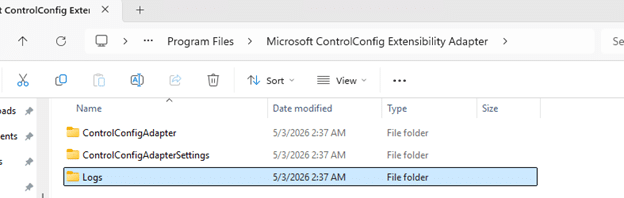
At first, it was just a folder, just a name, and that familiar feeling that Windows had quietly dropped something important on the device without much explanation (as always). What made it even stranger was where it showed up. This ControlConfig adapter came along in the same agent package as the device inventory agent MSI… That alone was enough to make me think about it, because device inventory and configuration enforcement are not exactly the same story. The more I investigated, the less this looked like a random device inventory extension and the more it looked like the plumbing for something much bigger… Something new for Defender.
Controlled Configuration does not belong to Device Inventory
The first surprise was simply that it existed. If you notice a new agent or component on the device and it appears next to an inventory agent, the natural assumption is that it likely belongs to the same device inventory agent. ControlConfigAdapter was sure not. While doing some additional investigation, the function names did not mention inventory, collection, or hardware state. They were talking about config payloads, policy status, payload import, and something called SCC state.
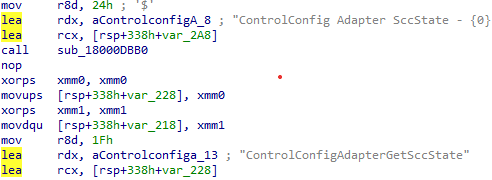
That already pushed it in a very different direction. Instead of looking like an additional part of the device inventory agent, it started to look like something that receives policy, hands it off, and tracks the result. That was the moment I started to believe it had something to do with Defender.
Controlled Configuration payload import and policy state
Once I started following the functions, the story became clearer. The controlled configuration adapter has routines that line up around three big actions. First, it can import a configuration payload. One of the clearest examples is the function that logs, which calls MpImportConfigPayload.
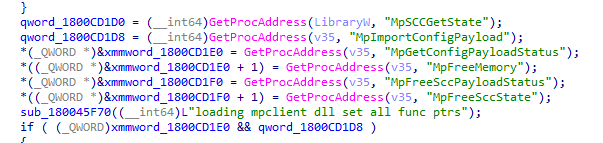
That alone is a strong hint that this adapter is not enforcing settings on its own. It looks more like a bridge that takes an incoming management payload and hands it to the Defender configuration layer through mpclient.dll.
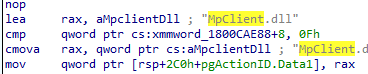
Second, it can retrieve payload status. Another function calls MpGetConfigPayloadStatus, then reads the response and logs whether the payload was successfully retrieved. That tells you this is not a one-way push only. It also wants feedback from the Defender side.
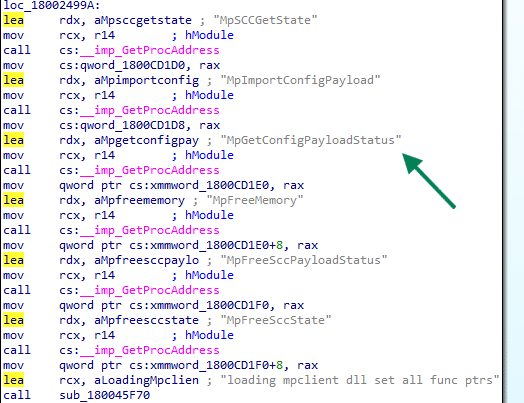
Third, it keeps checking something called SCC state (secure controlled configuration?. Multiple functions revolve around reading that state, logging it, parsing versioned data, and turning it into policy reporting. So, there is an import path, a status path, and a state path.
That combination matters. It means this adapter looks like a management bridge with full round-trip behavior. It takes the Secure Controlled configuration in, asks Defender to apply it, reads back the status, and exposes reporting on top of that.
The MOF file tied it into Microsoft device management
While looking through the Controlled Configuration adapter folder… something else caught my eye. Inside the folder, there was a MOF file. That MOF file was the missing piece.

Instead of sitting in some private Defender-only corner, the provider is registered in the ROOT\MicrosoftDeviceManagement_Extensibility_ControlConfig namespace. The class is literally called ControlConfigAdapter and it inherits from OMI_BaseResource, which is exactly what we also noticed with the device inventory agent and how that one was connected to declared configuration.
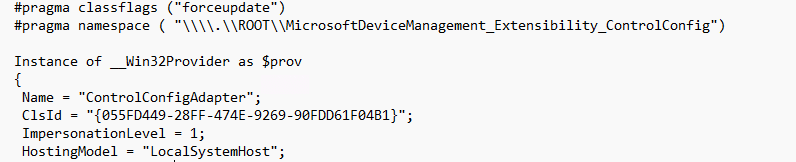
The keys are also revealing. The class defines DocumentID, Version, MeID, PayloadName, SettingReportIDs, ReportNodeName, BaseReportNodeName, and ExtendedProperties. The actual payload is carried in ControlConfigPayload and the resource supports GetTargetResource, TestTargetResource, and SetTargetResource.

It tells you this adapter is designed to receive a declarative device configuration document, identify it properly, apply it, test it, and report back…. Get … Set … test … That is where the adapter stopped looking like a local Defender helper and started looking like a native Defender enforcement bridge connected to MMP-C and WinDC
SCC kept showing up in the MPClient
Then there was the other breadcrumb that kept repeating itself as I investigated: SCC. It showed up everywhere. It showed up in the configuration tree under Features\SCC and Features\SCC\Notification.
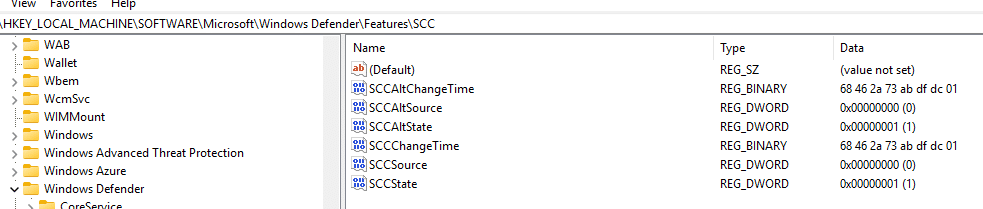
The MPClient also contains trace strings such as Origin_SCC, Origin_SCC_Policy,, TamperProtection, and even a string named SecureControledConfig with the typo included.

So while Microsoft was not publicly explaining what SCC meant at the time, the Defender Client was already showing it. Whatever SCC is, it was being treated as a distinct policy source inside the Defender Agent. In other words, the function is not only concerned with whether a value exists. It is concerned with who owns the value, which source wins (sounds like tamper protection), and whether local administrators are still allowed to merge or override settings.That starts to sound a lot stronger than classic tamper protection.
Controlled Configuration In Defender
One of the more interesting parts is that the Defender provider already seems to know about this state. Inside the ProtectionManagement MOF, the MSFT_MpComputerStatus class exposes a field called ControlledConfigurationState.

Which is also visible if you ask for the defender status

That stood out immediately. It sits there next to other known Defender states, including IsTamperProtected and TamperProtectionSource. That means the Defender side is already prepared to expose a dedicated controlled configuration state. Not just tamper protection, but something better. That is a strong clue. It suggests that tamper protection and controlled configuration are not the same thing. They live next to each other in the Defender model.
Controlled Configuration showing up in the What’s in Development
For a long time, all of that lived only in the code, on the device, and in the adapter itself. That made it interesting, but still incomplete. You could see the plumbing, but there was no public sign yet that connected it to an actual product direction. That finally changed once Controlled Configuration appeared on Microsoft’s What’s in development page.
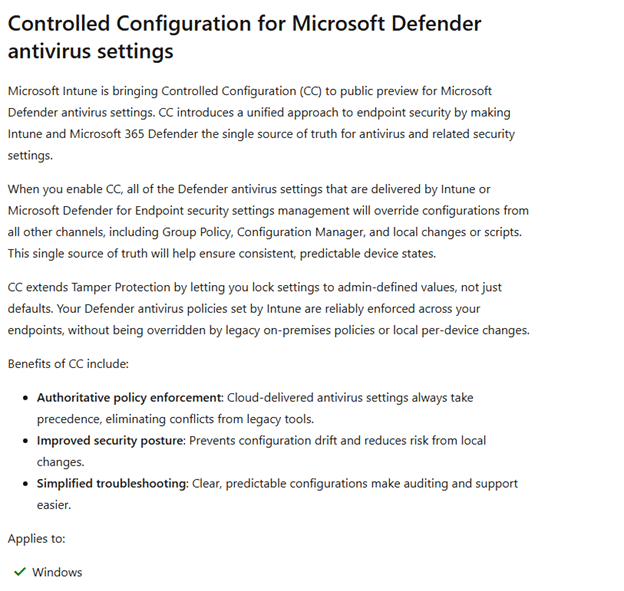
That matters more than it might seem. Because once Microsoft announced this Controlled Configuration for Microsoft Defender, the adapter suddenly stopped looking like an unfinished internal experiment and started looking exactly like what it had been hinting at all along. Tamper Protection v2 :)..… and it all started with the ControlConfig Adapter showing up on my devices last year!
Controlled Configuration For Defender in Intune
I need to be a bit careful here, because this part is still more about where the signs are pointing than about a fully public experience everyone can click through today… so the next few sentences… is all based on what I think it will look like (AKA not present of today).
But based on the current Intune Portal configuration and the way this feature is described, Controlled Configuration seems like a setting that would naturally sit in the same general area as the Tamper Protection setting in the Defender Configuration.
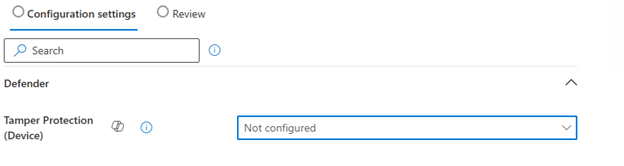
In other words, this feels like something that would belong alongside the Defender antivirus and endpoint security experience… So when I need to make a wild guess, it will look something like this…
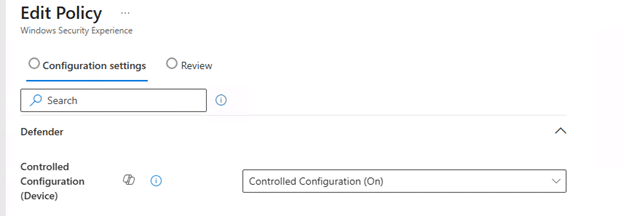
The Windows Security side also fits that direction. If the device is going to expose a Controlled Configuration State, then there is clearly already a local status concept for this feature. That means the experience is not only about sending policy down. It is also about showing whether the device is actually under that stronger configuration model.
Please note: The picture above and below are MOCKUPS!!!!!
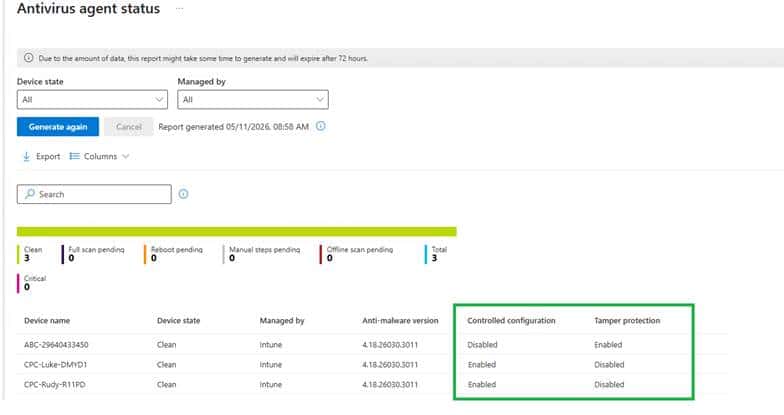
So while I would not present any portal layout as final, I would absolutely say this: if Microsoft rolls out Controlled Configuration, I would expect it to show up exactly where admins already manage Defender security posture, only with a much heavier focus on source of truth and enforcement.
Controlled Configuration beats Defender Tamper protection
Tamper protection is already useful, but it is also narrower. Tamper protection protects a defined set of Defender settings from being disabled or changed. It is very good at saying no, especially when something local tries to turn off protection or weaken it.
Controlled Configuration for defender looks way stronger and better. Everything about this adapter suggests it is not just there to block changes. It looks like it is there to make management authoritative. The document comes in through a management resource model. The payload gets handed to the Defender side. The adapter checks the status. SCC state is tracked. Strict policy mode and local admin merge behavior are part of the story. The Defender provider exposes a dedicated controlled configuration state. That is a very different posture.
Tamper protection says certain protected settings cannot be changed.
Controlled configuration appears to say Intune owns the configuration, Defender applies it, and the device reports that managed state back. And the most interesting part is what happens to everything you did not explicitly configure.
The wording Microsoft is using around this feature strongly suggests it is not only about locking configured settings. It is also about falling back to secure defaults for the rest. That is what makes this feel like more than a simple rename of tamper protection v2. It looks more like a larger managed enforcement model that may include tamper protection.
Closing thoughts
When I first noticed ControlConfigAdapter on my device almost a year ago, it looked like one of those strange new components Windows sometimes drops on a machine long before anyone is ready to explain it. At that point all I had was a name, a folder, and a lot of unanswered questions. Now the picture is very different.
The code shows payload import, status retrieval, and SCC state handling. The MOF ties it into Microsoft device management extensibility with the kind of metadata you would expect from MMP C and WinDC. The Defender provider already exposes a ControlledConfigurationState. The configuration manager knows about SCC as a policy origin. And Microsoft has finally published Controlled Configuration in the “What’s in development” pages. This does not look like a small cosmetic addition to tamper protection.
It looks like Microsoft is building a stronger model where Defender configuration is not only protected from tampering, but managed, enforced, and reported as a secure controlled state.
The post Controlled Configuration for Microsoft Defender Antivirus settings appeared first on Patch My PC.
]]>WSUS content URLs may redirect from HTTP port 8530 to HTTPS port 443 when HSTS is enabled or cached for the WSUS host name. This article explains the symptoms, cause, verification steps, and how to clear cached HSTS state on affected clients.
The post WSUS URLs redirect to HTTPS when HSTS is enabled appeared first on Patch My PC.
]]>Overview
WSUS content URLs may redirect from HTTP port 8530 to HTTPS port 443 when HSTS is enabled or cached for the WSUS host name.
This can affect direct access to WSUS content files, such as CAB files, and may prevent expected HTTP access to WSUS content.
Symptoms
When browsing to a WSUS content URL over HTTP, the browser redirects the request to HTTPS on port 443 e.g: http://<WSUSServer>:8530/Content/<ContentPath>.cab
The issue may also occur when browsing to the WSUS anonymous check file. e.g: http://<WSUSServer>:8530/content/anonymousCheckFile.txt
The redirect may only occur when the Default Web Site has an HTTPS binding on port 443.
Instead of the intended WSUS content being downloaded, or the expected WSUS test file being displayed, the browser may return an HTTP 404 error. This can occur because the browser is redirected to the Default Web Site on port 443, where the WSUS content file does not exist.
For example, the browser may try to access content from the Default Web Site content directory, which is typically C:\inetpub\wwwroot\
The requested WSUS content file would not normally exist in that location C:\inetpub\wwwroot\Content\<ContentPath>.cab
Cause
This behavior can occur when HSTS is enabled on the WSUS Administration site.
After a browser receives and caches the HSTS instruction, future HTTP requests to that host name are automatically changed to HTTPS by the browser.
Disabling HSTS in IIS prevents new clients from receiving the HSTS instruction. However, clients that already cached HSTS may continue forcing HTTPS until the local HSTS state is cleared or expires.
Use these steps to determine whether the redirect is caused by active HSTS on the server or cached HSTS on the client.
Confirm the server configuration
- Confirm that the WSUS Administration site is bound to HTTP port 8530 and HTTPS port 8531.
- Confirm that HSTS is disabled on the WSUS Administration site, the Default Web Site, and any other IIS site using the same host name.
- Confirm that there are no IIS redirect rules in the WSUS Administration site or Default Web Site.
- Confirm that no custom response headers are configured that add the
Strict-Transport-Securityheader.
Test from an affected client or server
- Browse to the WSUS content URL from the affected client e.g:
http://<WSUSServer>:8530/content/anonymousCheckFile.txt
- If the request still redirects to HTTPS after HSTS has been disabled in IIS, the client may have cached HSTS state.
- Clear the local browser HSTS state for the WSUS host name.
- Clear the browser cache.
- Close and reopen the browser.
- Test the same URL again.
Test from a clean client
- Use a different client that has not previously browsed to the WSUS host name.
- Browse to the same WSUS content URL. e.g:
http://<WSUSServer>:8530/content/anonymousCheckFile.txt
- If both clients still redirect, review IIS bindings, redirect rules and custom response headers.
- If the clean client works but the affected client redirects, the issue is likely cached HSTS state on the affected client.
- If both clients redirect after HSTS is disabled and the browser cache is cleared, confirm that HSTS is disabled on the WSUS Administration site, the Default Web Site, and any other IIS site using the same host name.
Resolution
Disable HSTS where HTTP access to WSUS content is required, then clear the cached HSTS state on affected clients.
Disable HSTS in IIS
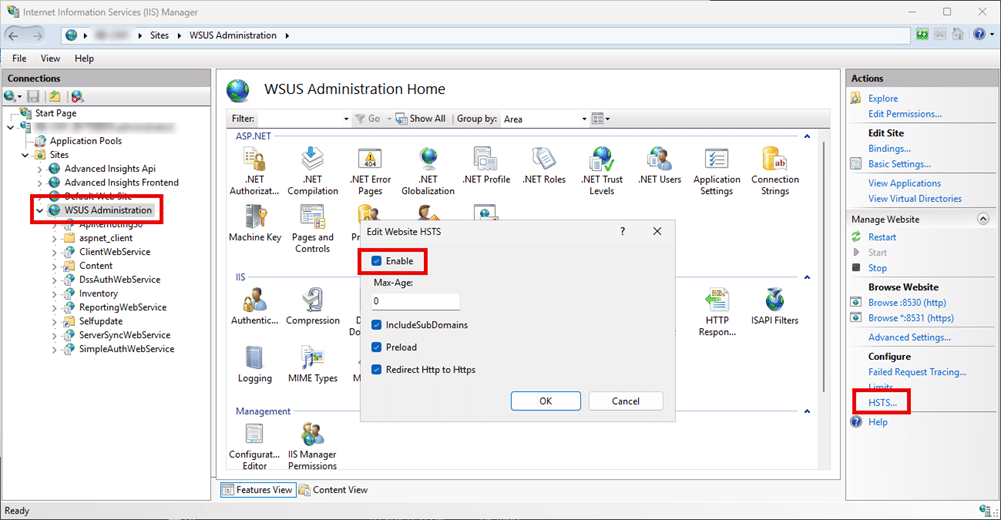
- Open IIS Manager.
- Select the affected IIS site (typically the WSUS Administration site).
- Open the HSTS settings.
- Clear the HSTS options.
- Set the max age value to
0. - Clear Enable.
- Select OK.
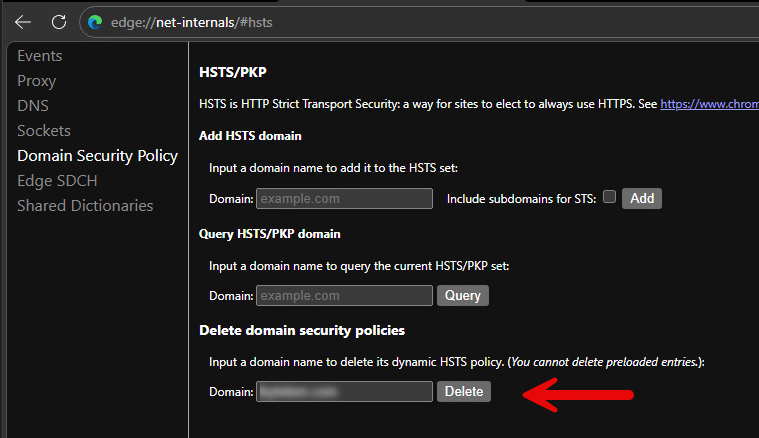
Clear cached HSTS state in Microsoft Edge
- Open Microsoft Edge.
- Browse to the following page.
edge://net-internals/#hsts
- In the Delete domain security policies section, enter the WSUS host name or parent domain.
- Select Delete.
- Clear the browser cache.
- Close and reopen Microsoft Edge.
- Browse to the WSUS content URL again.
The post WSUS URLs redirect to HTTPS when HSTS is enabled appeared first on Patch My PC.
]]>