A lot of the fun of traveling is the memories created while exploring new places with friends, family or even solo. Pictures are a traditional way to remember those moments, but now Your Timeline users on Android can preserve their travel memories and info in a new way. Google Maps users with Location History enabled can open Your Timeline, select a date from their recent vacation or everyday life and add notes to help remember what they did that day—or save important notes for later.
No matter where your travels take you this summer and beyond, these new Google Maps features will get you there and help keep track of all the memories you make along the way.
Posted by Liz Davidoff, Communications Manager, Google Maps
If you’re heading to a casual celebration not so far from home, walking or public transit might be your best option. The Google Maps app will give your walk time ETA along with a few transit route options with real-time schedules, updates and fares.
Google Maps can also help you grab an Uber, if arriving by bus or train isn’t your holiday style. You can see the estimated trip duration, pickup time and estimated cost once you scroll down to the bottom of the app's transit option screen.
Stay safe with Maps Minutes Hacks and enjoy your New Year’s celebrations wherever they take you.
Posted by Dai Pham, Head of Geo and Google Maps Marketing
Once you’ve saved a map area, you can search for places and get directions offline. Looking for that famous art gallery or a neighborhood watering hole? You can check out addresses, opening hours, phone numbers and even navigate there–all without internet access.
To explore and navigate the world offline, install the Google Maps app on your iPhone before your holiday journey, or open it on Android along the way.
Get the most of your holiday time with Maps Minutes Hacks. Next up: how to get around faster and safer.
Posted by Dai Pham, Head of Geo and Google Maps Marketing
Get transit service alerts on your desktop browser
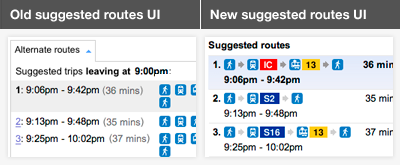
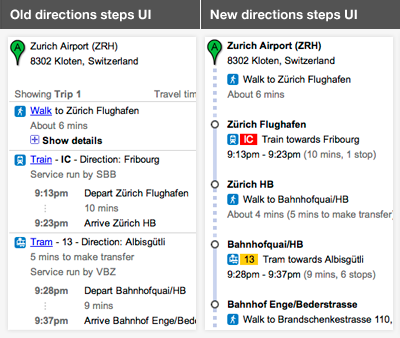
If you’re looking to find the best route to see a concert after work or checking for any expected delays when already running late, this feature works when you’re online via maps.google.com and Google Maps for Mobile on Android. To adjust your travel around the alerts you see, simply choose another suggested route or change your departure time.
Get transit service alerts on Google Maps for Android
We’re regularly adding new cities and features globally and looking forward to continuing our efforts to make travel by public transportation a better experience in more than 400 regions around the world. For everybody who lives in one of New York City’s five boroughs, commutes in and out every day or is visiting for business or vacation, we hope today’s update improves the ease and efficiency of your trips around the city.
Posted by Csaba Garay, Transit Partner Technology Manager, Google Maps
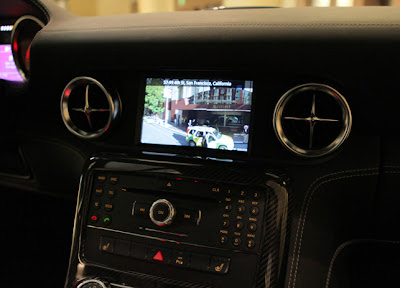
(Mercedes-Benz SLS AMG Gullwing Coupe at the O’Reilly Where Conference - April 2012)
For night time driving the SLS AMG takes advantage of Styled Maps to create a map that’s easier to view in low-light situations and does not impede a driver’s night vision.
Chances are, if you’re driving this around all day, you’re going to get very hungry. That’s where the Places API integration with Places Autocomplete API comes in handy. Drivers can enter in what they’re looking for it, be it Thai food or pizza and the vehicle will return a list of nearby places along with address, distance, and rating.
Once the Places API has helped you decide what to eat and where you need to go, you can view the destination in Google Street View. In the image below, the system is displaying Street View imagery directly in front of the hotel in San Francisco where the vehicle was located for the 2012 O’Reilly Where Conference. From there you can enter directions that are displayed on a Google Map along with the option to display current traffic.
The engineers at Daimler have done an amazing job of taking Google Maps and combining it with one of the most-loved automobiles. There are many different types of developers in the Google Maps API ecosystem and great implementations like this remind us that the possibilities are almost endless!
Posted by Carlos Cuesta, Google Maps API Product Marketing Manager
Share your explorations with Google+ Google Earth is a great way to virtually explore the globe, whether revisiting old haunts or checking out a future vacation spot. With the Google Earth 6.2 update, we’ve added the option to share a screenshot of your current view in Google Earth through Google+. If you’ve already upgraded to Google+, you can share images of the places you’ve virtually traveled to with your Circles, such as family, friends or your local hiking club. To try this new feature, simply sign in to your Google Account in the upper right hand corner of Google Earth and click “Share.” Images of mountains, oceans, deserts, 3D cities, your favorite pizza shop on Street View—you can now experience all these amazing places around the world with people on Google+.
Search improvements We’ve also made some updates to the search feature in Google Earth. Aside from streamlining the visual design of the search panel, we’ve enabled the same Autocomplete feature that’s available on Google Maps. We’ve also introduced search layers, which will show all the relevant search results (not just the top ten), so now, when looking for gelato in Milano, you can see all the tasty possibilities. Finally, we’ve added biking, transit and walking directions, so if you’re itching for a change of scenery or looking for a new route for your regular commute, you can now use Google Earth to generate and visualize all your options.
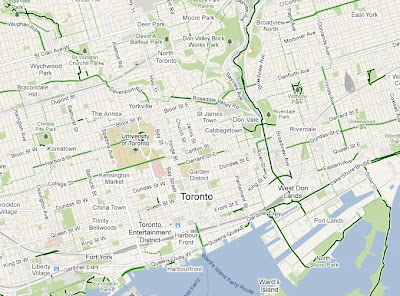
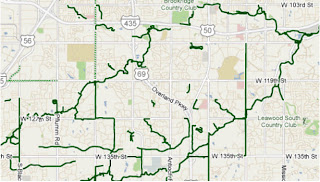
You can view this legend by clicking on the widget in upper right corner of Google Maps and selecting the Bicycling layer. You can also access biking directions on your Android device or by going to maps.google.com on your mobile browser.
Whether you want to drive, take transit, walk or even bike, Google Maps can help you get around. To see how it works on your Android phone take a tour here.
Posted by Dave Kim, Product Marketing Manager, Google Maps
We’ve learned that most people who use Google Maps just want to get from Point A to Point B -- as quickly and painlessly as possible. Whether it’s planning a weekend bike route, finding the quickest roads during rush hour, or identifying bus paths with the fewest transfers, people are making the most out of Maps features to travel faster and greener. Here’s how you can use Google Maps to minimize your impact on the environment.
Commuting by bike As an avid cyclist, I feel very fortunate to live in Boulder, Colorado and be surrounded by over 300 miles of bike lanes, routes and paths. When the weather is cooperating, I try to commute to work every day. It’s a great way to stay healthy and arrive at the office feeling awake! According to Biking Directions in Google Maps, it takes me 10 minutes to travel 2 miles from Point A (my house) to Point B (the office). It also shows three alternative routes, and I can check the weather in Google Maps to see if I’ll need a rain jacket for the ride home. I can also use Biking Directions on my mobile phone, which came in handy for me during a biking trip in Austin when I got lost on a major highway and needed a safe route back to the hotel.
Did you know that Google Maps has biking directions available in over 200 US cities and in 9 Canadian regions? A collaboration with Rails to Trails, an organization that converts old railroad tracks into bike paths, has made information about over 12,000 miles of bike paths available to Google Maps users.
Taking public transit
Millions of people use Google Transit every week, viewing public transit routes on both Google Maps and Google Maps for mobile in over 470 cities around the world. You can take a train from Kyoto to Osaka or find your way around London on the Tube. In some places, you can compare the cost of taking public transit and driving by viewing the calculation below the list of directions (like in this example). Feel free to customize your routes and departure and arrival times under “Show options” to minimize walking or limit the number of transfers. You’ll know if your bus is late by checking out live transit updates.
Being green in the car According to the 2011 Urban Mobility Report by Texas Transportation Institute at Texas A&M University, motorists wasted 1.9 billion gallons of fuel last year in the US because of traffic congestion, costing the average commuter an additional $713 in commuting costs. You can save time and money by clicking on the Traffic layer in the top right corner to view real-time traffic conditions on your route, and then drag and adjust your route to green. If you need directions in advance, save paper by sending your directions directly to your car, GPS, or phone. The Send-to-Car feature is available to more than 20 car brands worldwide, and the Send-to-GPS feature is available to more than 10 GPS brands. And for those of you who drive electric vehicles, you can search for electric vehicle charging stations by typing “ev charging station in [your city]” and recharge.
As you can see, Google Maps is loaded with features to help you save time, save money, and get where you need to be -- all while minimizing your commute’s impact on the environment. Go green with Google Maps, and safe travels!
To preview your own route, it is as simple as clicking on a button. Start by entering your starting point, destination, and mode of transport like any directions; in this case, driving directions from ‘Carmel CA to Big Sur CA.’ Then, just click on the “3D” play button. The map will switch to Earth view and automatically start flying you along your recommended route.
You can pause the flight at any time by clicking anywhere in the 3D view or on the pause button in the lower left. While the flight is paused, you can explore the surrounding area in 3D by clicking and dragging the map. When you are ready to resume the flight, simply click on the play button in the lower left of the 3D view.
To help you keep track of which step you are on, the current leg of the trip is highlighted in the left panel. You can also jump to a different part of the trip by clicking on a different step.
You can get back to 2D mode by clicking on the “2D” button in the left panel at any time.
Perhaps the most notable change is an update to the styling and color of our iconic pins across all Google properties. This change reflects our interface’s recent design evolution, introducing a more harmonious visual relationship between the on-map markers and the map itself.
Our on-map controls are also now more visually aligned with the rest of our design system. Together these changes reflect our recent efforts to reduce unnecessary clutter and give greater priority to information on the map.
In the header we’re also introducing more prominent buttons for Directions and My places integrated into an elastic interface that expands and contracts to best fit your browser window size.
Putting all of these changes together you get:
We hope you find this a welcome update making Google Maps more functional, effortless, and enjoyable. This is just one part of the many design updates that will continue rolling out across Google Maps in the coming weeks and months, so keep an eye out for more!
Posted by Willem Van Lancker, User Experience & Visual Designer
With today’s launch, Google Maps joins other Google products like Books, Offers and Product Search in having +snippets. And like Maps, what you see onscreen is what you share—just click on “Share...” in the Google+ bar to reveal the +snippet:
We’ll be rolling out +snippets to many more Google products in the future, so stay tuned. In the meantime, we can’t wait to see how other publishers customize their own +snippets, all across the web.
Posted by Bradley Horowitz, Vice President of Product Management
Suppose you’re planning to meet your friend for a concert at the Greek Theater in Berkeley, and you want driving directions to plan your trip from your apartment in San Francisco. When accessing Google Maps, you’ll see a new widget in the upper right corner that allows you to easily select from either the Maps, satellite or Earth view. In addition, the single widget icon showcases all the different layers available to you, enabling you to quickly see more detailed information just by mousing over the ones you want.
Since it’s nearly rush hour and traffic information would be useful, you select that layer by clicking on it in the widget:
Unfortunately, the traffic layer shows that there are heavy delays along your route. You wonder if taking public transit is a better option, so you turn off the traffic layer by clicking on it again, and turn on the transit layer instead:
Ah, it looks like there’s a Bay Area Rapid Transit (BART) station near your apartment and one near the Greek Theatre. Public transit it is! If you also want to find a local spot to grab dinner after the show, you could search for [restaurants] in the same Google Maps window. Your recently viewed searches will appear in the new widget, enabling you to easily see both your destination and search results at the same time. This makes it easy to find a place nearby.
We hope this new all-inclusive widget for accessing map types, layers and recently viewed searches improves your experience exploring and navigating to the places you want to go!
Update (1/20): Sorry for the delay, but the new widget for viewing map types, layers and recent searches will be available soon. We'll update this post again when the widget is live.
Update (1/24): The widget is now live for all users on Google Maps. We hope you’ll enjoy exploring all the useful information available right on the map!
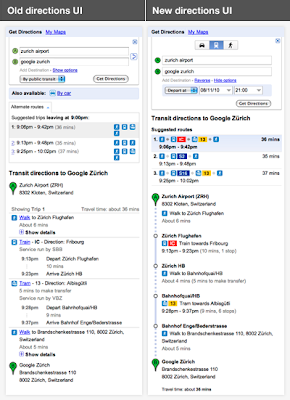
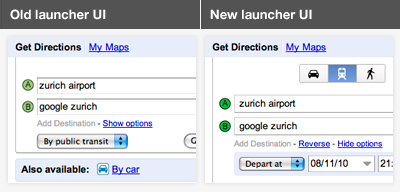
We work hard to provide the right results to get from A to B, but sometimes riders have their own preferences. For example, you might not mind a longer journey if it means fewer transfers; or you may prefer traveling by bus or train, rather than subway, to have views of your route. You can now specify these preferences and alter your route results by clicking the “Show options” link below your destination:
We hope that this new feature makes it easier for you to find your way! To get started, please visit maps.google.com/transit.







 Follow
