esc to cancel a suggestion.
Suggestions will also disappear if you continue typing or navigating without accepting them.
Keyboard Shortcuts
- Accept suggestion:
tab - Cancel suggestion:
esc - Accept suggestion word-by-word:
⌘+→(VS Code),⌥+⇧+\(JetBrains)
Tab to Jump
Windsurf can also anticipate your next cursor position and prompt you with aTab to Jump label at a certain line in the editor, allowing you to easily navigate through your file.
If you accept by simply pressing tab, then you will be taken to that next position.
Tab to Import
After defining a new dependency to use in a file, just simply hittab to import it at the top of the file once the hint shows. Your cursor will stay in the same position.
Settings
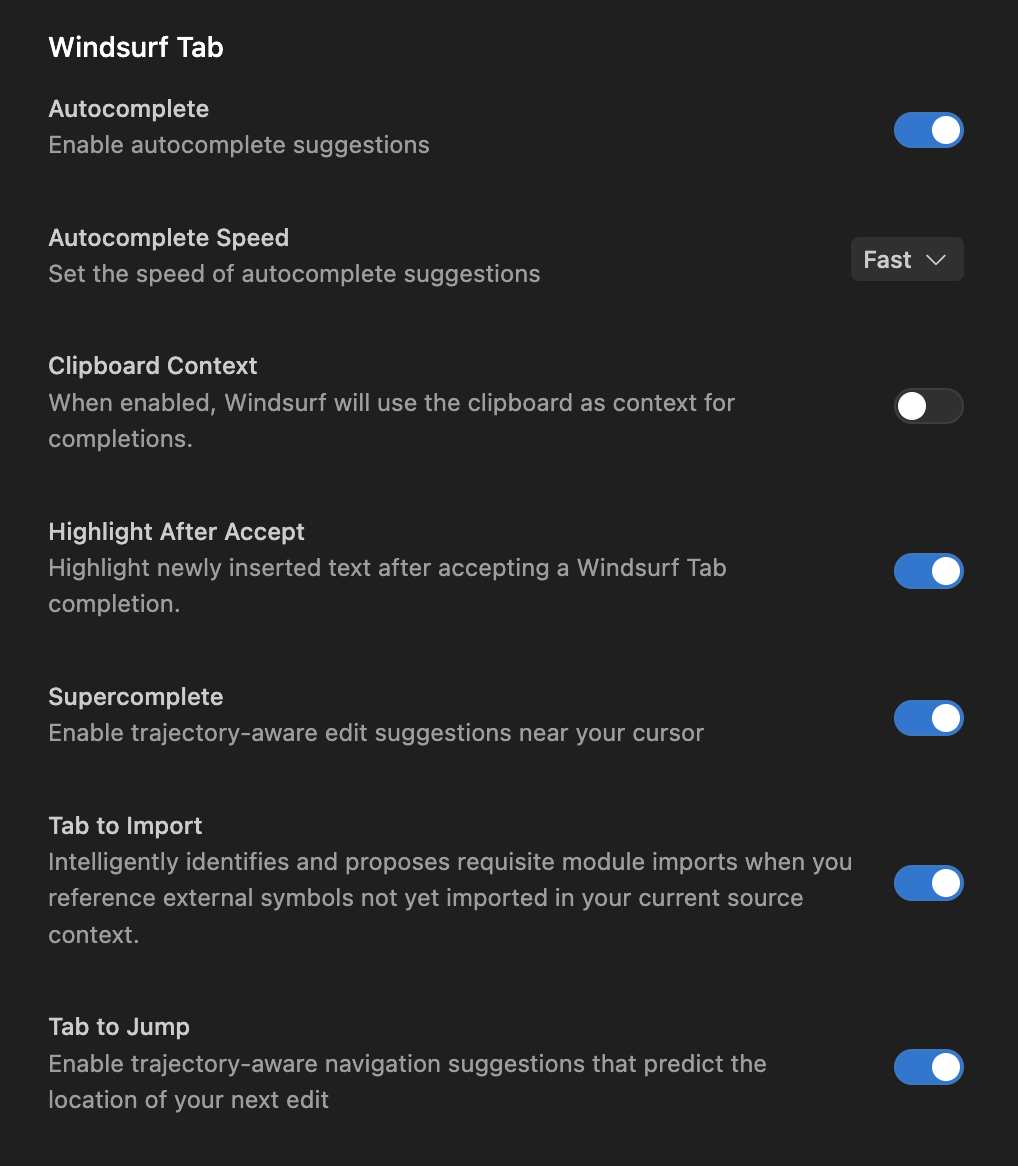
Windsurf Tab is offered in two modes: Autocomplete and Supercomplete. Supercomplete is our most powerful and recommended mode, appearing in small windows around your cursor to suggest both deletions and additions. Autocomplete is a more traditional autocomplete mode that appears at your cursor. You can also opt-in to using your clipboard as context. This means if you copy something to your clipboard, Windsurf will be able to use it as context. Tab to Import and Tab to Jump functionalities are also individually configurable in the settings.