The CSS align-self property sets an individual element’s alignment, overriding its parent current align-items value. Its exact behavior depends on the context we are working on: In a flex container, it aligns the element along the cross-axis; in a grid container or if the element is absolutely positioned, it aligns it along the block axis.
While there are other types of layouts (block and table), the align-self property only works in the grid, flex, and absolutely-positioned layouts we mentioned.
If the element doesn’t have a parent or is absolutely positioned, auto will default to normal. Otherwise, it will take the value defined by the align-items property declared on its parent element.
start, center and end
We can align an element along its alignment container using start, center and end. Both start and end depends on the alignment container’s current writing mode. For example, for a typical flex layout made of columns, each value would look like this on both “ltr” and “rtl” modes:
align-self doesn’t have top and bottom values since the alignment axis can change on flexbox.
self-start and self-end
If we want to use the element’s writing mode over the alignment container’s writing mode, then we can use the self-start and self-end values.
flex-start and flex-end
The flex-start and flex-end values are specific to flex items and align them depending on the current flex-flow value. Specifically for align-self, they behave as start and end but will flip them if the flex-wrap property is set to wrap-reverse on the parent element.
If these are used outside a flex item, they’ll behave as start and end, respectively.
stretch
The stretch value increases the element’s size to try and fill the alignment container on its corresponding axis, respecting relevant sizing properties like max-height or width.
baseline, first baseline and last baseline
In typography, the baseline is an imaginary line upon which most characters in a line of text rest. These lines may vary from element to element depending on their font-family, font-size or font-weight.
If we want to align elements along their baseline, we have two options
baseline or first baseline aligns elements along their first lines’ baseline, keeping them as close to the start as possible.
last baseline aligns elements along their last lines’ baseline, keeping them as close to the end as possible.
It will only work if there is more than one element with that type of baseline alignment. Otherwise, baseline/first baseline fallbacks to safe start, and last baseline to safe end
For absolute-positioned elements, they default to safe start and safe end, respectively.
anchor-center
For the case of absolutely-positioned elements with a default anchor, the anchor-center value lets us align the element so it matches its anchor’s center.
safe and unsafe
If the alignment container is too small or the element is too big, it may overflow outside its alignment container. This isn’t a big issue if the container is scrollable since we could scroll to see the rest of the element. But for some type of alignments (mainly center and end), the element may overflow outside the scrollable region, causing data loss.
In these situations, we can set safe at the start so that in case of overflow, the item behaves as flex-start. On the contrary, we can set unsafe so it always honors the defined alignment.
normal
Like in everything, what’s normal depends on the context we are. And for align-self, this will depend on the type of element, whether it is absolutely positioned, and the layout of its parent.
With “type of element”, I mean whether it is a replaced or non-replaced element. Replaced elements are those whose content is replaced by an external source like an <iframe>, <img> or <video> (Here is the exact list). While non-replaced elements are the rest, like <li>, <div> or <section>, etc.
We care about replaced elements since they have an intrinsic size that affects how they are aligned. This means that, in practice, elements with a defined aspect-ratio or defined dimensions also act as replaced.
Then, normal can be:
For absolutely-positioned elements, it depends on the type of element: replaced elements have a normal value of start, while non-replaced behave as stretch—although we’ll need to set inset to see this behavior.
For elements in a flex container, it acts as stretch.
For elements in a grid container, it also depends on the type of element. If the element is a replaced element (such as an image or iframe), it acts as start. Otherwise, it behaves as stretch.
As a rule of thumb, elements will try to stretch unless they have a defined dimension preventing it, in which case, they’ll remain at the start.
Using it with Flexbox
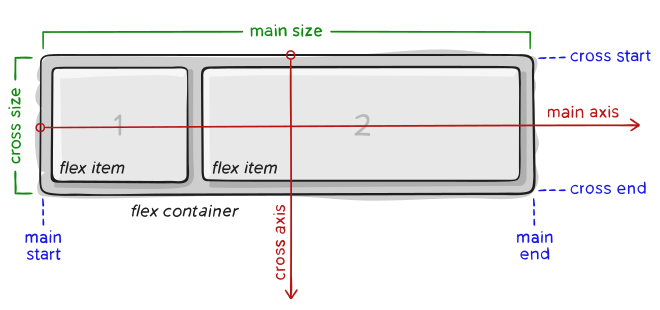
Remember that in a flexbox container, we have the main and cross axes. Borrowing from the Flexbox Guide:
In flexbox, the align-self property aligns individual items across the cross-axis. What’s particular about flexbox is that the main and cross axes switch depending on the current flex-direction, so we have two options:
If the flex-direction is set to row or row-reverse, the cross-axis is the vertical axis, so align-self aligns the item vertically.
If the flex-direction is set to column or column-reverse, the cross-axis is the horizontal axis, so align-self aligns the item horizontally.
Another quirk is that we have the flex-start and flex-end values. In most situations, these act just as their non-prefixed counterparts (start and end). However, the start and end values align items depending on the container’s writing mode while flex-start and flex-end depend on the current flex-flow. Specifically for align-self, it follows the container cross-start and cross-end sides.
So, if we flip those sides by setting flex-wrap to wrap-reverse, flex-start and flex-end will flip while start and end remain the same.
If these are used outside a flex item, they’ll behave as start and end, respectively.
Lastly, flexbox containers lay elements out in what’s known as flex lines. If wrapping is disabled, then there is only one line. Otherwise, it will generate more lines to fit all items. Then, align-self aligns an item in the cross-axis of each of these lines. You can see better the lines in a flexbox container on the demo below:
Using it in Grid
Funny enough, align-self is more straightforward in grid than in flexbox because align-self always aligns an individual item across the block axis.
To be more specific, items are aligned within their grid area, which is composed of any number of grid cells, and can be defined in a variety of ways.
In the next demo, we have four grid items placed each on a grid area. By default, these have a value of stretch so the cover their whole grid area, but we can move them around using both align- and justify- properties.
Used in Absolute Positioning
Lastly, we can now use both align-self and justify-self on absolutely-positioned elements, which align an item along the block and inline axes, respectively.
Their exact behavior might be a little unintuitive since applying any of the properties to a normal absolute element won’t work:
This is because, for absolutely-positioned elements, align-self and justify-self align the item within its inset-modified containing block (or IMCB).
By default, the IMCB is the same size as the item, so the align-self and justify-self properties don’t have room for any alignment. To fix this, we can set their inset to 0 so that the IMCB is the same size as the element’s containing block.
The containing block is the closest ancestor with a new stacking context. By default, the initial containing block has the same dimensions as the viewport and covers the start of the page.
/* Works work */
.element {
  inset: 0;
  position: absolute;
  align-self: center;
  justify-self: center;
}
Additionally, if the absolutely-positioned element had an attached anchor, we could use the anchor-center value to align it with the anchor’s center.
Specification
The align-self property is defined in the CSS Box Alignment Module Level 3 specification, which is currently in Editor’s Drafts.
Browser support
Usage in Flexbox:
Usage in Grid:
Usage in absolute positioning can be found over at Caniuse. At the time of writing, it basically works everywhere but Safari, but it’s supported in Safari Technology Preview so we’ll likely see it with full support soon.