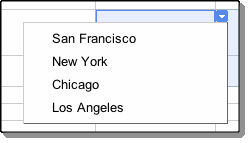
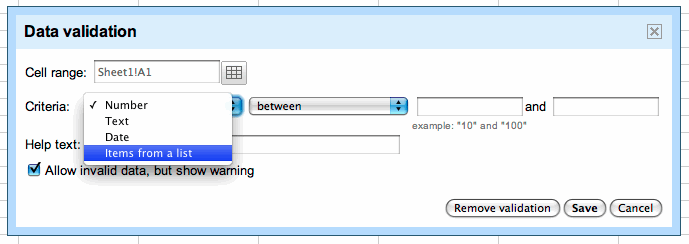
Google spreadsheets also now has in-cell dropdown and data validation. This makes it easy to constrain the values of an individual cell to a specific range or list, reducing unnecessary typing and data entry errors. For example, if you are planning a business trip, you can limit the options in the travel destination column to only allow a certain set of city names.
You can create dropdown options in individual cells through the data validation tool, which lets you pull data from a range of cells in your sheet or by creating a custom list. For more information on data validation and in-cell dropdowns in Google spreadsheets, head to the Google Docs blog.
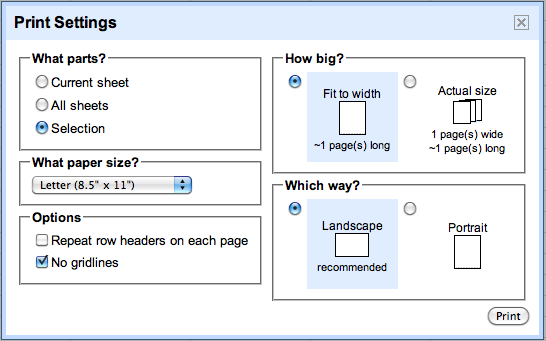
Lastly, Google spreadsheets now offers new printing options including selection printing, which lets you print a highlighted area in your spreadsheet, and the option to not print the cell gridlines if you want to save on ink.
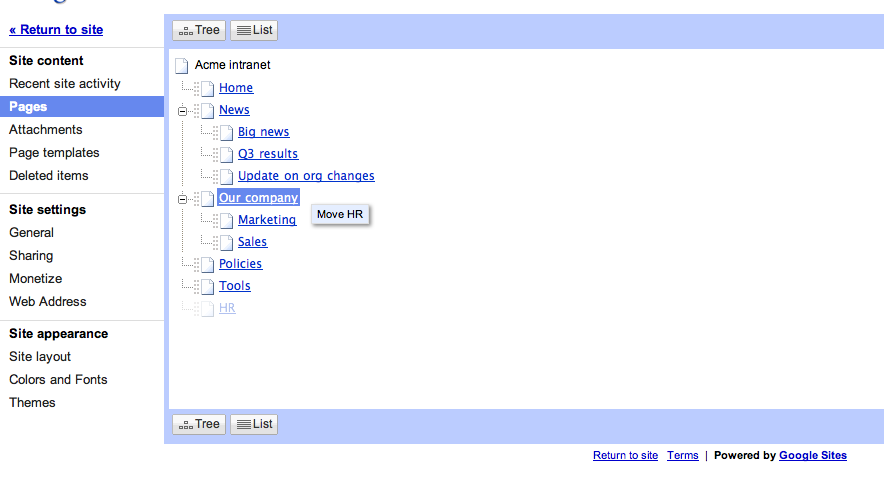
Organizing your site’s hierarchy of pages is an important part of using Google Sites. To make it faster and easier to change the structure of your site, now you can drag and drop pages to change the hierarchy.
As with all updates in Google Apps, users get access to new features each time they open their browsers, and improvements roll out to customers with no need for administrators to manage patches or install software. Stay tuned for more updates to Google Docs and Google Sites.
Over the next few days, we’ll be rolling out conversation view settings to users in organizations with the “Enable pre-release features” option selected in the Google Apps control panel, and to individuals using Gmail.
Whichever side of the debate you’re on, we hope we’re continuously making Gmail more useful to you. For more information about migrating from common legacy solutions to Google Apps, see our resource pages for Microsoft® Exchange and Lotus Notes®, or contact our sales team.
Join the Google Apps team for a demonstration of this feature, a recap of recent Gmail innovations, and tools to help your school or business switch to Google Apps: Wednesday, October 6th, 2010 10 a.m. PDT / 1 p.m. EDT / 6 p.m. GMT On-demand webinar
Two-step verification is easy to set up, manage and use. When enabled by an administrator, it requires two means of identification to sign in to a Google Apps account, something you know: a password, and something you have: a mobile phone. It doesn’t require any special tokens or devices. After entering your password, a verification code is sent to your mobile phone via SMS, voice calls, or generated on an application you can install on your Android, BlackBerry or iPhone device. This makes it much more likely that you’re the only one accessing your data: even if someone has stolen your password, they'll need more than that to access your account. You can also indicate when you're using a computer you trust and don't want to be asked for a verification code from that machine in the future.
Two-step verification is built on an open standard designed to allow integration with other vendors’ authentication technologies in the future. We are also open sourcing our mobile authentication app so that companies can customize it as they see fit.
Two-step verification continues Google’s stream of security innovation. In early 2009, we added the ability to view password strength and set minimum password length requirements for Google Apps accounts. Later in the year we were the first to provide HTTPS encryption to millions of users, and in 2010 Google Apps was the first cloud messaging and collaboration service to gain US government security certification.
Administrators for Google Apps Premier, Education, and Government Editions can activate Two-step verification from the English version of the Admin Control Panel now, and Standard Edition customers will be able to access it in the months ahead. Once enabled by their administrator, end users can set it up in the Accounts tab in Gmail settings.
Posted by Eran Feigenbaum, Director of Security, Google Apps