
Scratch is an excellent coding language for children to acquire programming skills. With Scratch, kids can construct games, narratives, and animations by simply dragging and dropping various blocks of code.
In the Scratch classes I’ve taught, students confirm the exceptional interactivity and enjoyment Scratch offers. The Elementary School Core Track teaches kids to craft their own interactive games while learning fundamental programming concepts like variables, loops, and more.
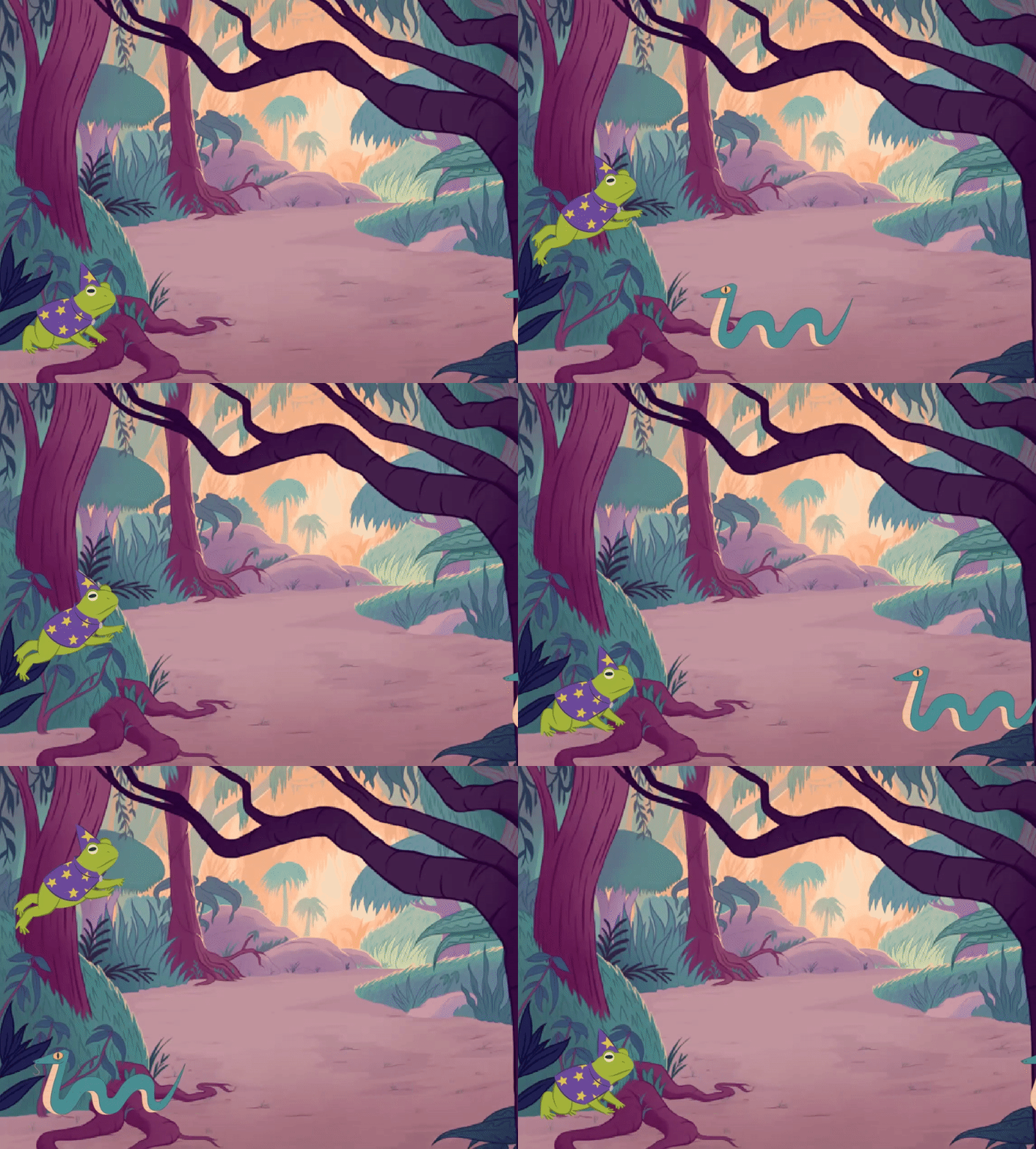
In this tutorial, I will teach you how to make a sprite jump in the Snake Jumper game. You will learn about animating sprites, accepting user input, and checking for collisions between two sprites. Let’s get started!
Play and remix the Snake Jumper game now.
What you need:
- Scratch account: Create a free Scratch account
No coding experience is necessary for this Scratch tutorial. Beginner-friendly for kids ages 8 and up. Give it a try!
How to Make a Sprite Jump in Scratch
- Login to Scratch
- Create a new Scratch project
- Name your new Scratch project
- Choose a backdrop
- Choose a sprite
- Make the sprite move up
- Make the sprite move down
- Change the sprite’s costume
- Reset the sprite’s position
- Test your game!
- Bonus – Add an enemy sprite to avoid
1. Login to Scratch
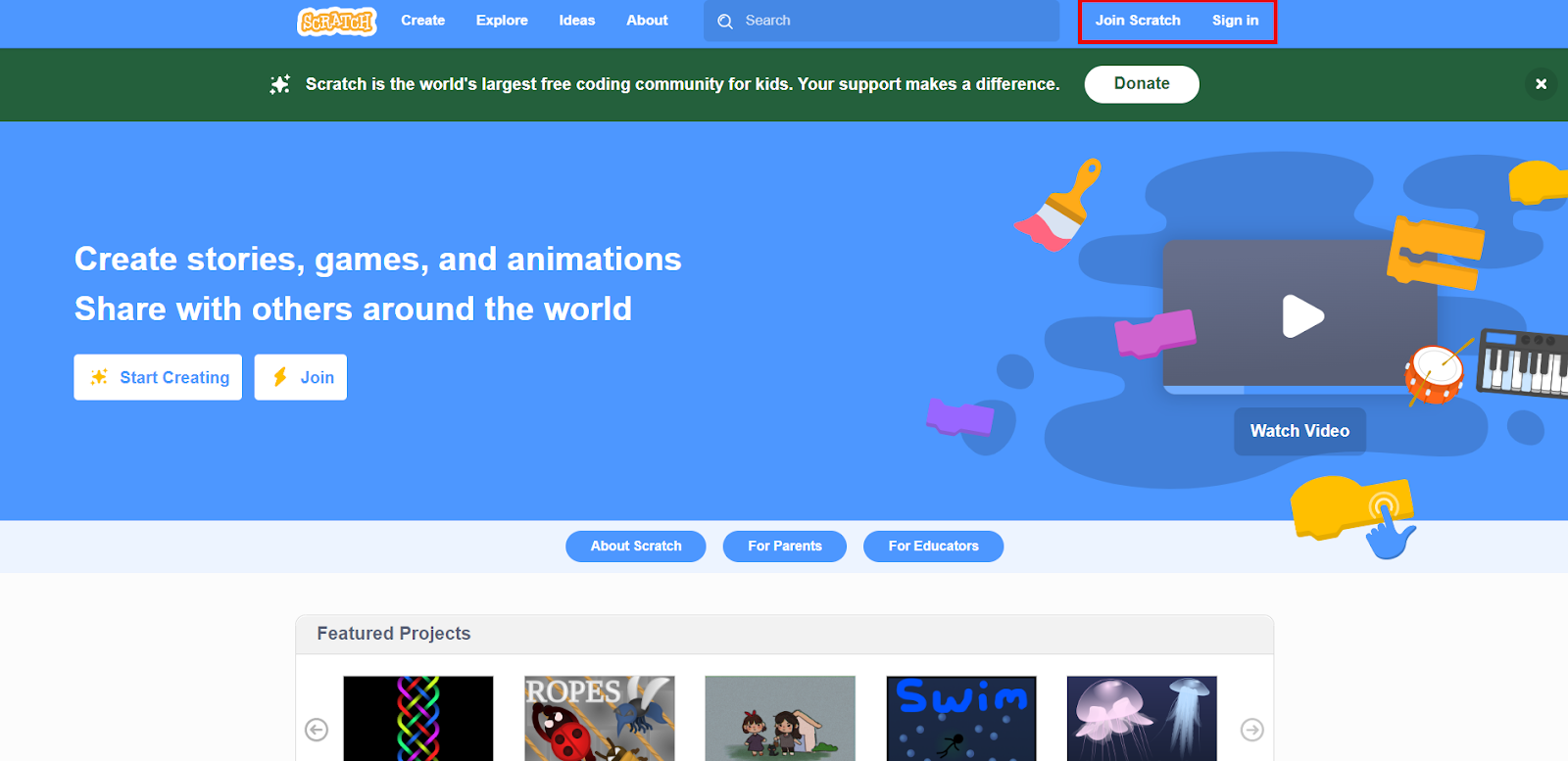
- Go to scratch.mit.edu and either login or sign up.
2. Create a New Scratch Project
- Once you are logged in, click the blue Create button at the top of the page.

3. Name your new Scratch project
- Give your project a name, for example, “Snake Jumper Game”.
- Then delete the Scratch cat by clicking the trash can icon next to the sprite.

4. Choose a backdrop
- Select the Choose a Backdrop option at the bottom right-hand side of your screen.
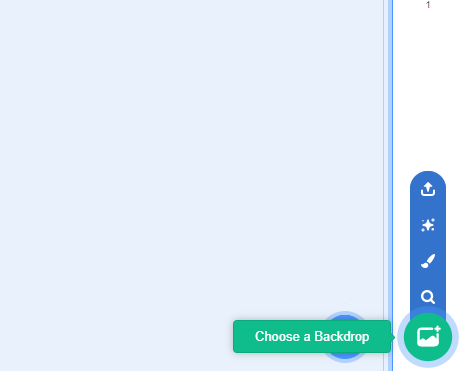
- When the Choose a Backdrop screen opens up, select a background for your project. In this tutorial, I chose Jungle.

5. Choose a sprite
- Select the Choose a Sprite option at the bottom right-hand side of your screen.
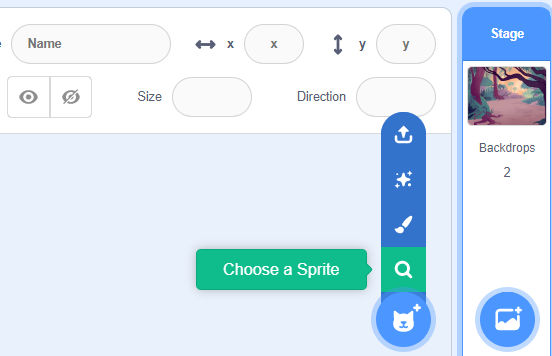
- Select a sprite that you would like. I chose a wizard-toad for my project.
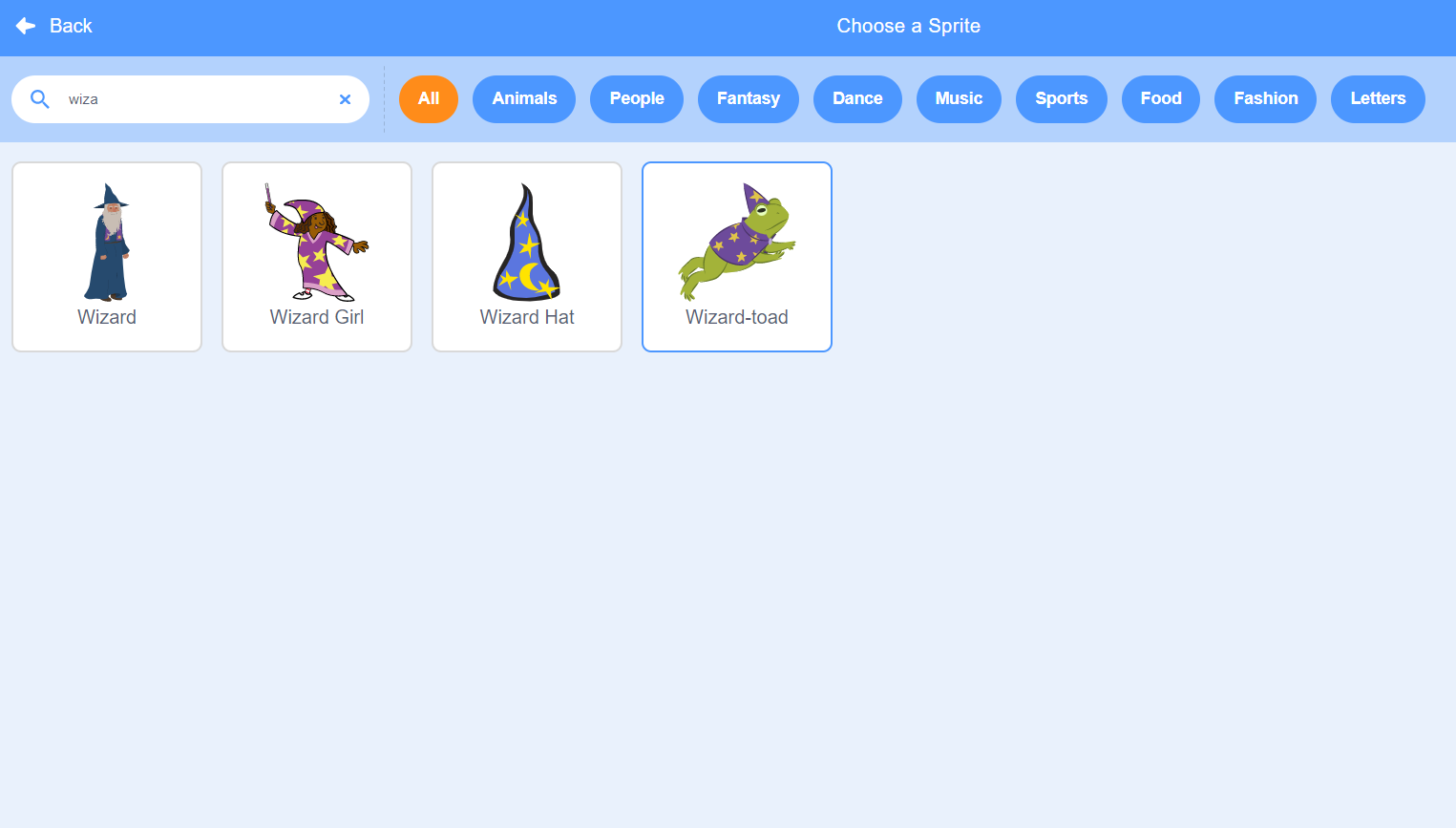
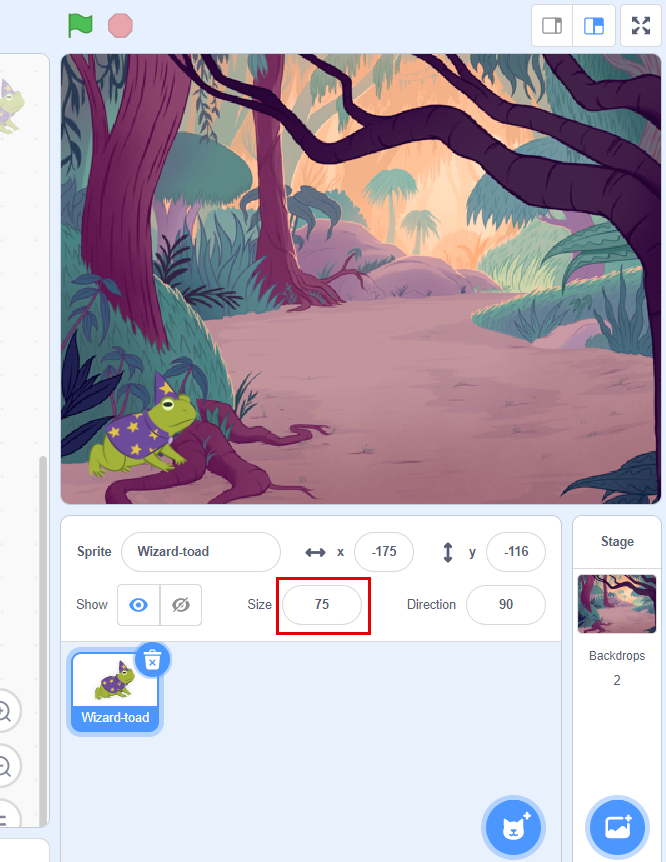
- Click and drag the sprite to be on the bottom left side of the game. Then, in the Size textbox, change the size to about 75.
6. Make the sprite move up
The action of jumping is simply moving a sprite up and then back down. We will be moving the sprite when the space bar is clicked.
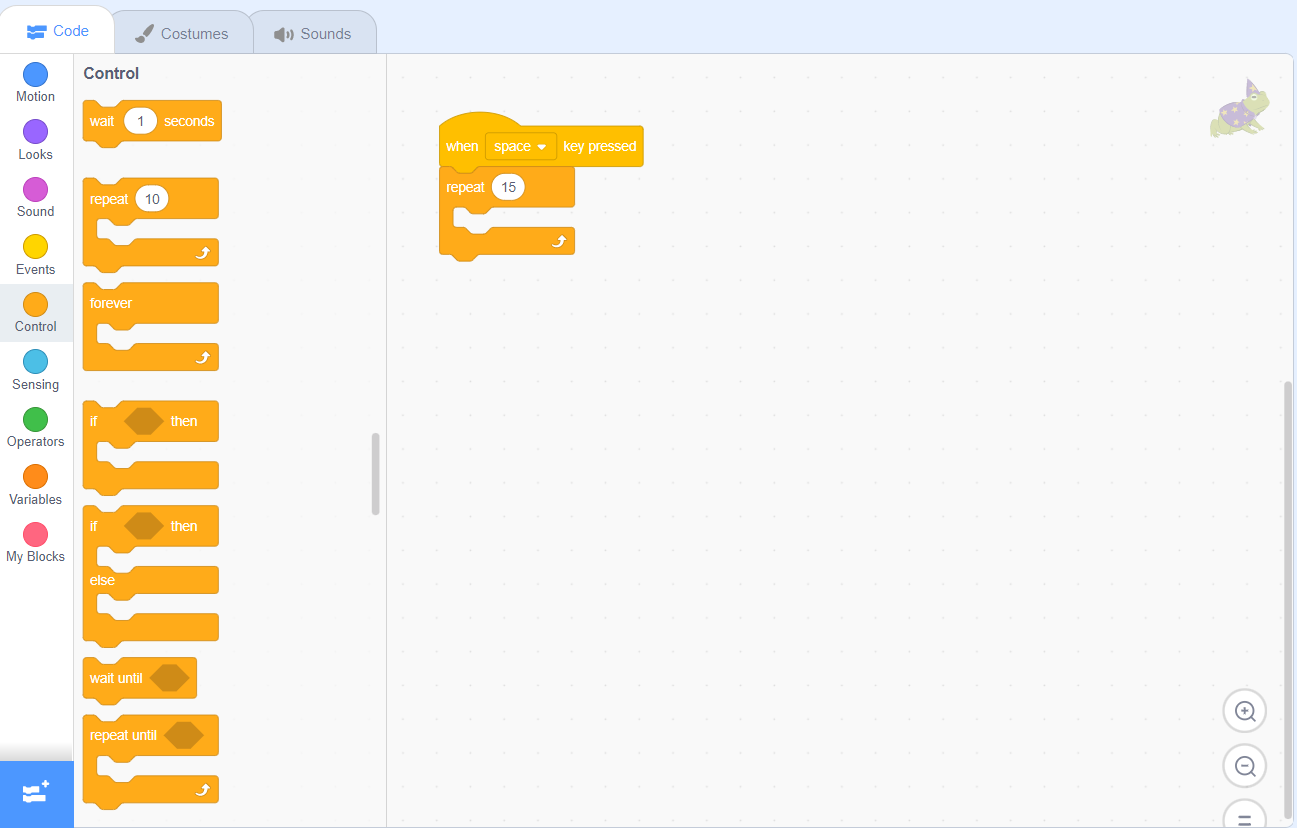
- In the Events category, drag a when space key pressed block in the code area.

- Then, go to the Control category and drag a repeat block and attach it under the when space key pressed block.
- Change the text in the textbox from 10 to 15, which will make the repeat block execute more times.
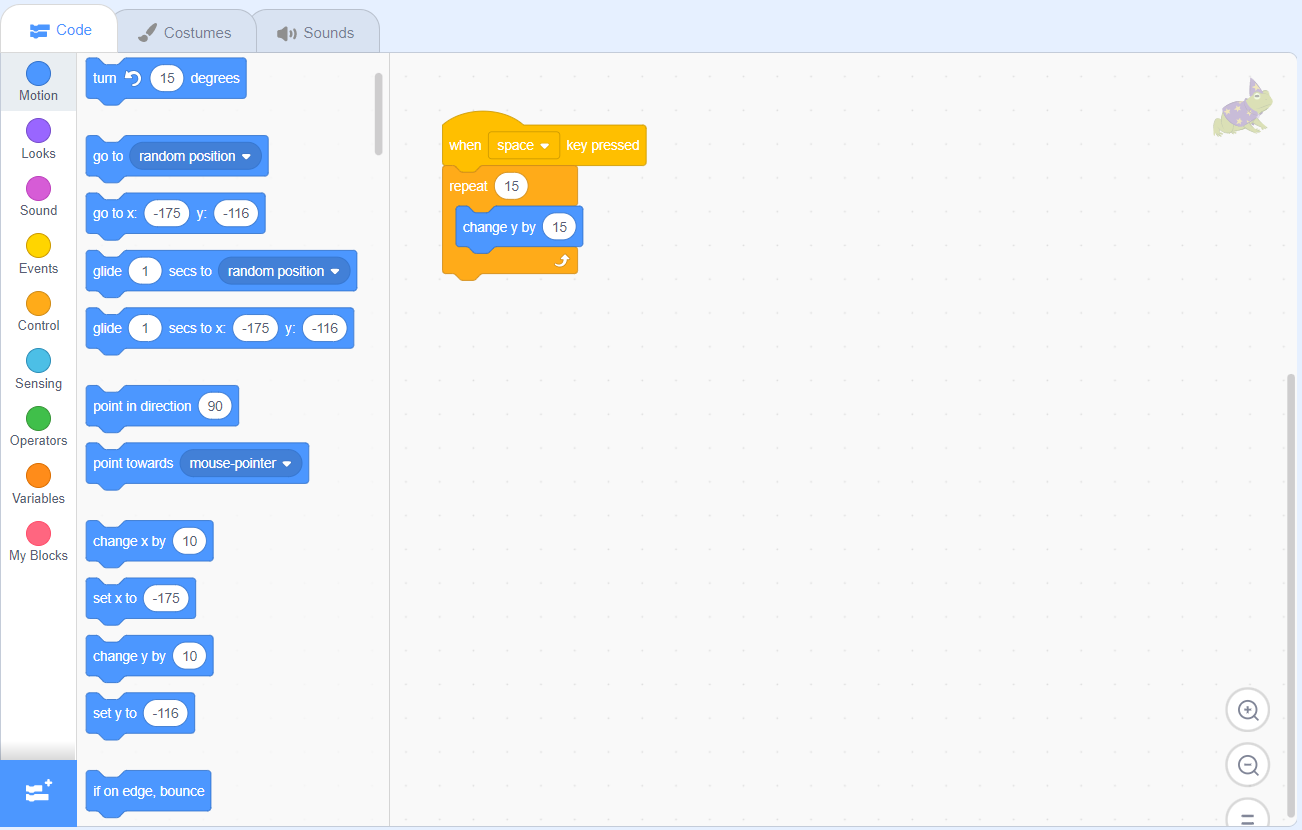
- Next, go to the Motion category, and attach a change y by block inside of the repeat block. Change the text in the textbox from 10 to 15 so that the sprite’s y position changes quicker.
7. Make the sprite move down
The sprite went up, now it must come down automatically. That will complete the act of jumping after the space bar is clicked.
- Right-click on the repeat block and select Duplicate. This makes an exact copy of the repeat block and everything in it.
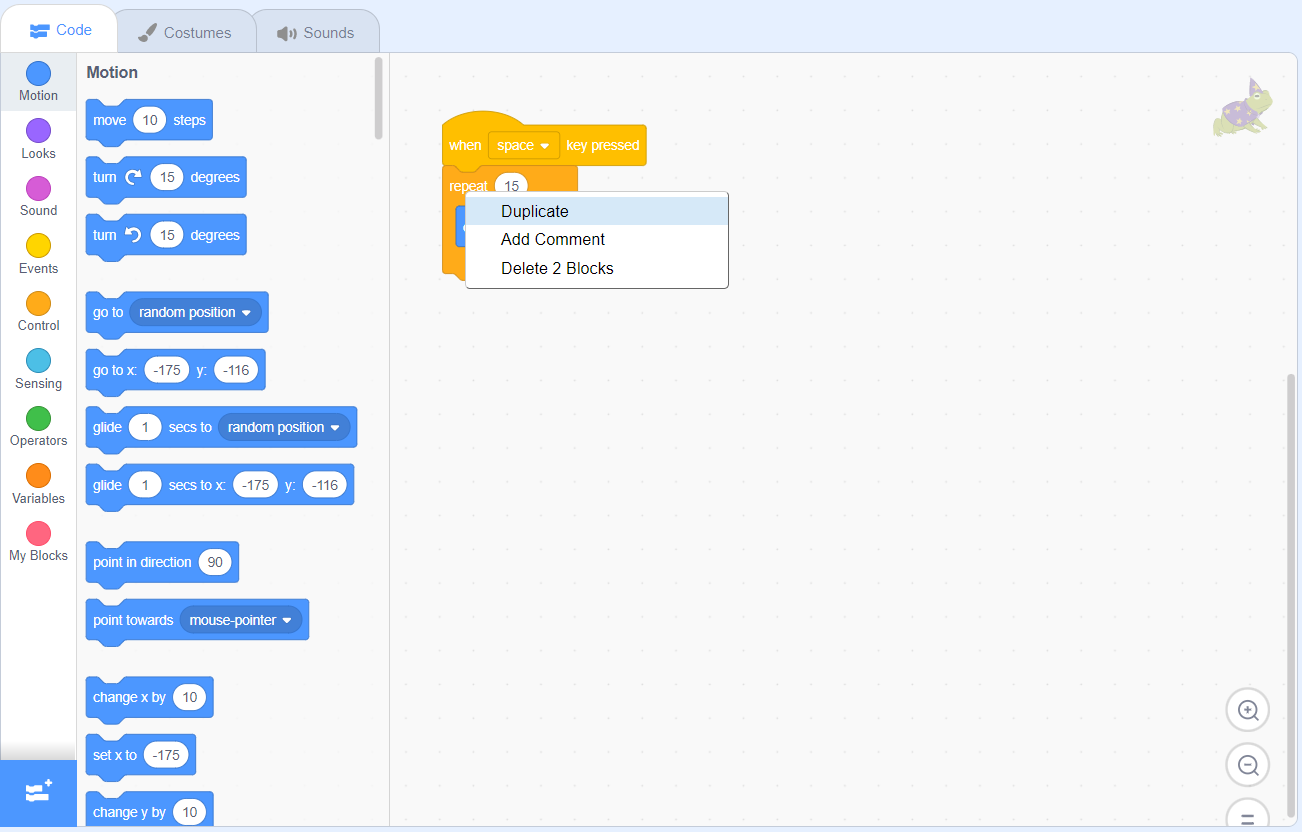
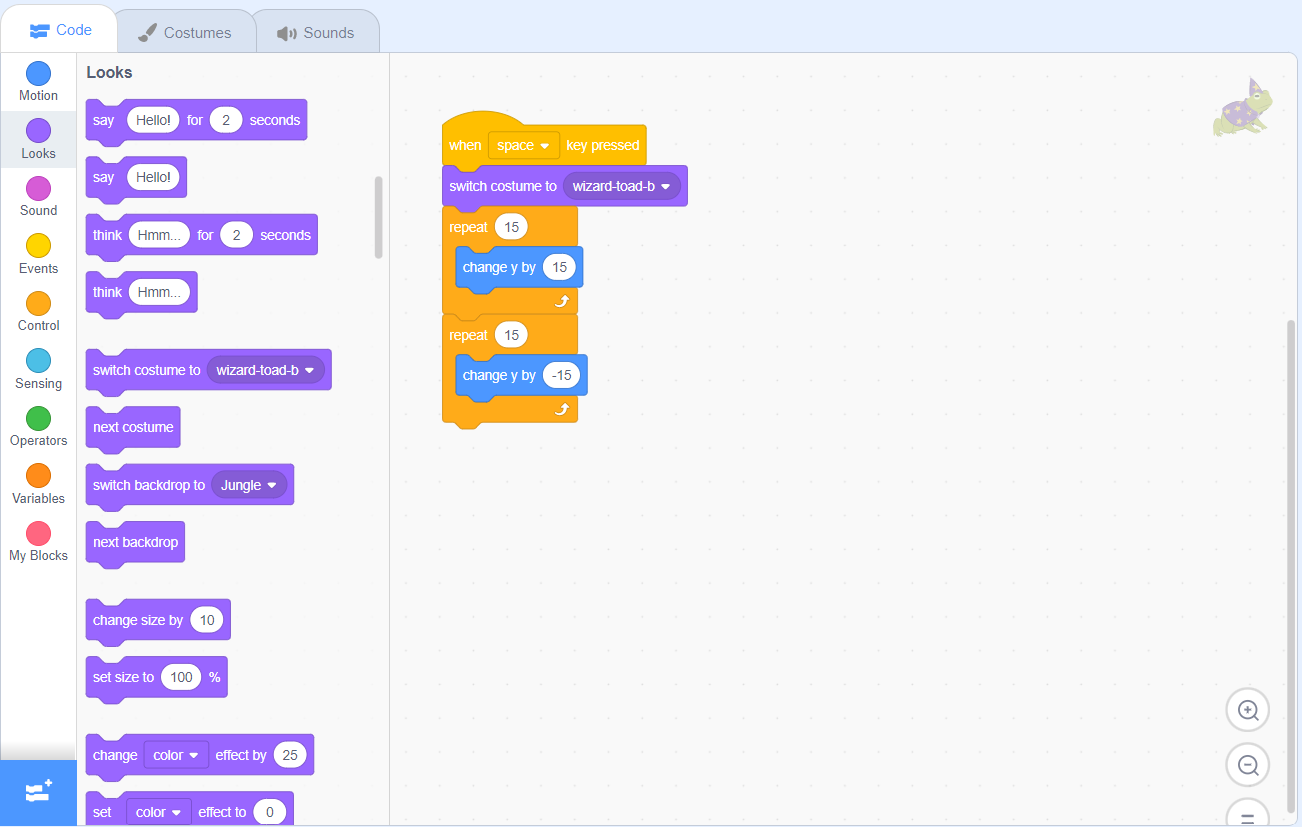
- Attach the new repeat block under the old one. Then, change the value in the change y by block to -15.

8. Change the sprite’s costume
When the sprite moves, you can change how it looks so it appears as though it’s actually jumping.
- Go to the Looks category and get a switch costume to block. Attach it directly under the when space key pressed block, but above the repeat blocks. If you’re using the wizard-toad sprite, make sure the costume is set to wizard-toad-b.
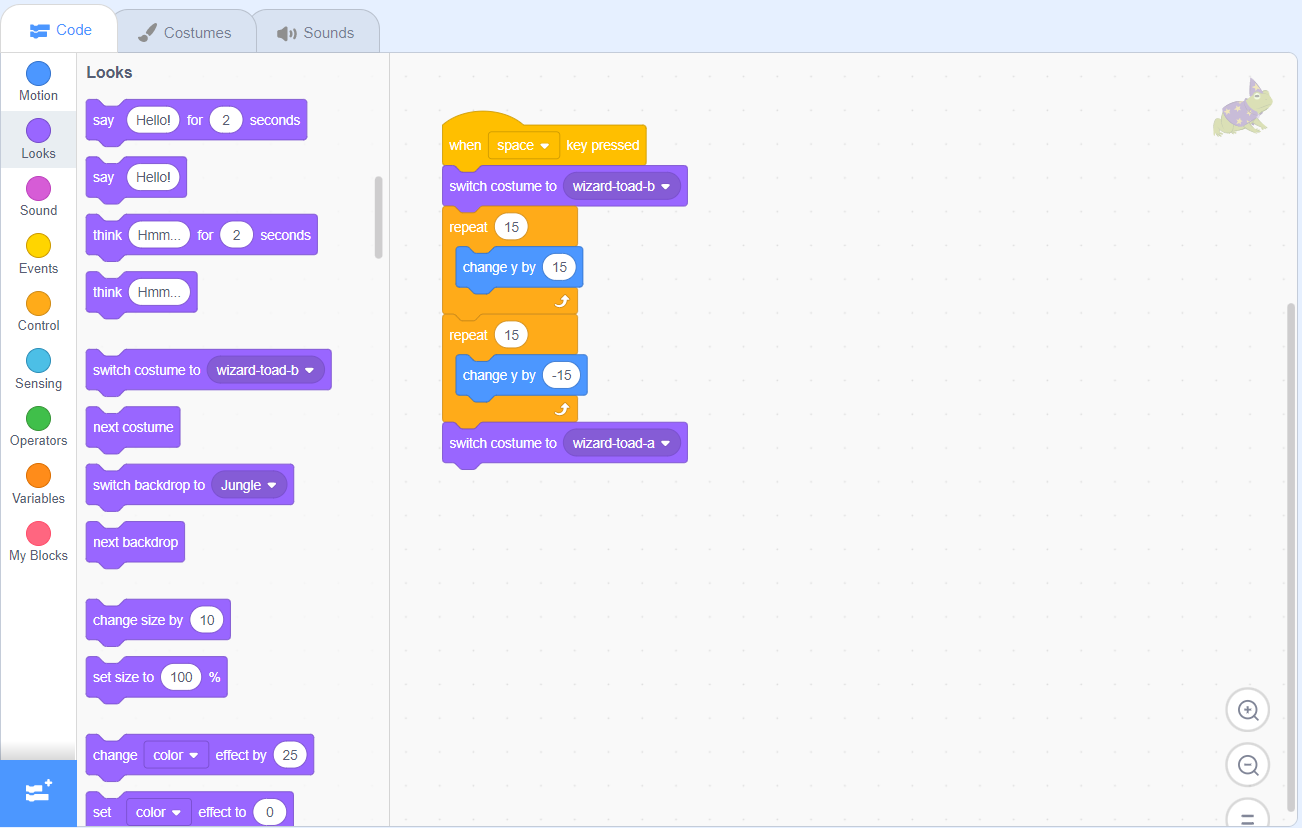
- Drag another switch costume to block under all of the code. If you’re using the wizard-toad sprite, change the costume to wizard-toad-a by clicking on the costume name.
9. Reset the sprite’s position
- Then, go to the Motion category and drag a go to x and y block under the when green flag clicked block. Make sure the x value is about -175 and the y value is around -110.

- Then, go to the Motion category and drag a go to x and y block under the when green flag clicked block. Make sure the x value is about -175 and the y value is around -110.

10. Test your game!
- Test your game by pressing the green flag above your game’s screen. Does your frog jump when you press the space bar?
Bonus – Add an enemy sprite to avoid
1. Add another sprite
- In the bottom-right corner of your screen, select the Choose a Sprite option.
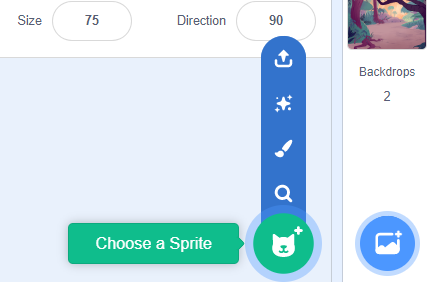
- Select a sprite of your choice. In this tutorial, I chose a Snake.

- When that sprite is added, drag it to the right-hand side of the screen.
- If the sprite is facing the wrong way, click on the Direction textbox for the sprite. Select the middle option under the clock. Then, change the 90 in the Direction textbox to -90.

- You can also change the size of the sprite in the Size textbox. I changed mine to 75.

2. Make the enemy sprite move
- Click on the new sprite.
- In the code, add a when green flag clicked block from the Events category.

- Then, in the Control category, attach a forever block to the when green flag clicked block.

- Next, go to the Motion category and drag a go to x and y block into the forever block. Make sure the x value is about 300 and the y value is -100. This is so that the snake moves from the right side of the screen to the left!
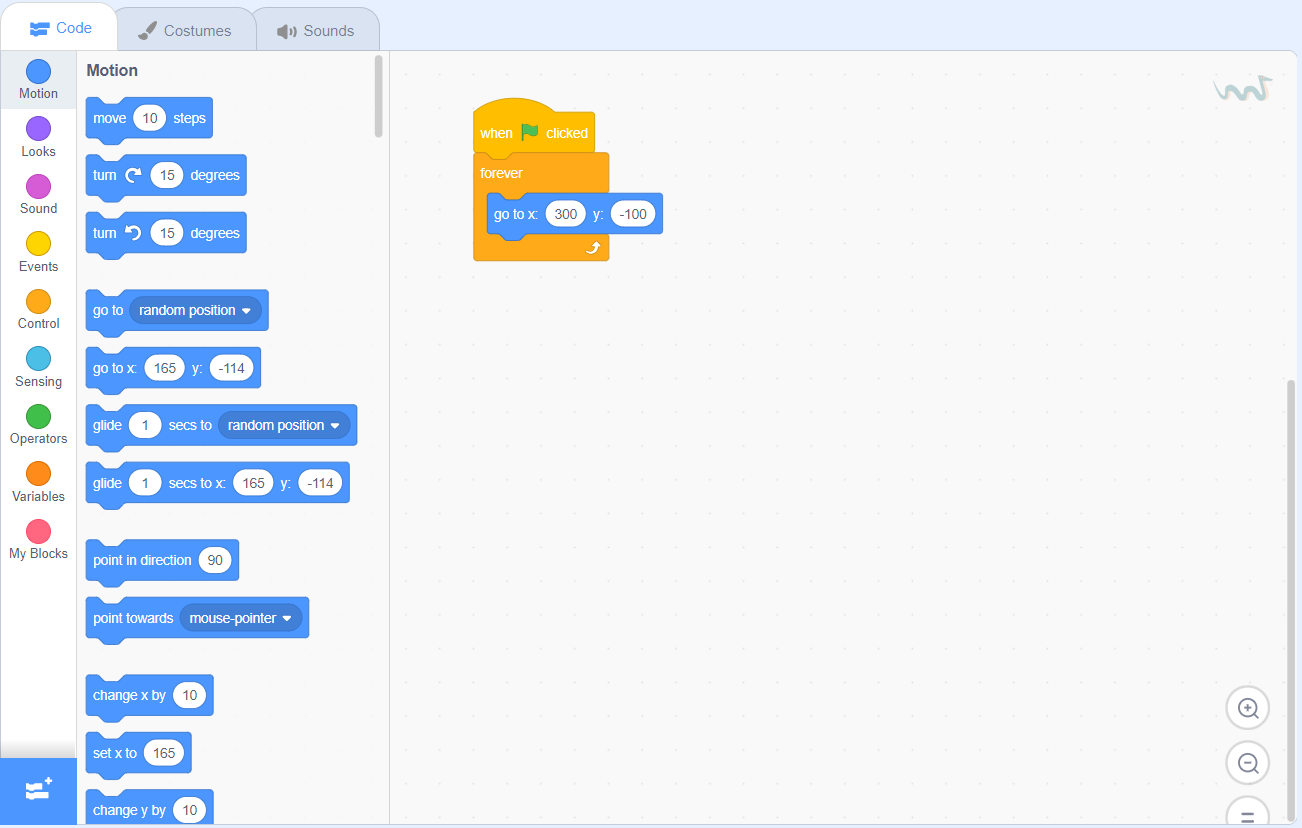
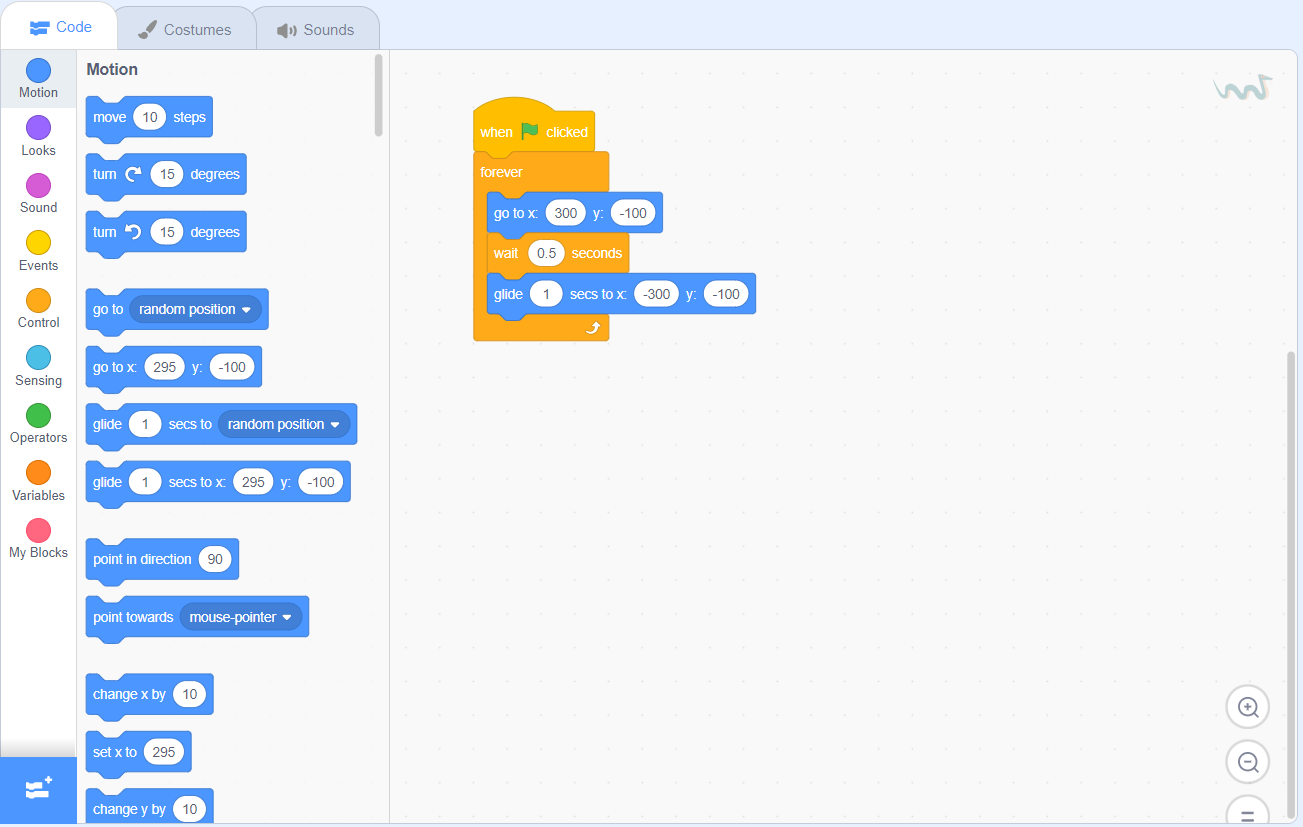
- Then, from the Control category, get a wait block and attach it under the go to x and y block. Change the value of the wait block to about 0.5.

- From the Motion category, drag a glide block to an x value of 300 and a y of -100.
3. End the game if the sprites collide
The goal is for the frog to jump over the snake and not touch it. If the two collide, the game is over.
- In the Events category, drag a when green flag clicked block into the code area.
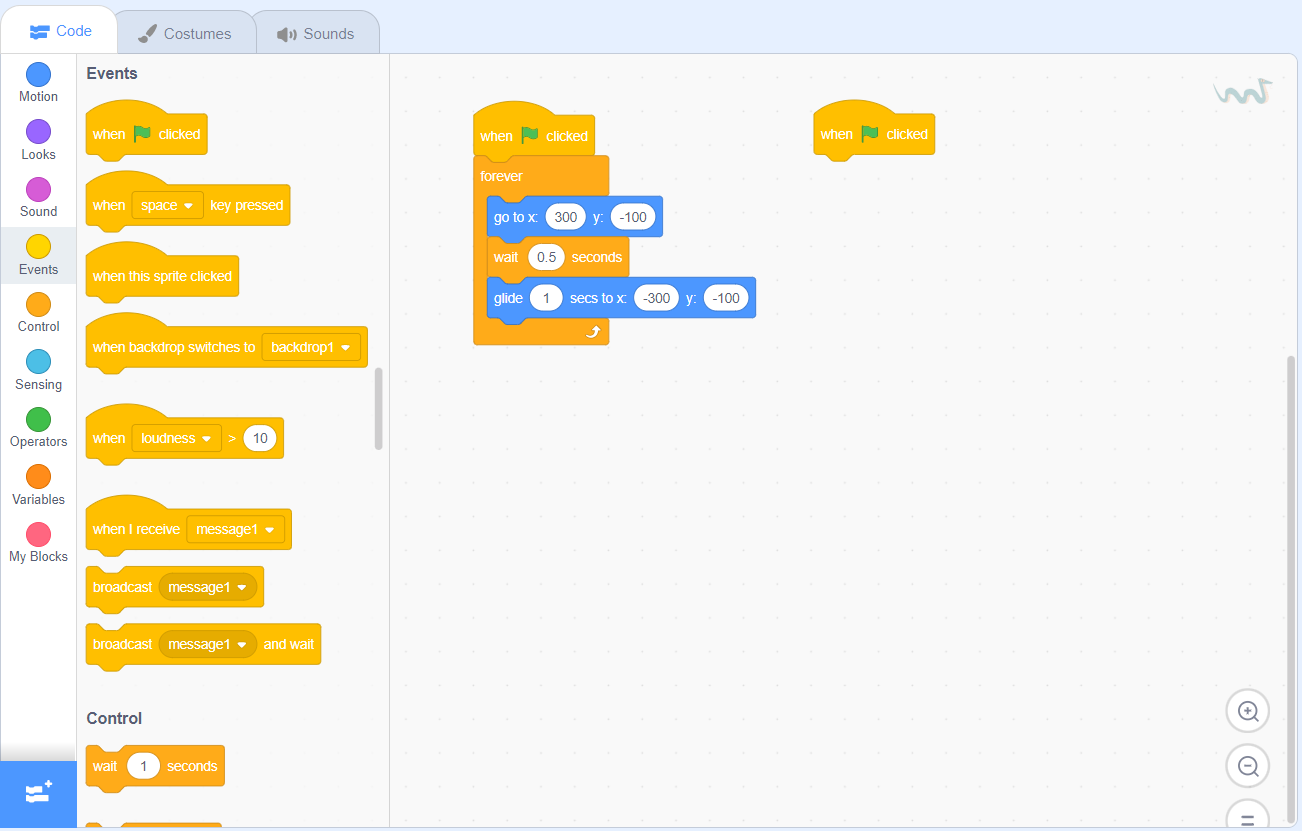
- Then, get a forever block from the Control category.
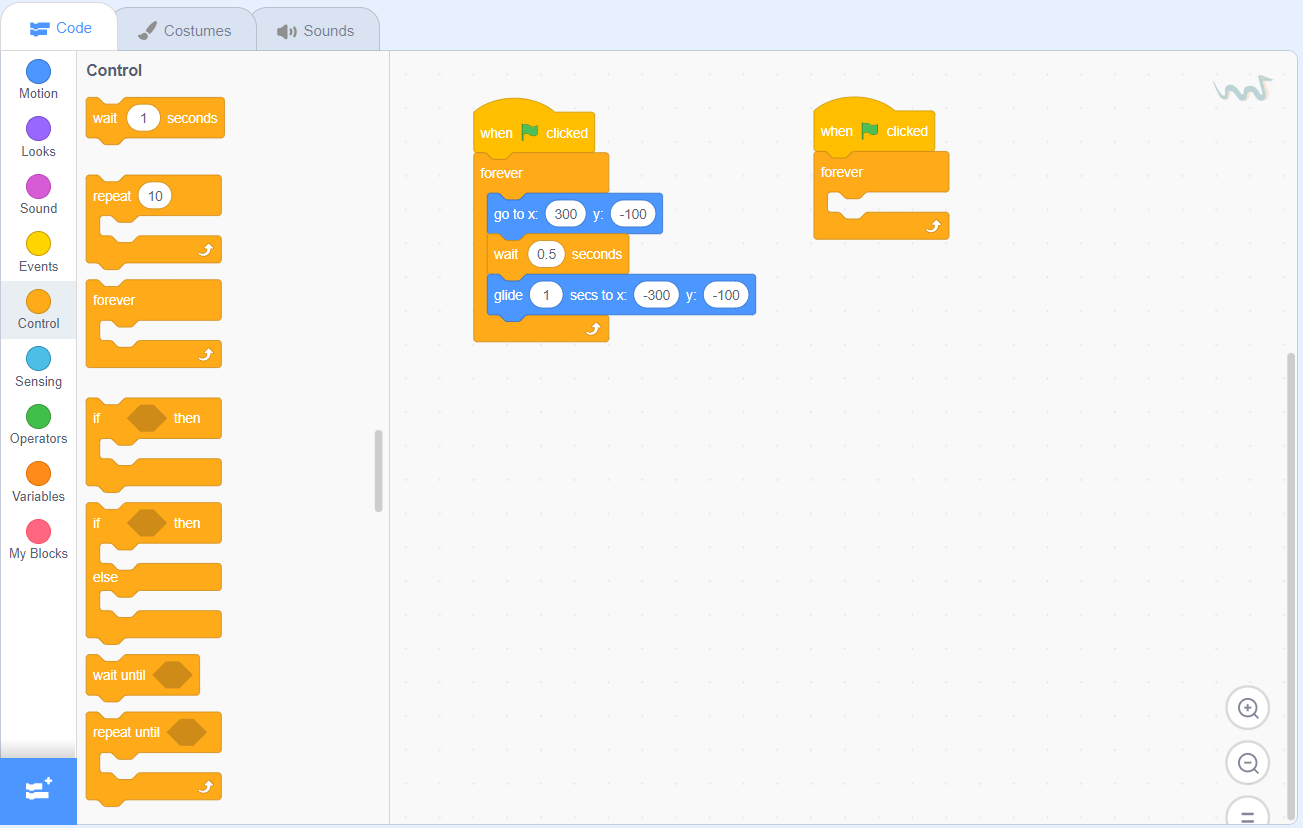
- Get an if then block from the Control category and put it in the forever block.

- Go to the Sensing category and get a touching block. Put that inside the if then block as a condition. Then, change the text from mouse-pointer to wizard-toad, or whatever other sprite you chose for the player.

- Go to the Control category and drag a stop all block in the if then block.

4. Test your game!
- Click the green flag to start your game. Can you jump over the enemy sprites and end the game when they collide?
Your game is complete!
Take a look at the final product, your Snake Jumper game is complete. Play Snake Jumper.
More Scratch Tutorials & Games
Check out these other fun Scratch project tutorials and games!
Now that you know how to make a sprite jump, you can add it to any of your own projects.
- Flying Space Cat – Assist Space Cat in its space exploration mission by developing an enjoyable crystal-collecting game using Scratch programming platform.
- Code a Rocket Landing Game – Finish this Scratch programming tutorial designed for children and create a game where you safely land a rocket.
- Valentines Day Card Scratcher – Create a Valentine’s Day scratch-off card with a personal touch by following this easy-to-follow Scratch programming tutorial.
- Holidays Advent Calendar – Use Scratch to program a customized Advent Calendar for the holiday season and gradually unveil presents, treats, or activities to share with your friends and family.
- Halloween Candy Collector Game – Follow this simple Scratch programming tutorial and create a personalized game where you collect candies on Halloween.
Download Free Printable Scratch Coding Tutorials PDF
Get the Rocketship Landing game and Flying Space Cat Scratch tutorials in a printable format.
Try a Scratch Coding Class for Kids
CodeWizardsHQ firmly believes that initiating the exploration of technology and programming during childhood can pave the way for future success. We have designed a structured program for elementary school coding, leveraging the power of Scratch to teach coding principles.
In the first course, Animation and Games with Scratch, students delve into essential programming concepts, including variables, loops, and conditionals. By the end of this course, they will possess the ability to create their own games and animations using Scratch. This prepares them for their journey toward a future in the ever-evolving world of technology.
Our coding classes for kids allow children to nurture their skills, unleash their imaginations, and experience the joy of learning!

