
Whether you love them or hate them, dads always have them at the ready. It’s the classic dad joke.
We’ve turned dad’s favorite jokes into a Python app, so anyone can tell a great dad joke at any time. The Random Dad Joke App picks an awesome dad joke from a database and shows it to you so you can deliver the punchline. These jokes are so bad and corny, they might actually make you laugh!
Complete this Python coding tutorial to build your own Random Dad Joke App.
Make your friends and family laugh with a few funny dad jokes.
See the completed Random Dad Joke App.
Tutorial Steps
- Step 1: Display a welcome message to the user
- Step 2: Display the options the app accepts
- Step 3: Process the user’s choice
- Step 4: Get a random dad joke from the Dad Jokes API
- Step 5: Correctly format the data from the Dad Jokes API
- Step 6: Return the setup and punchline from the get_random_joke() function
- Step 7: Ask the user to guess the punchline and tell them if they’re right or wrong
- Finished project!
What you need:
1. Text editor
We’ll be using the CodeWizardsHQ editor to write and run our Python code. If you’re a CodeWizardsHQ student, download the x_hour_of_code_2022 project for the completed code.
You can also use an online text editor like replit that allows you to author and run Python programs in a web browser.
2. An empty Python file
Create a new empty Python file and add your code there.
Our file is named main.py, and if you’re a CWHQ student you must use this name. If you’re using another platform to write and execute your code, you can choose whichever name you like.
This tutorial is for beginner Python programmers ages 11+. Let’s get started!
Step 1: Display a welcome message to the user
Display a message to the users that explains how the Random Dad Joke app works.
- Create a variable called
welcome_messagethat equals a multi-line string. This string contains your welcome message and instructions.
welcome_message = """
    Welcome to the 'Random Dad Joke' app!

    This app uses an API to fetch a random setup
    and punchline to a dad joke. The setup will
    be displayed to you, and if you guess the punchline,
    a message like "That's correct!" will be displayed.
    Otherwise, you'll be shown the punchline.
"""- Use the
print()function to display this message on the page. Note, the...symbols are just there to make the code easier to read. Don’t type that!
welcome_message = """
  ...
"""

print(welcome_message)Step 1 Output:
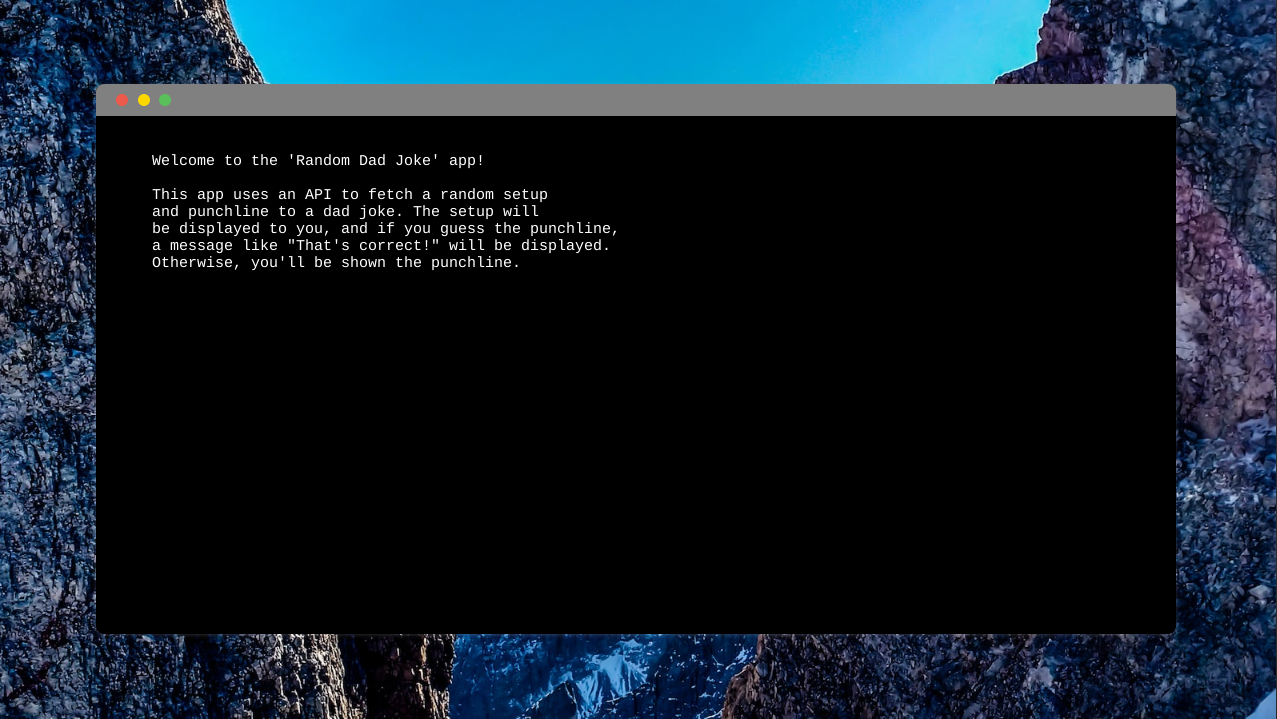
Step 2: Display the options the app accepts
Show the user the possible options the app accepts and prompt them for their choice.
- Create a Python string representing the options for your user: 1) get a dad joke or 2) exit
welcome_message = """
  ...
"""

options = "(1) Get Dad Joke (2) Exit: "

print(welcome_message)- Add a
whileloop that shows the user the options. - Convert the user’s response to an int (integer) data type so we can easily process their choice. It’s much easier to compare integers versus string values that may have spaces, different casing, etc.
print(welcome_message)

while True:
user_choice = int(input(options))- Add a
breakstatement to exit the loop after the options are displayed. This stops the options from being continuously presented.
while True:
    user_choice = int(input(options))
breakStep 2 Output:
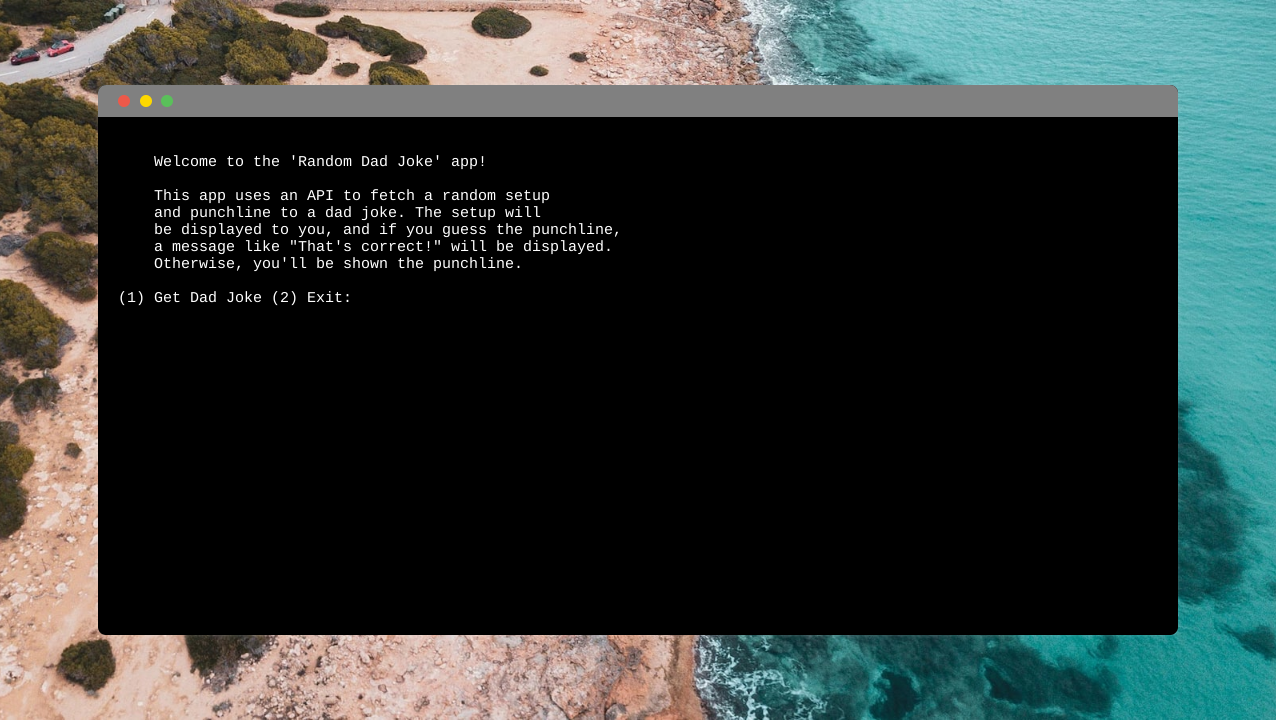
Step 3: Process the user’s choice
Next, we want the users to choose an option by entering the number 1 or 2 and we will execute their choice.
- Create named constants for each option: GET_JOKE if they select 1 and EXIT if they select 2
options = "(1) Get Dad Joke (2) Exit: "

GET_JOKE = 1
EXIT = 2

print(welcome_message)

while True:
...- Now we can add logic for each choice and remove the
breakstatement from thewhileloop.
while True:
    user_choice = int(input(options))
break # Remove this!- Add an
if...elifconditional statement to handle both user options. - If the user selects 1, we’ll want to show a joke. For now, use the pass statement in the
GET_JOKEcondition. We’ll implement the logic for that statement at a later time. - If the user selects 2, they exit the game. Make sure the
EXIToption exits the loop with thebreakstatement!
while True:
    user_choice = int(input(options))

    if user_choice == GET_JOKE:
        pass
    elif user_choice == EXIT:
        break
Step 3 Output:
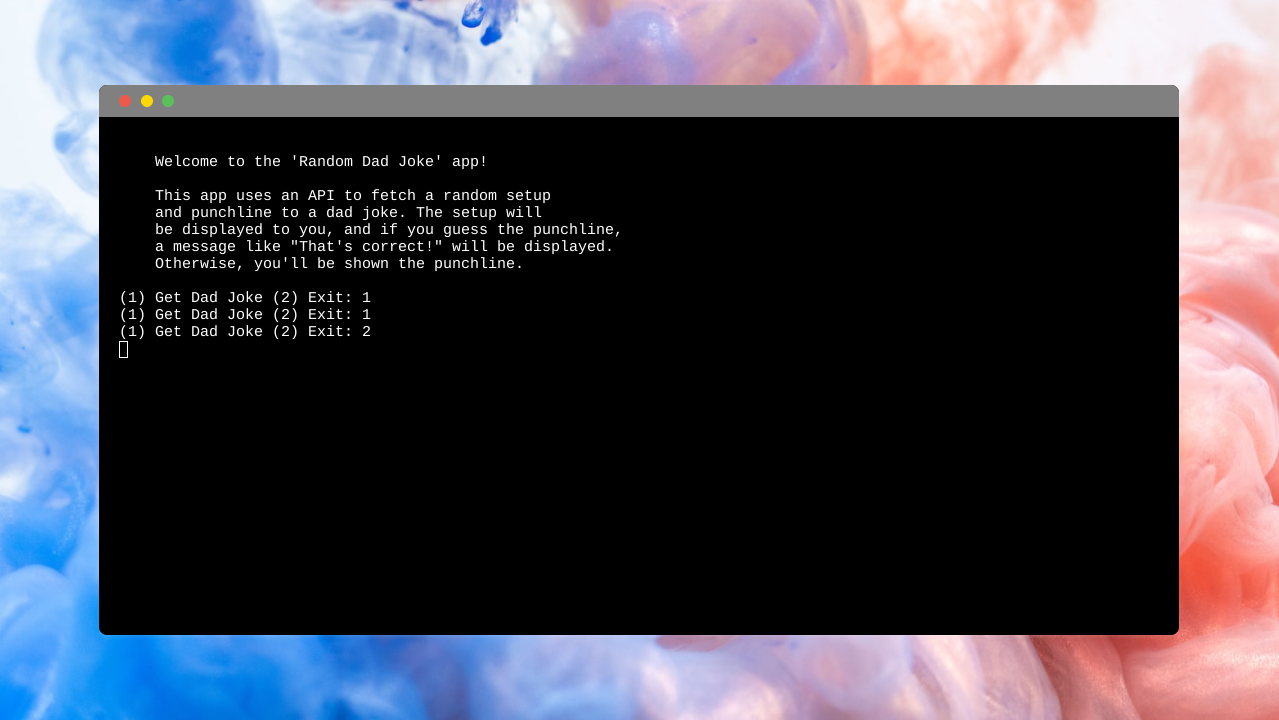
Step 4: Get a random dad joke from the Dad Jokes API
Now, let’s get retrieve some hilarious dad jokes! We will be connecting to a CodeWizardsHQ API that holds a database of jokes.
- Define a function called
get_random_joke(). Function definitions go at the top of your file, before any variable declarations or other statements in the main area of your program. - Inside the function, create three variables:
BASE_URL,endpoint, andrequest_urlusing the values listed below. TheBASE_URLrepresents the location on the internet where the API lives. Theendpointis a special URL path that the API provides to get a random joke. Therequest_urlcombines theBASE_URLandendpointinto a single str representing the full URL that we’ll request data from.
def get_random_joke():
    BASE_URL = "https://dad-joke-api.apps.codewizardshq.com"
    endpoint = "/random/jokes"

    request_url = f"{BASE_URL}{endpoint}"

welcome_message = """
    ...
"""- Use from to import the
urlopen()function from theurllib.requestmodule. This is a built-in Python module for making requests over a network. Import statements always come first, at the very top of your file.
from urllib.request import urlopen


def get_random_joke():
...- Use a with statement and the
urlopen()function to make a request to the Dad Jokes API (at therequest_url) and save the API’s response in a response variable. The with statement is a context manager, and it allows us to safely deal with opening and closing a network request.
from urllib.request import urlopen


def get_random_joke():
    BASE_URL = "https://dad-joke-api.apps.codewizardshq.com"
    endpoint = "/random/jokes"

    request_url = f"{BASE_URL}{endpoint}"

    with urlopen(request_url) as response:
joke = response.read()- After the
withstatement, display the contents of the joke variable with theprintfunction.
def get_random_joke():
    ...
    with urlopen(request_url) as response:
        joke = response.read()

print(joke)- Going back to the
whileloop, call theget_random_joke()function when the user choosesGET_JOKE.
while True:
    user_choice = int(input(options))

    if user_choice == GET_JOKE:
        get_random_joke()
    elif user_choice == EXIT:
breakStep 4 Output:
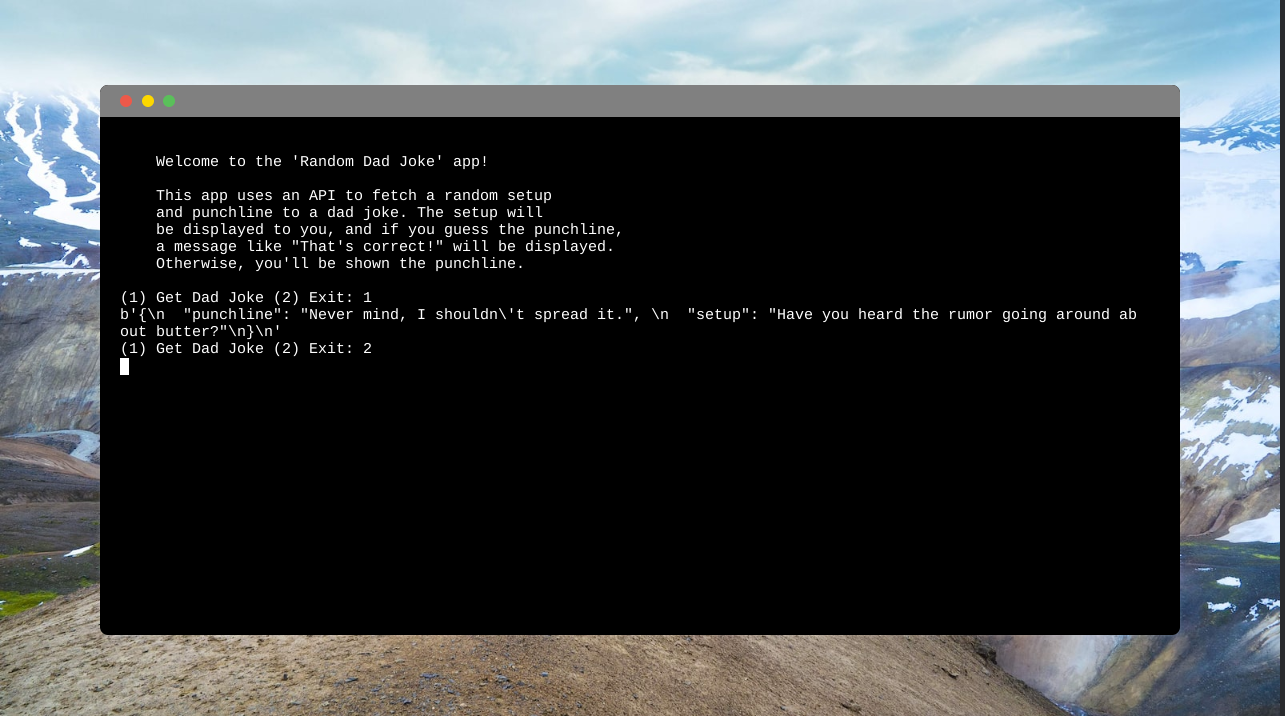
Step 5: Correctly format the data from the Dad Jokes API
Now we have the information (the joke) from the API, we need to format it in a way users can read it.
- At the top of your file, import the
loads()function from Python’s built-in JSON module.
from urllib.request import urlopen
from json import loads


def get_random_joke():
...- In the
get_random_joke()function, use theloads()function to ensure the response is converted to a dict. The dict data structure maps keys to values and will make it easy to get the setup and punchline from the API response.
def get_random_joke():
    ...

    with urlopen(request_url) as response:
        joke = loads(response.read())

print(joke)Step 5 Output:

Step 6: Return the setup and punchline from the get_random_joke() function
Now, let’s separate the setup and the punchline as we will want to present them independently later.
- Remove the
print()statement from theget_random_joke()function.
def get_random_joke():
    ...
    with urlopen(request_url) as response:
        joke = loads(response.read())

print(joke) # Remove this!- Use the
returnstatement to send the setup and punchline out of the function. Separating return values with a comma (,) allows you to send multiple values out of a function easily. The[]allow you to pull the values from the dict based on a key (the “setup” and “punchline” strings are the keys).
def get_random_joke():
    ...
    with urlopen(request_url) as response:
        joke = loads(response.read())

return joke["setup"], joke["punchline"]- In the
whileloop, create thesetupandpunchlinevariables. You can use multiple assignment to store both the setup and punchline returned fromget_random_joke(). Whenever a function returns multiple values, you can use this syntax to assign the values to variables in one line. You just need to make sure to have variables for every value and place them in the same order that the values are returned from the function.
while True:
    user_choice = int(input(options))

    if user_choice == GET_JOKE:
        setup, punchline = get_random_joke()
    elif user_choice == EXIT:
break- Use
f-stringsand the specialf"{variable_name=}"syntax to ensure each variable represents the values you expect.
while True:
    user_choice = int(input(options))

    if user_choice == GET_JOKE:
        setup, punchline = get_random_joke()
        print(f"{setup=}")
        print(f"{punchline=}")
    elif user_choice == EXIT:
breakStep 6 Output:

Step 7: Ask the user to guess the punchline and tell them if they’re right or wrong
After the user selects 2, we will prompt them to guess the punchline and also check if they guessed correctly.
- In the
whileloop, remove thef-stringsthat displayed the setup and punchline with thef"{variable_name=}"syntax.
while True:
    user_choice = int(input(options))

    if user_choice == GET_JOKE:
        setup, punchline = get_random_joke()

        print(f"{setup=}")      # Remove this!
        print(f"{punchline=}")  # Remove this!

    elif user_choice == EXIT:
break- Use
print()to display the setup and prompt the user to guess the punchline. - Create a variable called
user_guessthat stores the user’s response.
while True:
    user_choice = int(input(options))

    if user_choice == GET_JOKE:
        setup, punchline = get_random_joke()
        print(setup)

        user_guess = input("Guess the punchline: ")
    elif user_choice == EXIT:
break- Using an
if...elseconditional statement, display a message like “That’s correct!” if the user guessed the punchline correctly. Otherwise, display a message like “Sorry, that wasn’t the punchline.” and then display the punchline.
while True:
    user_choice = int(input(options))

    if user_choice == GET_JOKE:
        setup, punchline = get_random_joke()
        print(setup)

        user_guess = input("Guess the punchline: ")

        if user_guess == punchline:
            print("That's correct!")
        else:
            print("Sorry, that wasn't the punchline.")
            print(f"The punchline was: {punchline}")

    elif user_choice == EXIT:
breakStep 7 Output:

Your app is complete!
Check out the finished Random Dad Joke App.
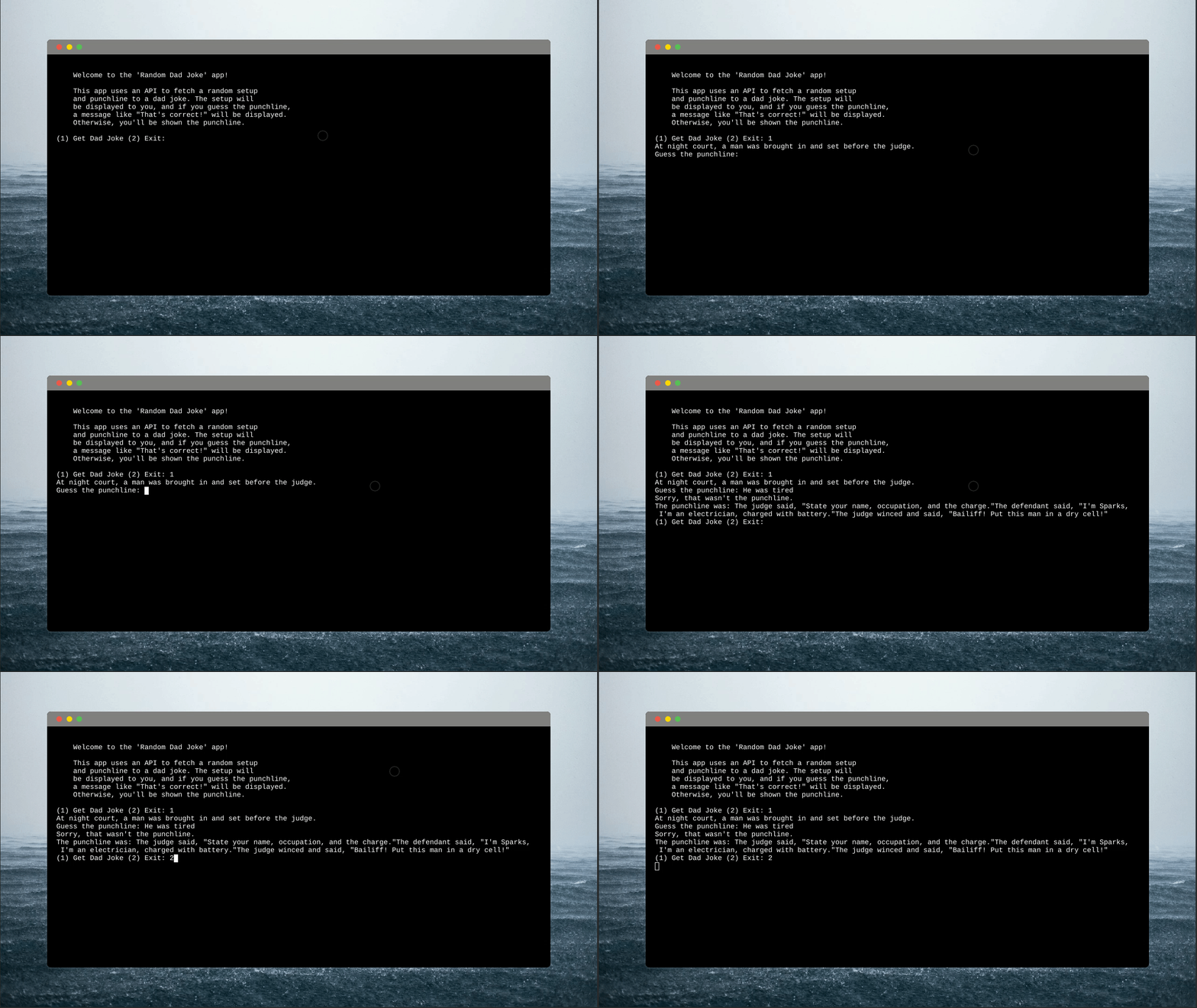
Download the project files and open main.py to view the completed project.
Now, you’re ready with a great dad joke in every situation.
Download 1-Week Python Lesson Plans
Kds ages 11-13 can start learning Python in a structured way. Download a FREE 1-week lesson plan with activities and slides. Enter your name and email to receive the free lesson plans in your inbox today.
If you want to build games and apps in Python, join CodeWizardsHQ’s live coding classes for kids. It’s the most fun and effective way for kids to learn Python and advance to a real-world coding internship.
Students in our middle school and high school core track start by learning fundamental coding concepts in Python. They work with a live, expert instructor who supports them every step of the way. Classes are engaging and you’ll build personalized projects and applications in every lesson.
No matter how you do it, we encourage you to keep practicing your Python!

